Projects and the project folder
A project is one world and the works made in it, stored as one folder on your computer. Everything the crew makes for the project, from the novel to the final video, is a file in that folder.
A project in the console
The project you work on is the one shown next to Project in the console's top bar. Click it to open the Project dialog, where you can switch projects, create a new one or import one from a zip.
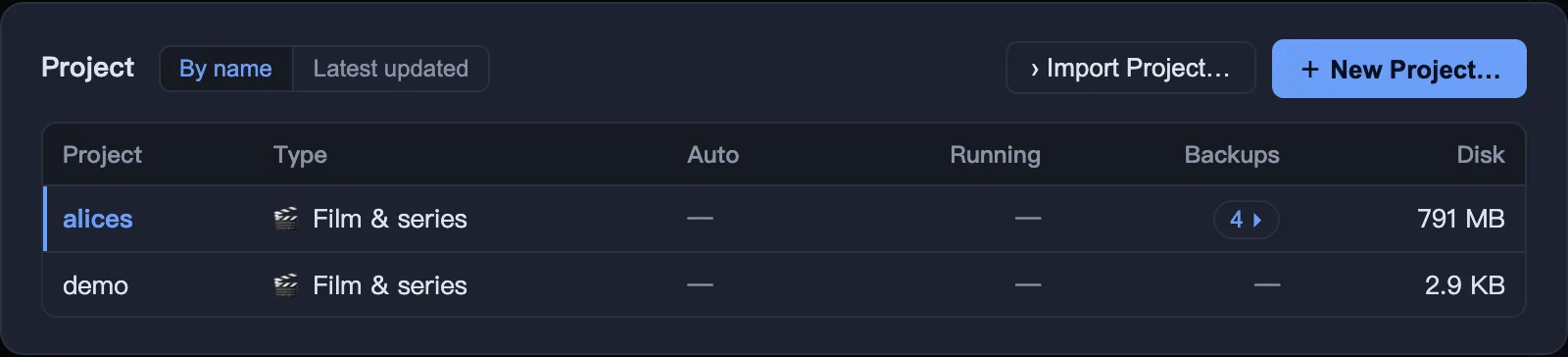
Each project has its own:
- Type, chosen when you create it. It can't be changed later. See Choose a project type.
- Agent chats. Every agent keeps a separate chat history for each project.
- Settings under the 🎛️ project settings menu.
- Auto-run switch (🤖 in the Run Panel).
- Workflow, with its own tasks and sign-offs.
Settings under the ⚙️ menu, such as Generation Models, plugins and the interface language, apply to all projects.
| 🎛️ Project settings (this project only) | ⚙️ Global settings (all projects) |
|---|---|
| Version History, Creative Brief, Video Rhythm, Output Settings, Model Limits, Project skills, Review Settings, Music library, Defects | Generation Models, Storage & Image Libraries, Auto-Run, Resource Usage, Plugins, Advanced, UI Language, Account (desktop app) |
Where the folder is
- Desktop app: in the app's own data folder.
- From source: in
data/projects/<project name>/inside the repository.
The quickest way to open it is the folder button in the console's top bar, which opens the current project's folder in Finder or Explorer.
What is in the folder
| Folder or file | What it holds |
|---|---|
novel/ | The source text, split into chapter files |
refs/ | Your reference material: style, character, scene, creature and prop images, 3D models, music, video, cover examples, fonts, text and other files, with your notes in NOTES.md |
brief.md | Your creative brief: content positioning, visual style and narrative rhythm |
settings.json | The project's settings from the 🎛️ menus |
story/ | The structured story, events, timeline, episode plan, and per episode the screenplay, dialogue, narration, hooks, pacing and script breakdown |
bible/ | The world bible: world, timeline, geography, culture, characters, creatures, scenes, props, costumes, style, colour script, and the changelog |
directing/ | Per episode: the director's plan, storyboard, shot list, continuity plan and per-shot camera, composition and blocking |
assets/ | Generated media and their records: concept art, prompts, keyframes, group videos, sketches, Canvas versions, voices, music and sound |
edit/ | Per episode: timeline, rough cut, subtitles, captions, intro and outro, thumbnail and the final video |
qa/ | QA reports and defect tickets |
publish/ | Packages, SEO text and metadata for each platform |
code/ | One-off scripts the agents wrote for this project |
runs/ | Work orders, scores, logs and the workflow state |
The full layout, file by file, is in Project folder.
Working with the files
You can open any file to read it. A few are meant for you to change, and most have a page in the console that does it for you:
- Reference material: use the Reference Files page rather than copying files into
refs/by hand. It sorts files into the right folder and writes your notes torefs/NOTES.md, which the design and music agents read first. See Reference files. - The novel: paste it in the New Project wizard, or put text files in
novel/. - The brief and settings: use 🎛️ → Creative Brief and the other 🎛️ dialogs.
- Everything the agents made: ask for changes with the ✏️ Edit buttons on the preview pages. The Reviser makes the change in the right format and records it.
- The workflow: use ✏️ Edit on the Workflow Preview page to ask the Workflow Orchestrator to change it, rather than editing
runs/dag.jsonyourself.
The agents name every file they write with English letters, digits, -, _ and . only, because other characters break video tools and download links. Your own files in novel/ and refs/ can have any name; agents rename them before use when needed.
Copies, backups and moving
| To | Do this |
|---|---|
| Try something without risking the project | 🎛️ → Version History → 📋 Copy Project. The copy appears under its source in the Project dialog's Backups column. |
| Keep a backup at every sign-off | Turn on 💾 Auto backup on the Version History page. Each sign-off zips the project into a folder you choose. |
| Move a project to another computer | Zip the project folder, then use › Import Project… on the other computer. Chat histories are not in the folder, so they don't move with it. |
| Delete a project | 🎛️ → Version History. See Copy and delete projects. |
VideoAgents also takes automatic snapshots of a project before agents work on it. See Files, runs and versions.