Model limits
Video models differ in how long one clip can be and how many reference images, videos and audio clips they accept. Model Limits tells the storyboard and prompt agents those limits, so each shot group they plan can actually be generated by your model. It also sets which prompt skill the Prompt Engineer uses.
You set the limits in the New project wizard. Change them in 🎛️ → Model Limits, then click OK. They apply to the current project, for tasks dispatched after you save.
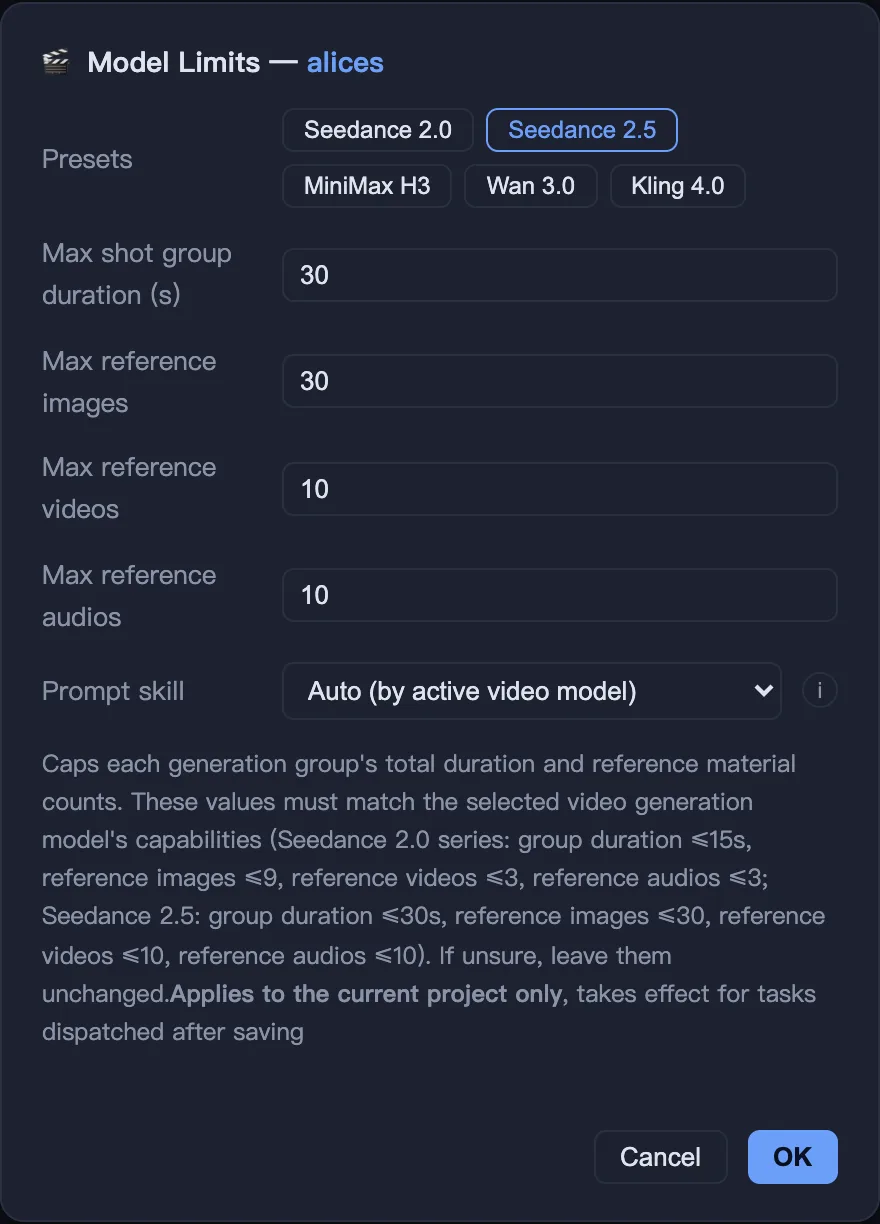
Presets
Click the preset for the video model you use. It fills in the four limits:
| Preset | Max group duration | Reference images | Reference videos | Reference audios |
|---|---|---|---|---|
| Seedance 2.0 (incl. fast and mini) | 15 s | 9 | 3 | 3 |
| Seedance 2.5 | 30 s | 30 | 10 | 10 |
| MiniMax H3 | 15 s | 9 | 3 | 3 |
| Wan 3.0 | 30 s | 10 | 5 | 5 |
| Kling 4.0 | 30 s | 10 | 5 | 0 |
The highlighted preset is the one you picked. If you edit a number so that it no longer matches, the highlight goes away.
In the wizard, the preset that matches the video model active on the Generation Models page is selected for you. If your choice differs from that model, a yellow note warns you. If the active model matches no preset, the wizard fills in MiniMax H3 values and asks you to check them.
Fields
| Field | Range | Default when unset | What it limits |
|---|---|---|---|
| Max shot group duration (s) | 4–30 | 15 | Total length of one generation group: the shots generated together in one video call |
| Max reference images | 0–30 | 9 | Reference images passed to one group's video call |
| Max reference videos | 0–10 | 3 | Reference video clips passed to one group, such as whitebox camera videos |
| Max reference audios | 0–10 | 3 | Reference audio clips passed to one group |
TIP
The values must match what your video model can do. If you are not sure, keep the preset values.
When you switch to another video model on the Generation Models page, come back here and pick the matching preset.
Prompt skill
The Prompt skill menu chooses the official prompt-writing skill the Prompt Engineer must apply to group video prompts:
| Option | What it does |
|---|---|
| Auto (by active video model) | Follows the model that actually runs video generation: Seedance 2.5 → sd25-pe, Seedance 2.0 family → sd20-pe, MiniMax H3 → h3-pe, Wan 3.0 → wan3-pe, Kling 4.0 (Fal) → kling4-pe. Shows Auto (no skill matches the active video model) when none fits. |
| A skill name | Always use this skill. Disabled skills are marked (Disabled). |
| Skip (no skill) | Write prompts without a prompt skill |
A yellow note under the menu warns you when the choice does not fit the active model. The setting is confirmed again and frozen when you sign off the shot list (gate H3A): the sign-off card shows the same menu. In the Run Panel, prompt tasks show the skill in effect as 🧰 skill-name.
See Video prompts and prompt skills and Project skills.