3D whitebox previs
A whitebox is a grey-box 3D model of a scene, with simple coloured figures standing in for the characters. The Whitebox Staging agent stages every generation group in it: where each character stands and moves, and where the camera is and how it moves, second by second. You review the staging in 3D, answer the agent's open questions and sign it off. Each group's camera view is then exported as a video and given to the video model as a reference, so characters end up where the storyboard puts them.
Before you start
- Turn the whitebox on in 🎛️ → Output Settings → Whitebox. In the new-project wizard it is on by default only when you pick the Seedance 2.5 preset under model limits. Projects that never set it count as off. With the whitebox off, the project keeps scenes consistent with front and reverse scene plates instead; see Background plates.
- Use a video model that takes reference videos. Seedance 2.0 takes up to 3 reference videos totalling 15 seconds per group, Seedance 2.5 up to 10 totalling 30 seconds. On ComfyUI and RunningHub, only the MiniMax-H3 reference-to-video workflow takes them. See Video models.
- Set up object storage if you generate with Volcano Engine (Ark) or MiniMax: they only accept reference videos at a public URL. See Object storage and stock libraries.
The whitebox is modelled, rendered and exported on your computer, with no image or video model involved. The desktop app includes what rendering needs; when you run from source, install Playwright with Chromium and FFmpeg.
How it works
| Step | Who | What happens |
|---|---|---|
| 1. Scene model | Scene Modeling agent | Builds a measured whitebox of each scene the episode uses, from the scene's top-down layout. It is saved in bible/scenes/<SCN-ID>/whitebox.json and reused by later episodes. See 3D sets. |
| 2. Staging | Whitebox Staging agent | After the shot list, blocking, camera moves and continuity plan are done, writes a numeric timeline for every group (directing/<ep>/whitebox_plans/<grp>.json) and compiles it for preview. Anything it is unsure about becomes an open decision. |
| 3. Self-check | Whitebox Staging agent | Renders a contact sheet of still frames per changed group and checks that subjects are in frame, not hidden by walls or props, facing the right way and at the right shot size. |
| 4. Preview reel | Whitebox Staging agent | Renders the episode's whitebox reel from preview copies of the group videos, so you can watch the whole episode before signing. |
| 5. Review | You | Watch the groups, answer open decisions, send changes. |
| 6. Sign-off (H3W) | You | Approve the episode's whitebox. |
| 7. Export | Whitebox Staging agent | Saves each group's camera view as assets/whitebox/<ep>/<grp>/camera.mp4 and attaches it to the group's prompt. Background plates are made next. |
The self-check runs when Whitebox self-check is on in ⚙️ → Advanced → Agent Advanced Settings (on by default). It adds about a dozen seconds per group and one image read for the agent. Turn it off to keep only the numeric checks.
Review a group in Storyboard preview
With the whitebox on, every group card on the Storyboard preview page has a 3D blockout panel on the right. It builds when you scroll to it.
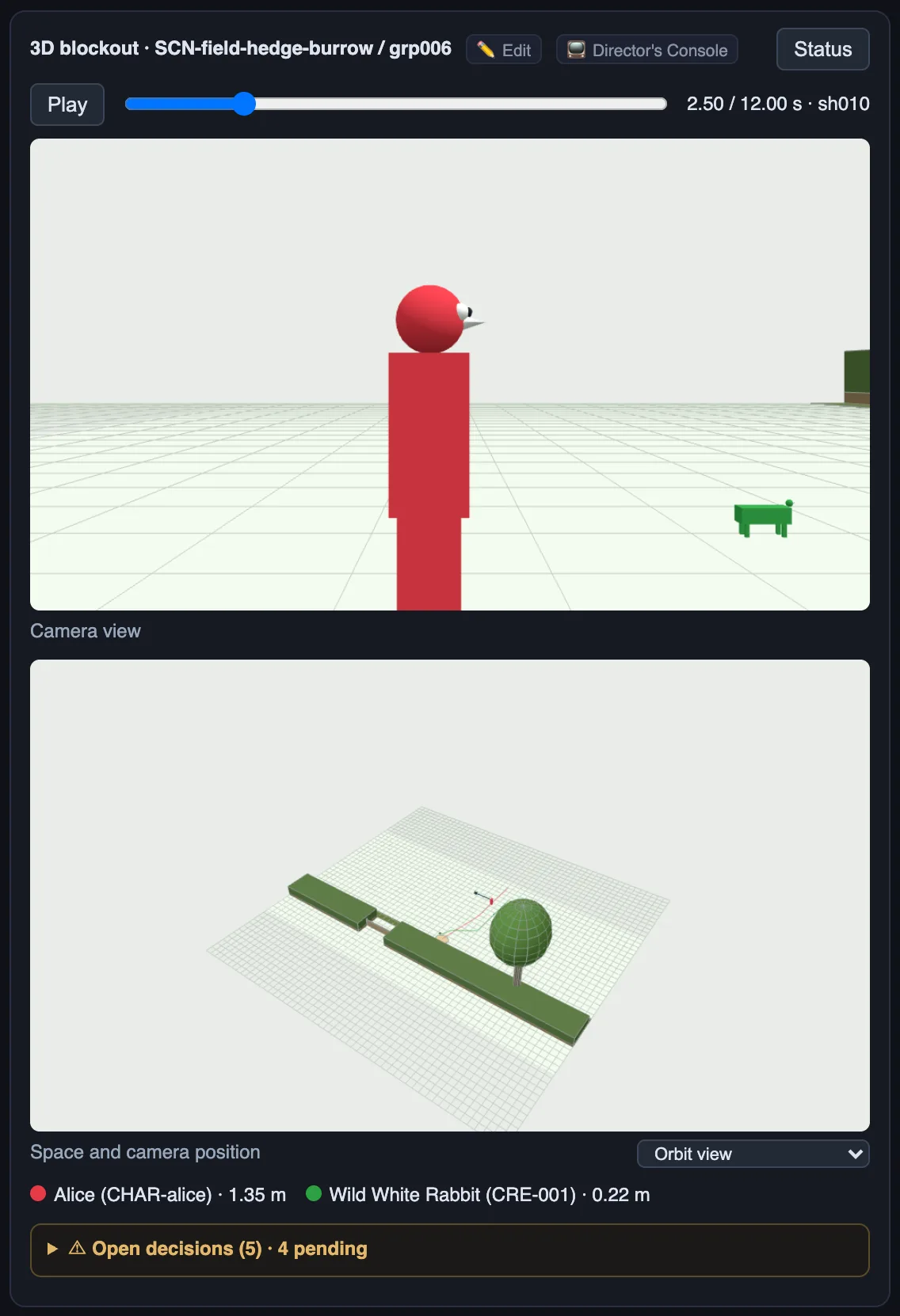
| Part | What it does |
|---|---|
| Play and the slider | Play the group or drag to any moment. The time and the current shot are shown on the right. |
| Camera view | Exactly what the camera frames, in the project's aspect ratio. This is what gets exported. |
| Space and camera position | The whole set with the figures, their paths and the camera. Orbit view lets you drag to rotate and scroll to zoom. Scene top-down image lays the scene's top-down picture on the floor instead of grey boxes, to check that background plates face the right way. |
| Colour legend | Each figure's colour, name, ID and height. A figure's eyes and nose show where it faces. |
| ✏️ Edit | Send a change for this group to the Whitebox Staging agent. |
| 📺 Director's Console | Open this group in the Director's Console, a large workspace for the same whitebox. |
| Status | Whether the scene model, staging plan, preview file and reference video exist. |
Each shot in the card also has a 📍 button that moves the panel to the start of that shot without playing.
A group the agent hasn't staged yet shows This group has not been through whitebox staging yet; there is no whitebox to review. View auto-inferred draft (reference only, revisions not accepted) shows a rough version the system guesses from the storyboard and blocking, with a watermark. You can't send changes on a draft, because the real staging rewrites the whole group.
Answer open decisions
When the agent can't tell which way to go (a character's facing contradicts the text, a wall blocks the camera, an action doesn't fit the shot's length, a prop model is missing, two sources disagree), it stages the group with a provisional choice and lists the question under ⚠ Open decisions at the bottom of the panel. The count shows how many are still pending.
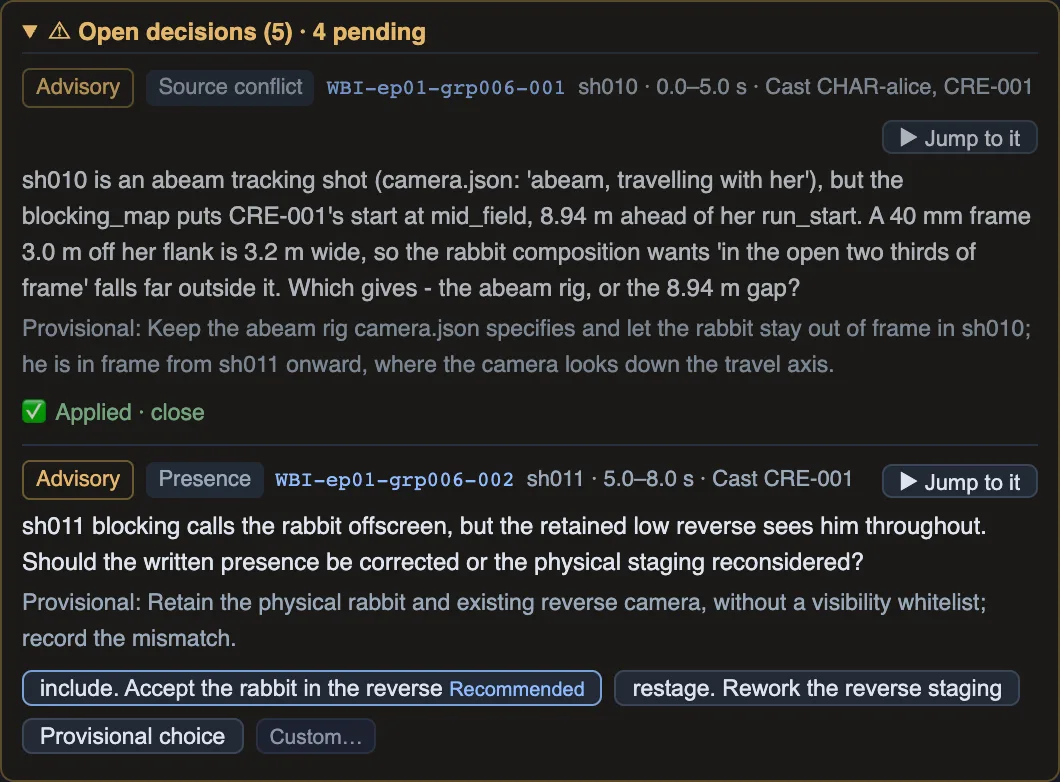
Each decision shows:
- Advisory or Blocking, the kind (Facing, Occlusion, Timing, Presence, Source conflict, Model gap, Missing info, Continuity, Other), its ID, and the shots, time range and cast involved.
- ▶ Jump to it to move the panel to the moment in question.
- The question, and Provisional: what the whitebox does right now.
- The options. The agent's pick is marked Recommended. Provisional choice keeps what is there. Custom… opens the edit popup so you can describe your own decision to the Whitebox Staging agent.
When you have picked options, click 🔄 Apply n decision(s) and recompile to send them to the agent, which changes the plan and its source files and recompiles. Answers are saved in directing/<ep>/whitebox/decisions.json. A decision then shows ✅ Applied, or Chose "…" while it waits. If the agent rewrites a question after you answered, your answer shows Answer expired (the question changed), please choose again.
A Blocking decision has no reasonable default, so the whitebox can't be signed off until it is answered. You can also answer many decisions at once in the Director's Console.
Watch the whitebox reel
The 🧊 Whitebox reel section at the top of the Storyboard preview page plays the whole episode from the whitebox cameras, with dialogue and narration as subtitles.
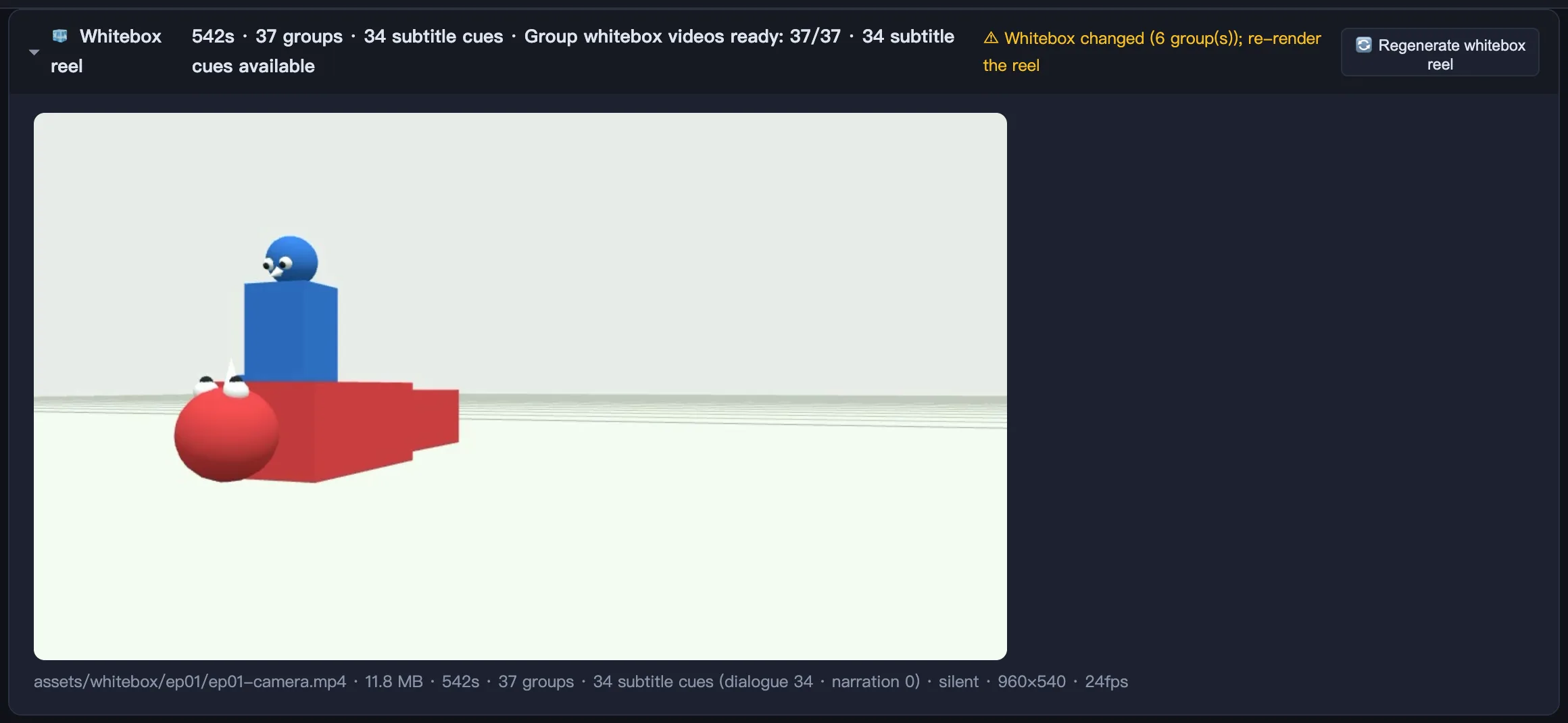
The heading counts the groups and subtitle cues and warns when the reel no longer matches the whitebox (for example ⚠ Whitebox changed (6 group(s)); re-render the reel). 🔄 Regenerate whitebox reel sends the job to the Whitebox Staging agent. Before sign-off the reel is built from preview copies rendered on your computer; it costs nothing. The reel is saved as assets/whitebox/<ep>/<ep>-camera.mp4.
Sign off the whitebox (H3W)
Once the episode's staging is delivered, the Workflow Orchestrator creates the H3W sign-off card. Answer it in the console, or with ✅ Sign off in the Director's Console top bar.
- Signing is refused while a group has only an auto-inferred draft, a group fails to compile, or a blocking decision is unanswered. The dialog says why.
- Signing accepts the recommended option (or the provisional choice) for every advisory decision you didn't answer. This is recorded, and applying those answers doesn't ask you to sign again.
- After signing, the agent exports each group's camera video. Groups whose preview copy is still current are moved into place without rendering again.
If the whitebox changes after you signed in a way that changes the picture (a later decision, a Director's Console edit, a revision), the episode needs to be signed off again, the affected groups exported again, and their background plates redone. A check before video generation stops any group whose attached whitebox video no longer matches the current whitebox, until that group is exported again.
See Sign-off gates.
What the video model gets
After export, each group's prompt gets:
- The group's
camera.mp4as its first reference video, within the video model's limit on reference videos. - A Whitebox reference paragraph explaining that the video sets the camera, the framing, where each figure stands and faces, depth and timing.
- A Whitebox legend listing each colour and the character it stands for, only for figures that actually appear in the camera view.
- A line per shot saying how each character faces the camera at the start of the shot.
- An instruction not to copy the grey-box look.
You can see and manage a group's reference videos with 🎬 Video on its card in Storyboard preview. Shot background plates provide the scene's real look; see Background plates.
Good to know
- Characters, creatures and mounts each keep one colour for the whole episode, so a colour always means the same figure.
- A change to a scene's model makes the videos of every group in that scene out of date; the Scene Modeling agent recompiles the groups that use it.
- To change staging yourself, with notes per object or by dragging figures and the camera, use the Director's Console.