Director's Console
The 📺 Director's Console is a full-window workspace on an episode's 3D whitebox. You watch each shot group from any angle, check framing with lens data and guides, write notes on a single character, prop or camera at a given moment, answer the staging agent's questions, and send it all back as one batch. Each batch gives the group a new version. You can also drag figures and the camera yourself.
Before you start
- The project has the whitebox on, and the Whitebox Staging agent has staged the episode. See 3D whitebox previs.
- Groups the agent hasn't staged yet are marked Not staged and show an auto-inferred draft that you can only look at: notes, approval, editing and versions are disabled for them.
- Motion-graphics projects have no whitebox, so the console is hidden there.
Open the console
- Click the 📺 Director's Console icon in the console's top bar, or pick 📺 Director's Console from the page menu at the top right of any preview page.
- Or click 📺 Director's Console on a group's 3D blockout panel in Storyboard preview. The console opens on that group at the panel's current time.
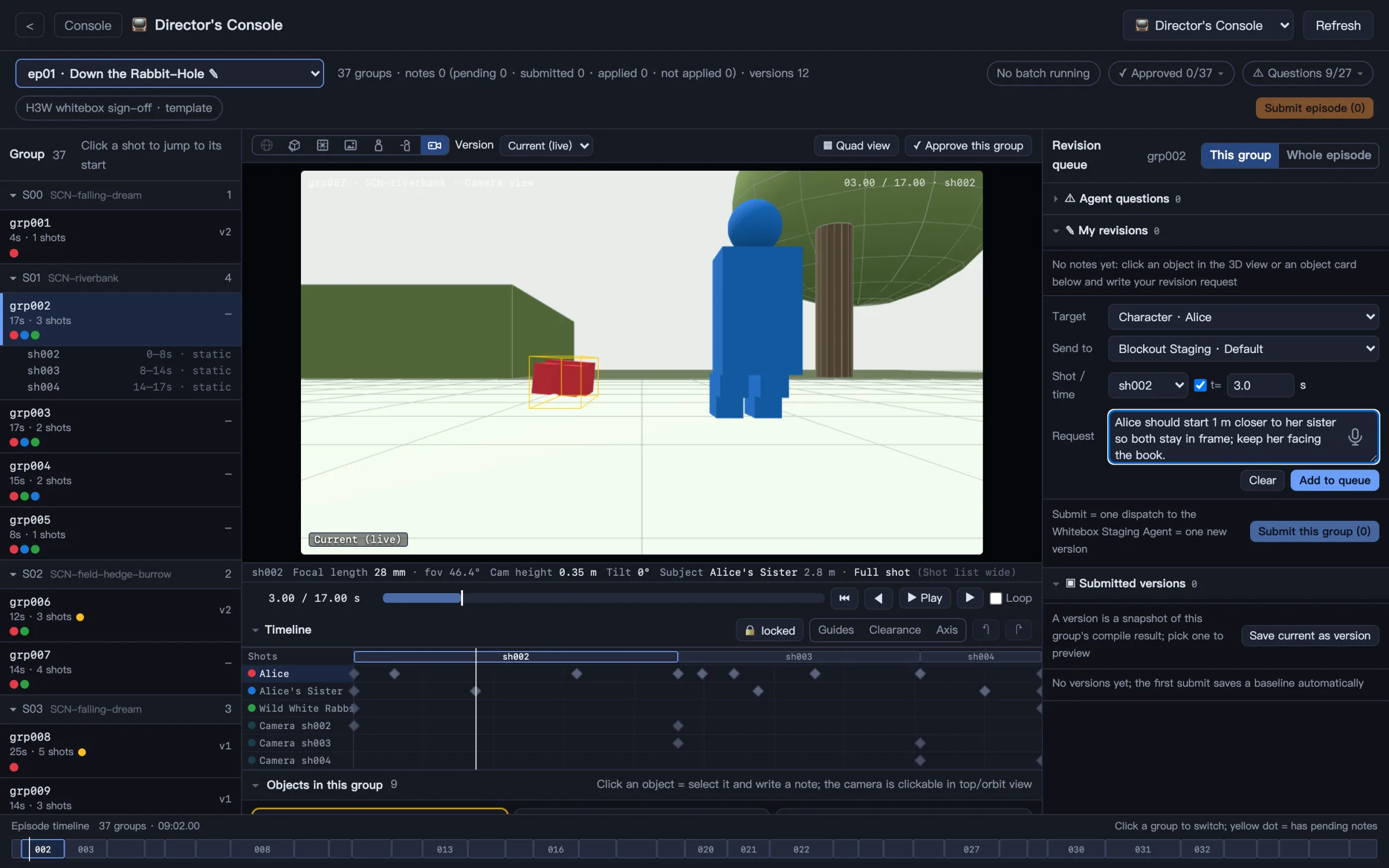
| Area | What is there |
|---|---|
| Top bar | The episode menu; counts of groups, notes and versions; the batch status; ✓ Approved n/N and ⚠ Questions a/N menus; the H3W whitebox sign-off pill; Submit episode (n) |
| Left | Scenes, their groups and each group's shots. A group shows its length, shot count, latest version, coloured dots for its cast, a yellow dot when it has pending notes, and ✓ when approved. Click a shot to jump to its start. |
| Middle | The viewport, the lens data bar, playback, the Timeline, Objects in this group and Shot info |
| Right | The Revision queue: ⚠ Agent questions, ✎ My revisions and ▣ Submitted versions |
| Bottom | The Episode timeline: every group as a block. Click one to switch to it. |
Look at the whitebox
Views
The icons above the viewport switch the view:
| View | Use it to |
|---|---|
| World-model view | See the figures inside the scene's world model. Available only when the scene has one; see World models. |
| Orbit view | Drag to look around the set |
| Top view | See positions and paths from above |
| Real-scene view | See the scene's top-down picture on the floor, to compare with the background plates |
| Front view, Side view | Check heights and distances without perspective |
| Camera view | See exactly what the shot's camera frames. This is what gets exported. |
Playback
▶ Play (Space), ◀ and ▶ to step one frame (← and →), ⏮ to go back to the start (Home), and Loop. Click the time bar or a shot to jump. The Timeline shows the shots as segments and one lane per object, with a diamond for each keyframe.
Lens data and overlays
The bar under the viewport shows the current shot's focal length (worked out from the field of view), camera height and tilt, the nearest subject with its distance, and the shot size that distance gives, next to the size the shot list asks for (for example Full shot (Shot list wide)).
| Overlay | What it shows |
|---|---|
| Guides | Thirds, a centre cross and the action-safe frame, in the camera view |
| Clearance | A circle around each person plus 0.2 m of space. Overlaps turn red, and the object list says who is too close to whom. |
| Axis | The 180° line between the shot's two main characters and which side the camera is on. A shot that switches sides from the previous one is flagged Crosses the line vs. previous shot. |
Quad view
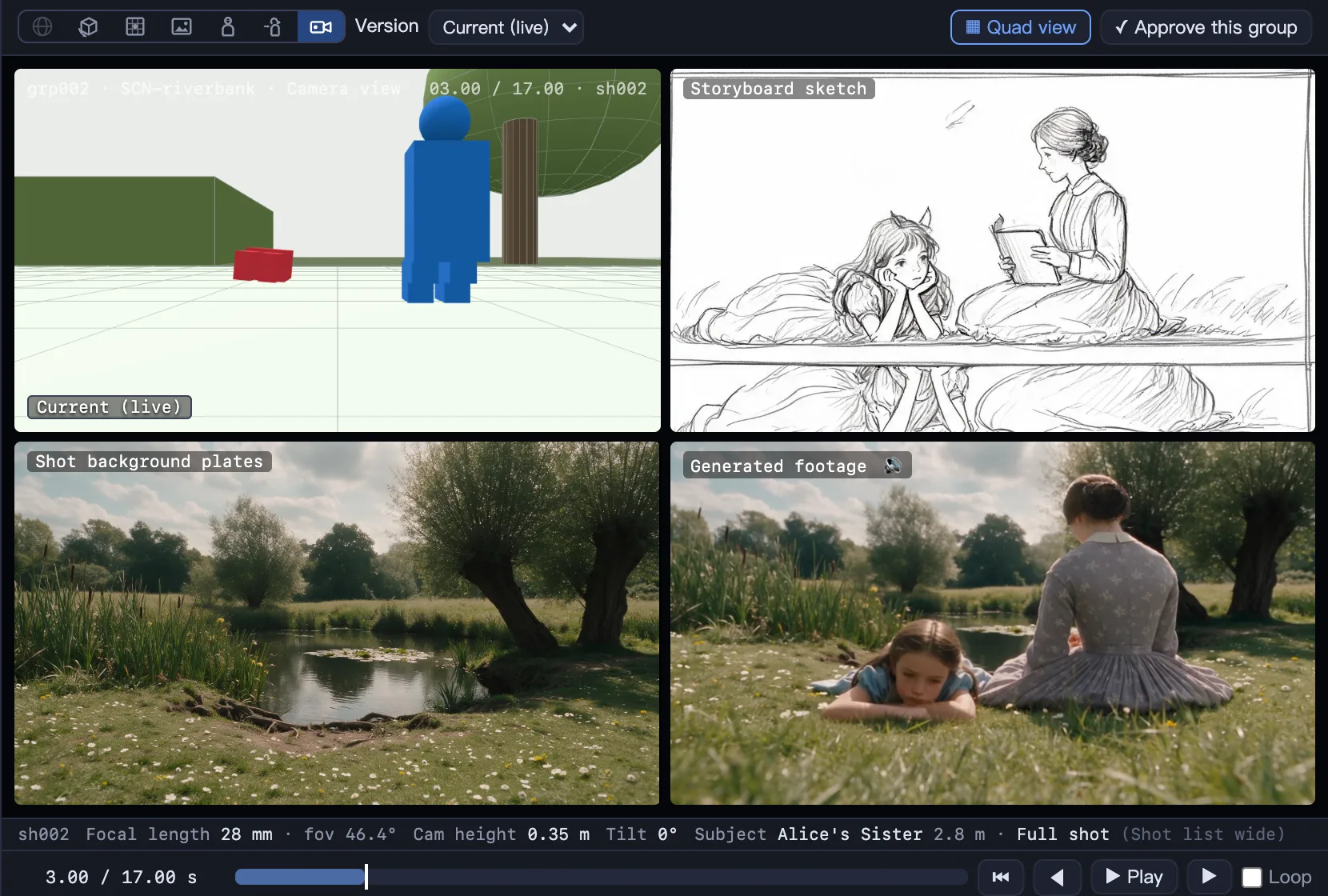
▦ Quad view splits the viewport into four pictures that follow the same playhead: the whitebox camera, the Storyboard sketch, the Shot background plates, and the Generated footage for the group, once it exists (🔊 turns its sound on or off).
Objects and shot info
Objects in this group lists every character, extra, prop, camera and the scene itself, with each one's state at the playhead: In frame, Off frame, Exited / not yet entered or Hidden by shot list. Characters who are in the scene but not in this group are greyed out. Shot info shows the current shot's storyboard data and the agent's Modeling basis and checks.
Write notes
- Click an object in the 3D view or its card under Objects in this group. It is outlined in yellow and filled in as the Target. Cameras can be clicked in the top and orbit views. Clicking a group or shot in the left column targets the whole group or that shot's camera.
- Check Send to. Notes go to Blockout Staging (the Whitebox Staging agent) by default. You can send a note to Scene Modeling, Clips (shot planning), Prompts or the Reviser instead.
- Under Shot / time, pick a shot or leave it for any shot. With t= ticked, the note records the current time.
- Write the Request, for example "Alice starts 1 m closer to her sister so both stay in frame".
- Click Add to queue.
The note is a draft until you submit it. You can still change or delete it.
Answer the agent's questions
⚠ Agent questions lists the group's open decisions, the same ones as on the 3D blockout panel: the question, ▶ Jump to it, the provisional choice and the options, with the agent's pick marked Recommended. Choose an option for each. Your choices are applied when you submit.
To answer every question in the episode at once, open ⚠ Questions a/N in the top bar and click Pick recommended for all. Questions without a recommended option get the provisional choice, and those with neither are left for you. Answers you already gave are kept.
Submit a batch
At the top of the revision queue, choose This group or Whole episode. The submit button counts everything pending: draft notes, answered questions and direct 3D edits.
- Submit this group (n) sends the current group.
- Submit episode (n) in the top bar, or the queue's button with Whole episode selected, sends every group's pending items at once.
Items are split into one batch per department. The Blockout Staging batch carries the notes, the answered questions and any direct edits; the agent changes the plan and its source files, recompiles, and reports on each note. When the run ends the console saves a new version of the group, and the notes are marked applied. If the whitebox didn't change, they are marked failed. Batches for other departments are marked applied when their run ends, based on the agent's report.
A group can only have one batch running at a time. When the new version is ready the console says so and, if you are watching Current (live), reloads it.
Compare versions
A version is a snapshot of the group's compiled whitebox. The console saves v1 · Pre-submit baseline before your first submit and a new version after each batch. Click Save current as version to take one yourself.
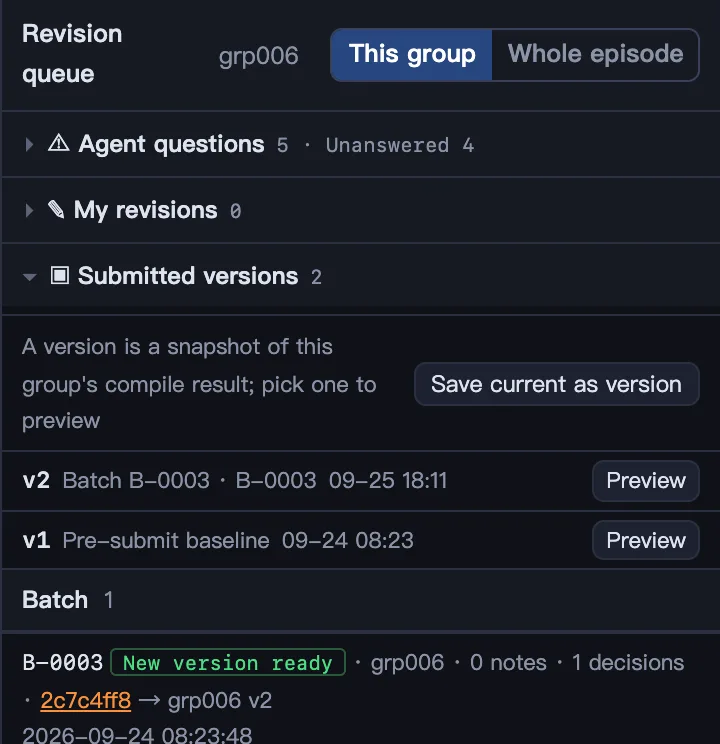
Pick a version in the Version menu above the viewport, or click Preview next to it, to play that snapshot. Switch between it and Current (live) to compare. Versions are not rendered to video and are separate from the exported whitebox videos.
Approve groups and sign off
- ✓ Approve this group marks a group as reviewed (✓ in the left column). If its whitebox changes later, the approval shows as out of date.
- Approving also accepts the group's unanswered questions as the whitebox stands, so they no longer hold up sign-off. Answers you picked but haven't submitted give way to the approval, so pick and submit first if you want the recommended options carried out.
- ✓ Approved n/N in the top bar opens Approve all, which approves every staged group that isn't approved yet. Groups with only an auto-inferred draft are skipped.
- When the H3W card is waiting, the top bar shows ✅ Sign off and ⏸ Hold; your answer takes a second click to confirm. It answers the same card as the console's sign-off dialog. Signing is refused while a blocking question is unanswered. See 3D whitebox previs.
Edit the whitebox directly
For a quick fix you can move things yourself instead of writing a note.
- Switch to Current (live) and click 🔒 locked under the viewport. It changes to 🔓 Editing.
- Drag characters, extras, props, the camera body or the camera's aim point in the orbit, top, real-scene, front or side view.
| Tool or key | What it does |
|---|---|
| Dolly G | Move the selected object (G). Hold Shift to change its height; the top view can't change height. |
| Rotate R | Turn the selected object (R) |
| Measure M | Click two objects or floor points to see the distance; a third click starts again |
| 📍 Marks | Put a floor mark at the selected object's position. While dragging, objects snap to a mark within 0.35 m. |
| Snap 0.1 m / 15° | Snap moves and turns |
| ↶ / ↷ | Undo and redo (Ctrl+Z, Ctrl+Shift+Z) |
| L | Lock or unlock the selected object |
| Camera view | Drag to turn the camera; W A S D and Q E move it (0.25 m steps, 1 m with Shift) |
- An object that moves during the group gets a keyframe at the playhead. An object that never moves (a fixed camera, a person standing still) moves as a whole.
- A selected character shows its path. Drag a point to move that keyframe, click the line to add one, and press Delete to remove one (not the first or last). Labels show each point's time and speed; speeds over 4 m/s are yellow.
- Drag the diamonds in the Timeline to retime keyframes, or type exact X, Y, Z and facing values.
Every change is saved at once in an override layer on top of the agent's plan, and the episode is recompiled, so Storyboard preview and the next export use it straight away. Edited objects are marked, and the bar shows n objects not yet baked. You can discard a group's changes or revert one object. When you submit, the edits go to the Whitebox Staging agent, which writes the exact values into its plan and source files; objects that now match are removed from the override layer.
WARNING
A direct edit changes the whitebox right away. After the H3W sign-off, that makes the exported whitebox video out of date: the episode needs signing off again, and the group's video and background plates need to be redone.
Where the files are
Notes, batches, approvals, versions, overrides and floor marks are kept in directing/<ep>/whitebox/director/. They belong to the console; agents read them but don't edit them.