Live generation
The 📡 Live page runs a continuous stream outside your projects. You give it reference images and a prompt; it asks a video model for one short clip after another, starts each clip from the end of the previous one, and plays the clips back to back. Use it for an always-on character, a looping scene or a quick test of a model.
TIP
Live generation is available from v1.0.29. Director mode, the text-to-video option and the session menu arrived in v1.0.30, and the local ComfyUI provider in v1.0.35.
Before you start
- A Fal API key on ⚙️ → Generation Models → Video → Fal. The Live page uses the same key and model list. See Video models.
- Or a ComfyUI server set up on the same page, for the Local ComfyUI provider. See ComfyUI.
WARNING
A running stream is billed clip after clip until you stop it. Each clip usually takes one to three minutes to generate.
Open the page
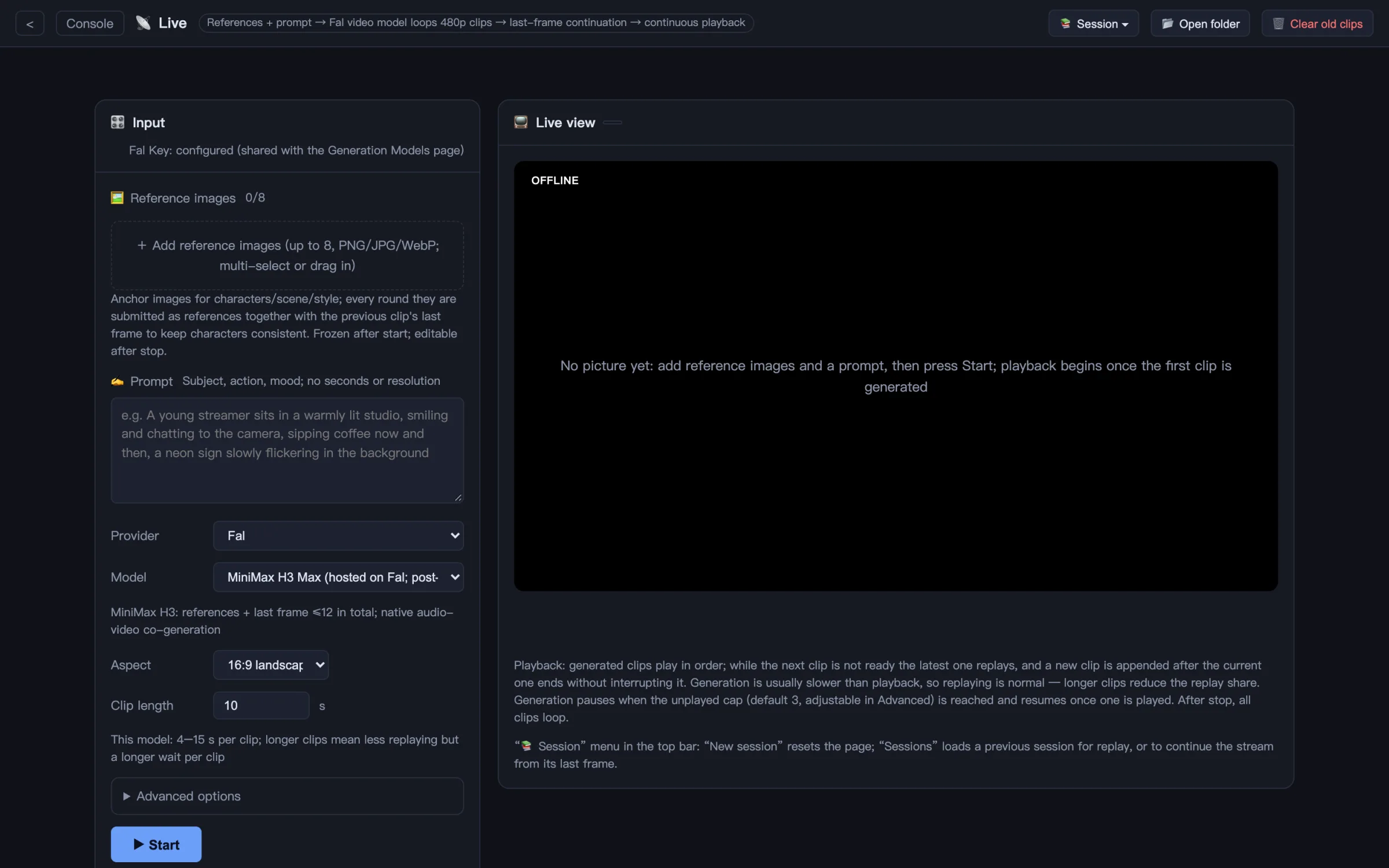
Choose ⚙️ → Advanced → Live. The line under the title in the 🎛 Input card says whether the Fal key is configured.
Start a stream
- Under 🖼 Reference images, add up to 8 images (PNG, JPG or WebP; select several or drag them in): the characters, the setting, the style. Every round they are sent together with the previous clip's last frame, to keep characters consistent.
- In ✍️ Prompt, describe the subject, action and mood. Leave out seconds and resolution.
- Pick the Provider (Fal or Local ComfyUI) and the Model. The note under the model lists what it accepts, for example how many references and which clip lengths.
- Choose the Aspect (16:9 landscape or 9:16 portrait) and the Clip length in seconds. Longer clips mean less replaying but a longer wait for each one.
- Optionally open Advanced options (below).
- Click ▶ Start. The button turns into ⏹ Stop.
Reference images are locked while the stream runs and can be changed after you stop. The prompt can be changed at any time: click ✏️ Update prompt (applies to the next clip).
With Local ComfyUI, the stream is text only: a prompt is required, reference images are not used, and continuity has to come from the prompt.
Advanced options
| Option | What it does |
|---|---|
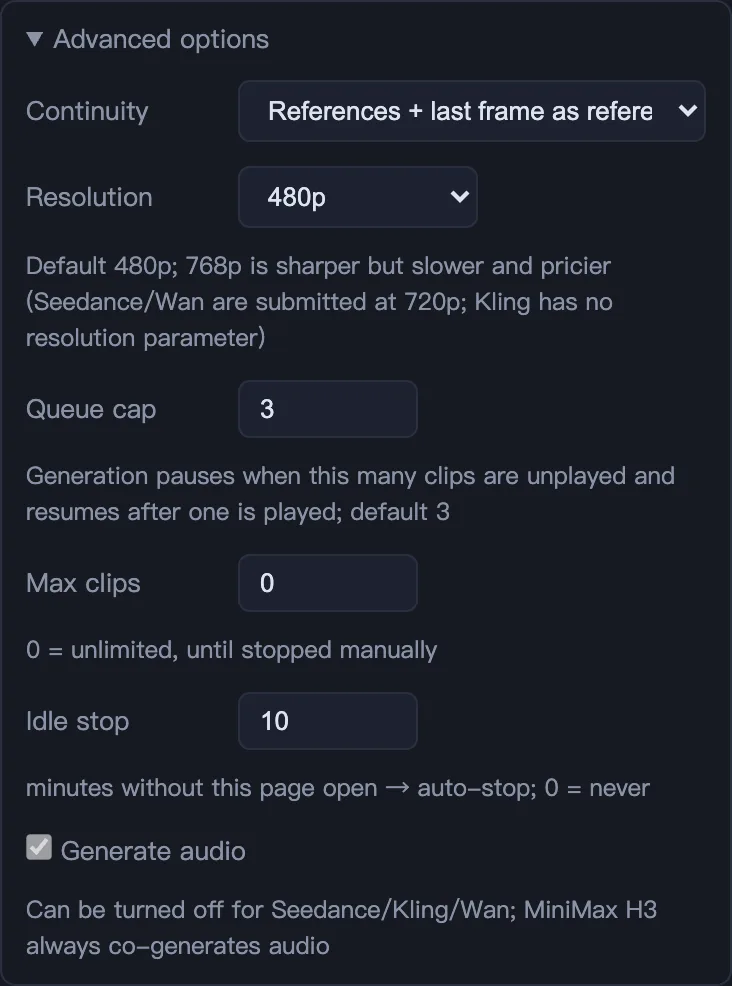
| Continuity | How clips are joined: References + last frame as references (default); Last frame as first frame (no references; smoother joins, but characters drift); No continuity (each clip from the prompt alone); Director mode (see below) |
| Resolution | 480p (default) or 768p, which is sharper but slower and costs more. Seedance and Wan are sent at 720p; Kling has no resolution setting |
| Queue cap | Generation pauses when this many clips are waiting to be played, and resumes when one is played (1–10, default 3) |
| Max clips | Stop after this many clips. 0 means no limit |
| Idle stop | Stop automatically after this many minutes with nobody watching the page (default 10). 0 means never |
| Generate audio | Seedance, Kling and Wan can generate without sound. MiniMax H3 always generates sound with the picture |
| Continue from the last frame of the previous live session | Shown when there is an earlier session to continue from |
The Continuity choices follow the selected model. Kling 3.0 and MiniMax H3 Max Turbo do not accept reference images: the first round uses the first reference image as the starting frame, and every later round starts from the previous clip's last frame.
Watch the stream
The 📺 Live view starts playing once the first clip is ready. Clips play in order. While the next clip is not ready, the latest one replays; a new clip is added after the current one ends, without interrupting it. Generation is usually slower than playback, so some replaying is normal; longer clips reduce it. After you stop, all clips loop.
If the browser starts the video muted, click 🔇 Muted — click to unmute. ⏭ Latest jumps to the newest clip.
Director mode
With Continuity set to Director mode, the page uses MiniMax H3 Max Director, a real-time endpoint on Fal. Instead of generating whole clips and playing them, video and sound stream continuously into the page in chunks of about 10 seconds.
- ✏️ Update prompt (applies immediately) changes what is being generated right away.
- Memory (segments) sets how many recent prompts the model keeps as context (1–50, default 12).
- The first reference image is used as the first frame. Clip length, queue cap and max clips do not apply.
- Fal bills Director mode per second with a 60-second minimum, and limits sessions to 2 minutes unless Fal approves longer ones. Closing the page ends the session.
- The page records the stream, so the session can be replayed later or continued from its last frame.
Director mode needs a browser with WebRTC and a network that allows UDP.
Lip-sync streams
When you pick MiniMax H3 Max Lip Sync, the prompt box becomes 💬 Script: what the character says. The script is split by sentence into chunks of about the clip length (5–13 seconds). Each chunk is spoken with the TTS settings and default voice from the Generation Models page, and the speech drives the lips of the portrait. When the script runs out, the stream waits. ✏️ Update script speaks text you add at the end next; a rewritten script starts over.
Sessions and files
The 📚 Session menu in the top bar has:
- ➕ New session: clears the view, resets the prompt and settings and removes the reference images. Earlier sessions are kept.
- 📚 Sessions: lists earlier sessions with their last frame, model, settings, clip count and size. Load one to replay it or continue from its last frame, optionally restoring its prompt, model settings and reference images. You can also delete a session here. Loading and deleting are not possible while a stream runs.
📂 Open folder opens the Live data folder, data/live/ in the VideoAgents data folder. 🗑 Clear old clips deletes the clips and last frames of all stopped sessions to free disk space.
Good to know
- It is not real time: each clip takes minutes to generate, so the stream relies on replaying.
- Chaining from low-resolution last frames slowly degrades picture quality and likeness over many rounds, and sound or picture can jump at the joins.
- After repeated failures in a row, generation backs off and stops. Pressing ⏹ Stop also cancels the request in progress at Fal.