Digital human
A digital human project turns a conversation recording, such as a podcast or an interview, and one photo per speaker into a lip-synced video. The picture always shows the person who is speaking, full screen, and the soundtrack is your original recording. If you have no recording, you can write a script and clone each speaker's voice from a short sample instead.
Before you start
- An agent engine that is signed in.
- A digital-human provider set up and tested under ⚙️ → Generation Models → 🧑 Digital Human: Agentics, HeyGen, Kling AI, or ComfyUI (local, Comfy Cloud or RunningHub). See Digital human models.
- One clear photo of each speaker (
.png,.jpg,.jpegor.webp). - Either the recording (
.mp3,.wav,.flac,.m4a,.aacor.ogg), or, for cloned voices, one voice sample per speaker and a script.
Create a digital human project
Click the project name in the top bar, then + New Project….
Step 1/3 · Project type: click Digital human, then Next.
Step 2/3 · Basic info: choose the Voice source, then fill in the fields.
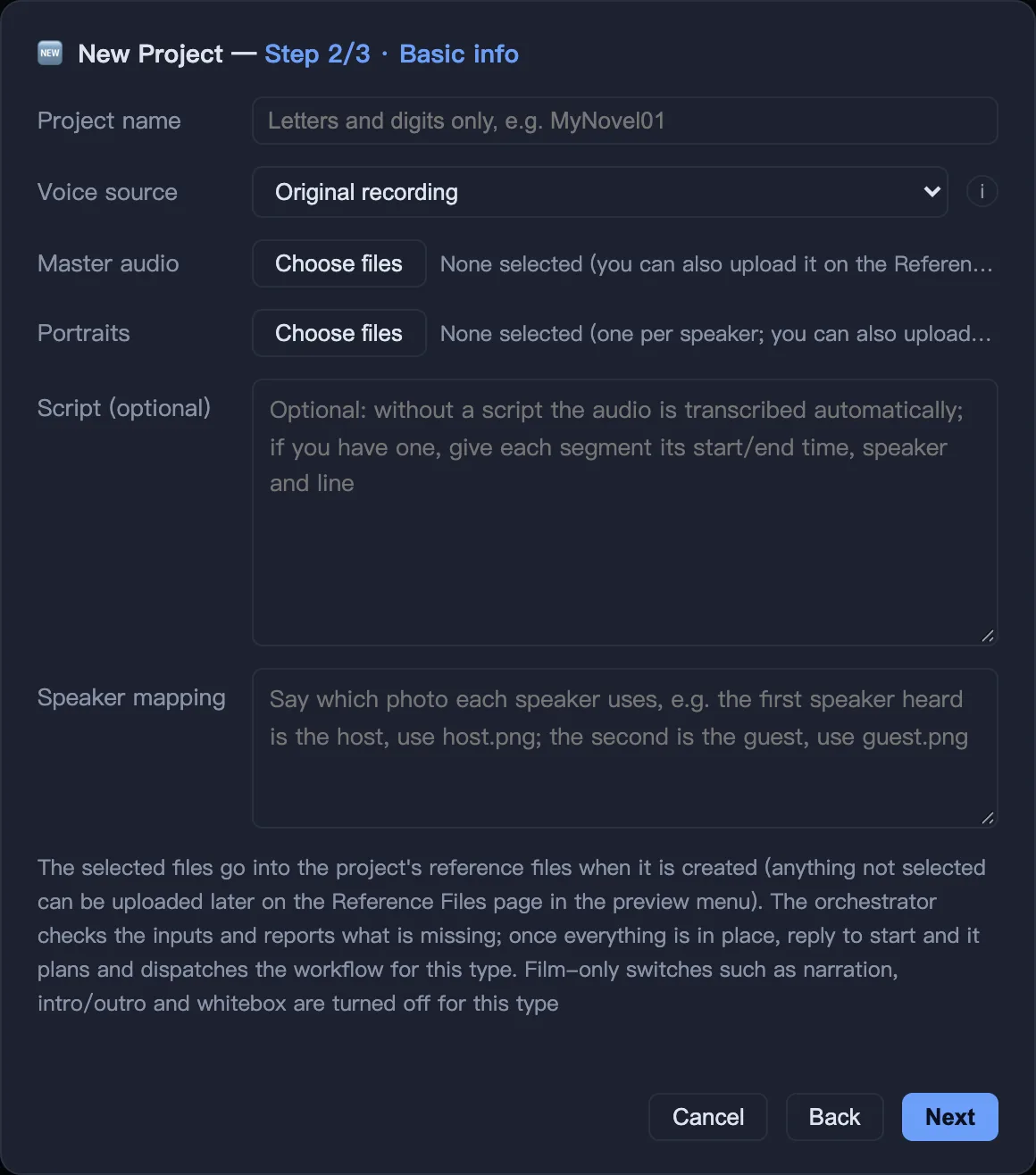
Field Original recording Cloned voices Saved to Project name Letters and digits only Same — Master audio The recorded conversation — refs/audio/Cloned voices — One sample per speaker refs/voices/Portraits One photo per speaker Same refs/characters/Script Optional, see Scripts Required: one line per sentence as Speaker: linerefs/text/transcript.txtSpeaker mapping Which photo each speaker uses Which photo and which voice sample each speaker uses brief.mdStep 3/3 · Output Settings: aspect ratio, output language, draft resolution and final-cut resolution. Click Create.
Each file can be up to 100 MB. Anything you don't pick now can be uploaded later on the 🖼 Reference Files page.
After the project is created, the Workflow Orchestrator checks your files and tells you what is missing. Reply in the chat that it can start, and it runs the digital human workflow. You can add instructions in the same message, for example: "Start. The first distinct speaker is the host, use refs/characters/host.png; the second is the guest, use refs/characters/guest.png."
Speaker mapping
Write in plain words which photo belongs to which speaker. No special file format is needed.
The host uses refs/characters/host.png; the guest uses refs/characters/guest.png.When there is no script and two people talk, also say how to tell them apart, either by the order in which they are first heard or by voice pitch:
The first distinct speaker heard is the host, using host.png; the second is the guest, using guest.png.The lower voice is the host, using host.png; the higher voice is the guest, using guest.png."First" and "second" mean the order in which each voice is first heard, not alternating lines. The workflow never guesses a speaker's gender from a photo.
Scripts
You can leave the script empty. The workflow then transcribes the recording on your computer with faster-whisper. The model is downloaded once to data/models/faster-whisper/; it uses the model selected under ⚙️ → Advanced → Voice input. With one speaker, every line goes to that speaker. With two or more, the workflow uses your speaker mapping and a light analysis of the voices to decide who speaks when. If it is not confident, it stops before any paid generation so you can check the transcript.
If you provide a script, it is used as it is and never overwritten. Give every segment its start and end time.
One speaker (names optional):
[00:00.000-00:04.200] Welcome to today's show.
[00:04.200-00:08.600] Today we talk about AI films.
Two or more speakers (time, name and line on every segment):
[00:00.000-00:03.200] Host: Welcome to today's show.
[00:03.200-00:07.850] Guest: Thanks for having me.
[00:07.850-00:11.400] Host: Let's start with digital humans.
The first segment starts at 00:00.000, each segment starts where the previous one ends with no gaps or overlaps, and the last one ends at the recording's length (within 0.05 seconds). A multi-speaker script without names or times is rejected before anything is generated.
Cloned voices
Choose Cloned voices as the voice source when you have no recording. Each line of your script is synthesised in its speaker's voice, the lines are joined into a master track with a timed transcript, and the rest of the workflow is the same as with a recording.
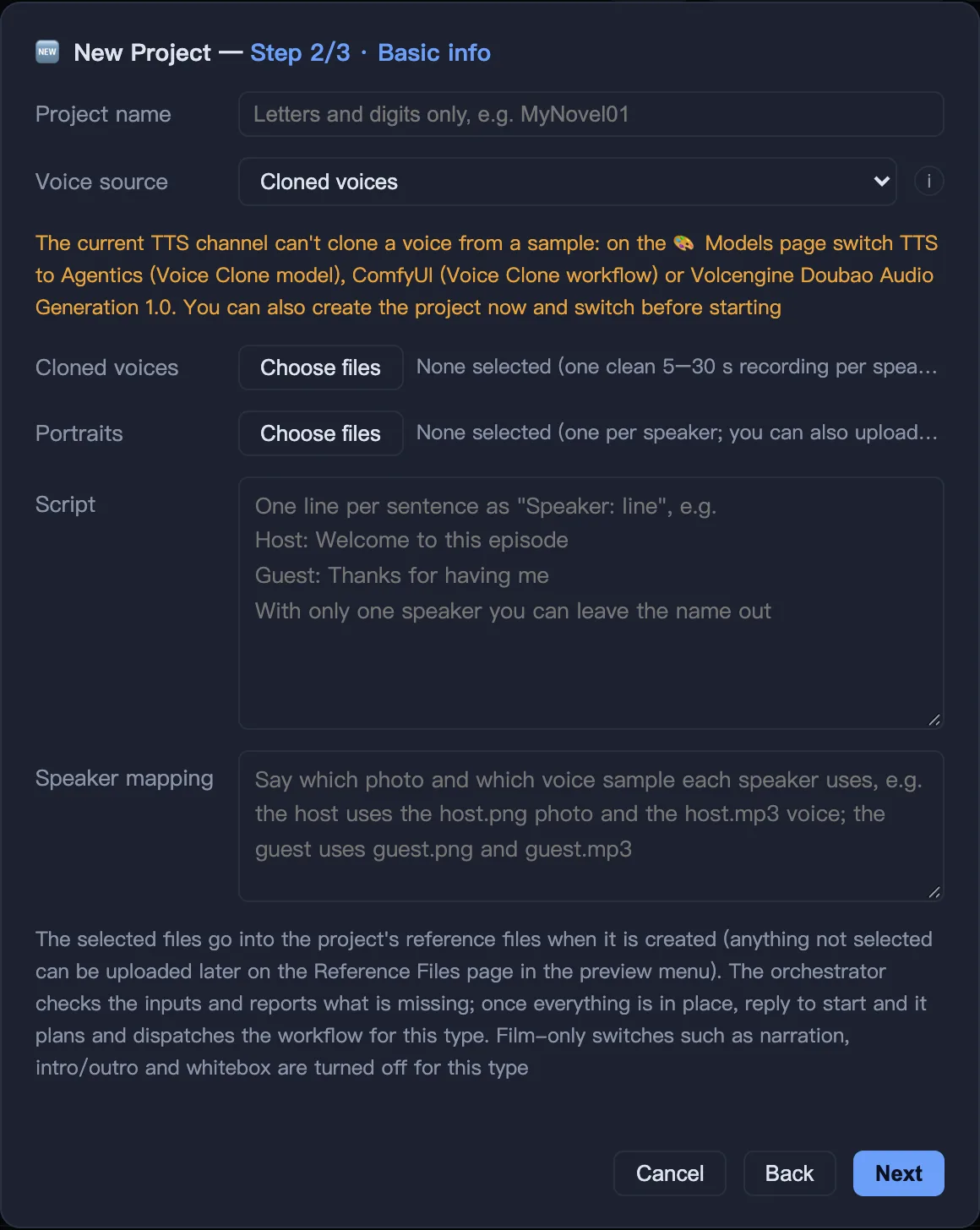
- Samples: one clean recording of 5 to 30 seconds per speaker, with only that person talking. A sample under 2 seconds is refused; one outside 5–30 seconds gets a warning.
- Script: one line per sentence as
Speaker: line. With a single speaker you can leave the name out. Blank lines and lines starting with#are ignored. - Mapping: say which photo and which sample each speaker uses. A single sample, or a sample named after its speaker, is matched automatically.
- TTS channel: only three channels can clone from a sample: Agentics with a Voice Clone model, ComfyUI with a Voice Clone workflow, and Volcengine Doubao Audio Generation 1.0. Choose one under ⚙️ → Generation Models. If the current channel can't clone, the wizard shows a yellow note; you can still create the project and switch before you start. Other channels stop with an error instead of using a similar library voice.
- Changes: when you edit the script or replace a sample, only new or changed lines are synthesised again, and the video is rebuilt from there.
WARNING
Only upload your own voice, or voices you are authorised to use.
What the workflow does
- Ingest: checks the tools, fixes the master audio and the speaker-photo mapping. Transcribes the audio if there is no script.
- Align: builds the timeline of who speaks when.
- Direct: plans one full-screen shot of the current speaker per segment.
- Generate: sends each segment to your digital-human provider as its own job.
- Edit and check: joins the clips, lays your original audio back on, and checks that the audio was neither re-encoded nor cut short.
There are no sign-off gates. A failed check sends the work back automatically; repeated failures are passed to you. The agents are in the Digital human group of the left panel, plus the Digital Human Sync QA reviewer.
The clips are saved in assets/digital-human/ep01/ and the finished video is edit/ep01/final.mp4.
Good to know
- Your audio is the soundtrack. Any audio that the provider returns is thrown away.
- Interruptions don't cost twice. Each segment's provider job is recorded, so after an interruption the workflow picks up the same job instead of paying for a new one.
- RunningHub runs one segment at a time. When RunningHub is busy, the segment waits and retries for up to 2 hours. Waiting is not a failure.
- Very short and very long lines: a line under 2 seconds shows a still of the speaker; one speaker's segment longer than 14 seconds may be split at punctuation.
- Limits of this version: automatic speaker detection works best with at most two speakers; overlapping speech, loud background music or low confidence stop it before paid generation. Only one person is on screen at a time: no two-shots, reaction shots or camera moves. No background music, noise reduction, loudness changes or intro and outro are added.
WARNING
Each segment is a paid job with your digital-human provider.
TIP
Digital human became a project type in v1.0.40; before that it was a plugin. Cloned voices arrived in the same release.