Copy and delete projects
The Version History page copies the current project into a new one, sets up automatic backups, and deletes projects. Copy a project before a big change (another video model, a different plate mode, a new style) so you can compare the two or go back.
Open Version History
Open 🎛️ → Version History. The page works on the project selected in the console's top bar; its name is shown in the page header. To work on another project, switch it in the console first.
Copy a project
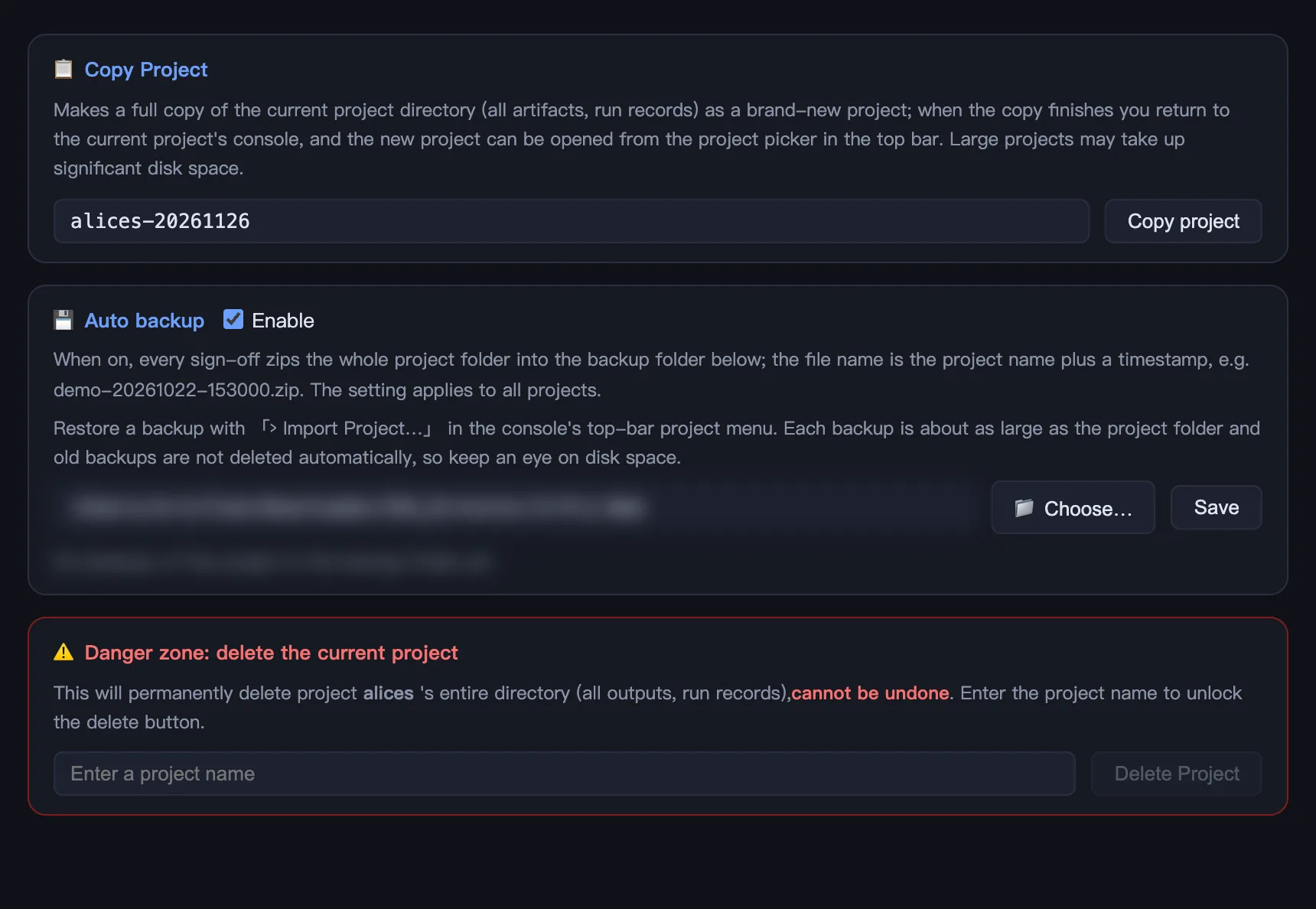
📋 Copy Project makes a full copy of the project folder, with all outputs and run records, as a new project.
- Check the name in the box. It is filled in as
<project>-<today's date>, for examplealices-20261126; if that name is taken,-1,-2and so on is added. You can type another name: letters, digits,-and_, starting with a letter or digit, at most 80 characters. - Click Copy project. The page shows the progress.
- When the copy is done, you go back to the console of the original project. Open the copy from the project list in the top bar.
Keep the suggested name pattern (<project>-<date>, optionally with your own suffix such as alices-20261126-sd25): the project list then shows the copy as a backup folded under the original. See Switch, import and export projects.
Good to know:
- The copy is independent. Changes in one project never affect the other.
- A copy takes about as much disk space as the original. The Disk column of the project list shows the sizes.
- If you reload the page while a copy is running, the page picks up the progress again.
Back up automatically
💾 Auto backup saves a zip of the whole project folder every time you sign off a gate, from the console, a preview page or Feishu.
- Enter the Backup folder as an absolute path, or click 📁 Choose… to pick it in a system window. The button only appears when you open the page on the computer running VideoAgents.
- Tick Enable.
- Click Save. The folder is checked by writing a test file.
| Detail | Behaviour |
|---|---|
| File name | Project name plus date and time, for example demo-20261022-153000.zip |
| Scope | One setting for all projects. Off by default. |
| Folder | Must be an absolute path outside the projects folder |
| Old backups | Never deleted automatically |
| Status | The card shows the last backup (or its error) and how many backups of the current project the folder holds |
Each backup is about as large as the project folder, so keep an eye on disk space. A sign-off made while a backup is running queues one more backup. A failed backup also raises a system notification.
To restore a backup, use › Import Project… in the project list. See Switch, import and export projects.
Delete a project
WARNING
Deleting removes the whole project folder, with all outputs and run records. It cannot be undone.
- Under ⚠️ Danger zone: delete the current project, type the project's name. The Delete Project button unlocks only when the name matches.
- Click Delete Project.
- In ⚠️ Confirm Project Deletion, click Confirm Delete.
You are taken to the console of the first remaining project.