Digital human models
A digital human model takes a picture of a person and a recording of their lines and returns a clip of that person speaking. Digital human projects use it to make presenter and talking-head videos.
Open the settings
- Open ⚙️ → Generation Models.
- Find the 🧑 Digital Human card.
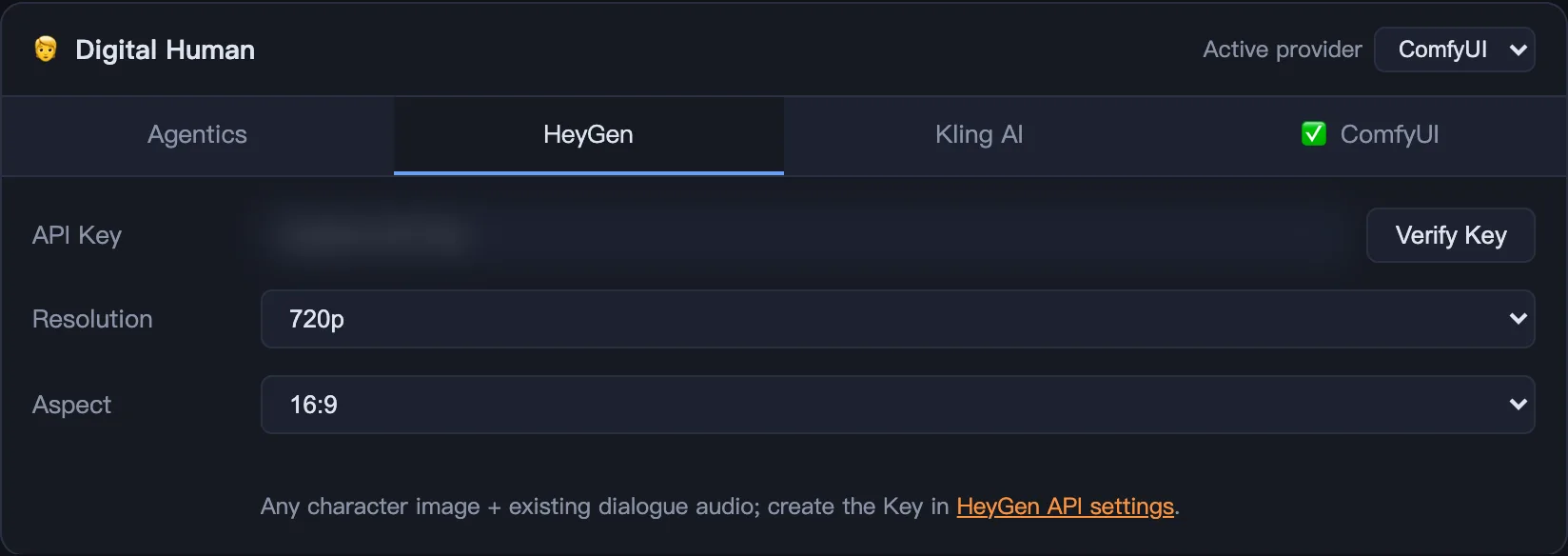
- Click a tab to see or edit a provider, then choose the provider to use in Active provider in the card's title bar.
Changes save automatically.
Providers
| Tab | What it is | What you enter |
|---|---|---|
| Agentics | Digital human models on your VideoAgents desktop account | Nothing; sign in. Pick a Model, for example infiniteTalk-1char (one person) or infiniteTalk-2char (two people) |
| HeyGen | HeyGen | API Key, Resolution (720p or 1080p), Aspect (16:9, 9:16 or 1:1) |
| Kling AI | Kling AI's API | API Key, Generation mode (Standard or Professional) |
| ComfyUI | An InfiniteTalk workflow on a local ComfyUI, Comfy Cloud or RunningHub | Run mode and connection, InfiniteTalk workflow |
New installs use Agentics as the active provider. HeyGen defaults to 720p and 16:9; Kling AI defaults to Standard.
Verify the provider
- HeyGen and Kling AI: click Verify Key. A valid key shows ✓ Key valid, with the remaining quota when the provider reports it.
- ComfyUI: click Test Connection. For a local or Comfy Cloud server, it checks that the InfiniteTalk (MultiTalk) nodes are installed and that the workflow file exists, and shows ✓ InfiniteTalk ready or the missing nodes. For RunningHub it checks the key and shows your RH coin balance; the uploads are checked when a clip is generated.
Provider notes
Kling AI. This version always uses the China (Beijing) endpoint, api-beijing.klingai.com.
ComfyUI, local or Comfy Cloud. The InfiniteTalk workflow menu lists the bundled templates: digitalhuman-infinitetalk-api.json (the default) and digitalhuman-infinitetalk-fp8-lightx2v-api.json (single speaker, a faster fp8 version). A custom workflow uses the placeholders {{IMAGE}}, {{AUDIO}}, {{PROMPT}}, {{SEED}} and {{FRAMES}}. On Comfy Cloud, custom nodes such as MultiTalk may not be available; trust the Test Connection result.
ComfyUI on RunningHub. Run your digital human workflow once in your RunningHub workspace, then paste its ID or page URL into Add workflow and click Verify & add. A plain exported workflow works if it has exactly one LoadImage and one LoadAudio node in use: VideoAgents replaces the sample image and audio automatically. If it has more, reduce them to one each or use the {{IMAGE}} and {{AUDIO}} placeholders.
See ComfyUI for run modes, keys and instance types.
Good to know
- The input is any character image plus dialogue audio that already exists. Make the voices first with the voice model.
- Each provider bills your own account. On RunningHub, workflows are charged in RH coins per second of run time; the Agentics provider bills your desktop account.