Final videos and publishing
The 🎞️ Final Release page collects what an episode produced: the final cut, the thumbnails and the publishing materials. From the same page you choose the platforms, pick the title and cover, and send the episode to the Publisher Agent, which fills in the upload form in Chrome on your computer. The final click to publish is always yours.
Open the page
In the console, click the 🎞️ Final Release icon in the top bar, or choose 🎞️ Final Release from the page menu at the top right of any preview page. Pick the episode in the row of episode buttons.
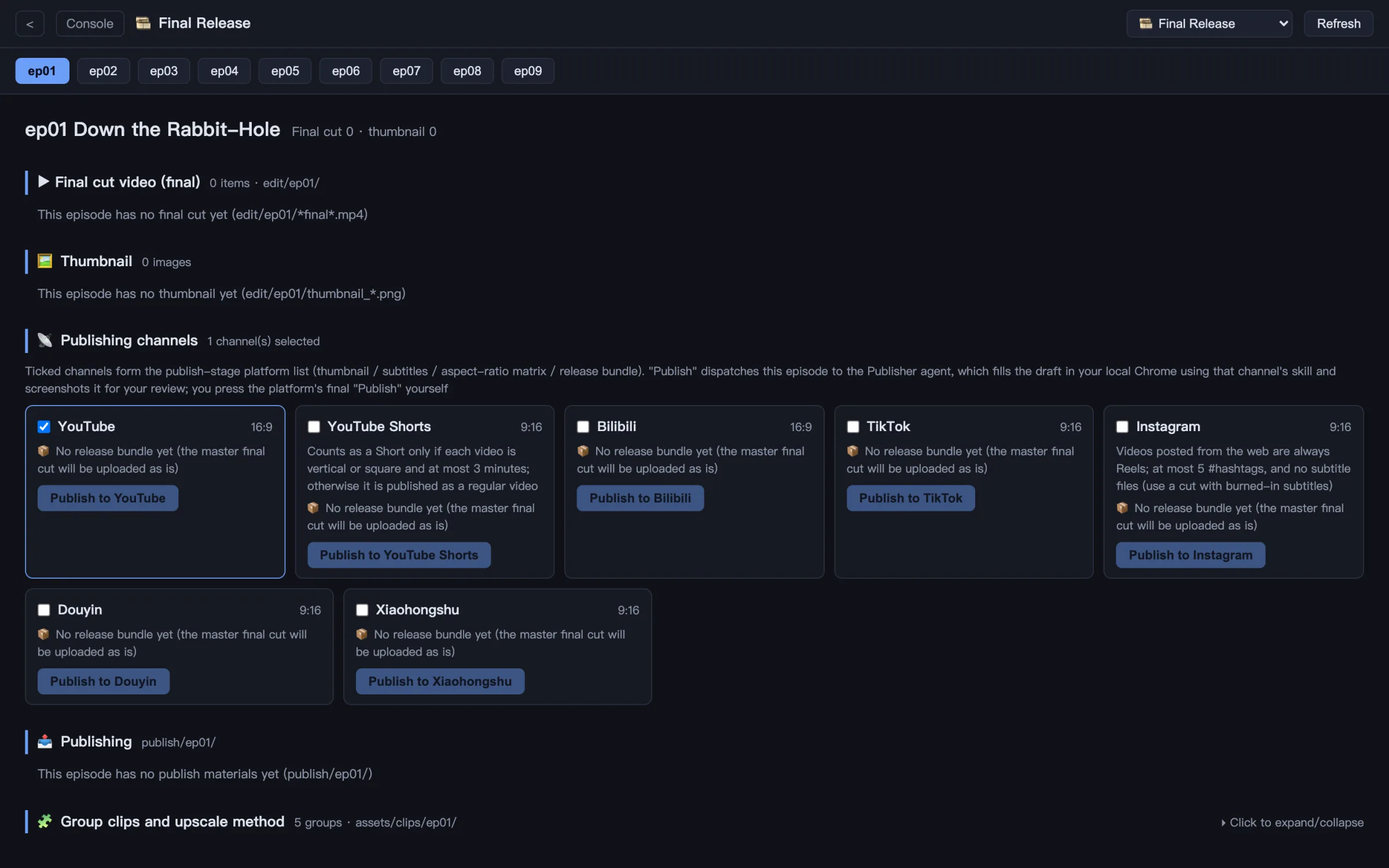
What the page shows
| Section | Contents |
|---|---|
| ▶ Final cut video (final) | Every final cut in edit/<ep>/: final.mp4, plus final_sub.mp4 (burned-in subtitles) and final_caption.mp4 (fancy text) when those are on |
| 🖼 Thumbnail | The thumbnails in edit/<ep>/thumbnail_*.png. Click one to enlarge it. Set as default picks the cover to publish; you can also open a thumbnail in the Canvas to edit it |
| 📡 Publishing channels | One card per platform: tick it to publish there, and press Publish to … to send the episode |
| 📤 Publishing | The materials in publish/<ep>/: metadata, titles and descriptions, and a release bundle per platform with its spec check |
| 🧩 Group clips and upscale method | Collapsed by default. Each group clip with how it was upscaled: Not upscaled, Interpolated or AI upscale |
Choose the channels
The available channels are YouTube, YouTube Shorts, Bilibili, TikTok, Instagram, Douyin and Xiaohongshu. Each card shows the platform's aspect ratio.
Ticking a channel puts it on the project's platform list. That list decides which release bundles, thumbnails and subtitles are prepared at the publishing stage. It does not change the production aspect ratio, which is set in 🎛️ → Output Settings: a platform with a different shape gets a version cropped or padded from the master, not a regenerated video.
If no channel is ticked, only the master is produced and nothing is published per platform. New projects start with no channel ticked.
Some channels have their own rules, shown on the card:
- YouTube Shorts counts a video as a Short only if it is vertical or square and at most 3 minutes long. The card checks the bundle (or the master, if there is no bundle) and disables publishing until it qualifies. Shorts over 1 minute that carry any Content ID claim are blocked worldwide by YouTube, and the card warns about that.
- Instagram posts from the web are always Reels, with at most 5 hashtags and no subtitle files, so use a cut with burned-in subtitles. Landscape or long videos get a warning but can still be sent.
What happens at the publishing stage
In the full workflow, after the QA reviews pass and you sign the release (H5), four agents prepare the episode for the ticked channels:
| Agent | Result |
|---|---|
| Platform Adapter Agent | A release bundle for each ticked channel in publish/<platform>/package/<ep>/: the right shape, bitrate and length, with subtitles aligned to the final cut |
| SEO Agent | Three title options, tags and a description per platform, written for viewers (story hook, highlights, viewing notes), in publish/seo.json |
| Metadata Agent | Series, episode number, rating and cover in publish/metadata.json |
| Publisher Agent | Fills in the upload form for each channel and records a receipt |
Pick the title and cover
In 📤 Publishing, each 🔍 SEO Listing Materials card lists the title options. Click Set as default next to the one to use; the Publisher uses it word for word. Until you do, the card shows a warning. In the same way, Set as default on a thumbnail sets the episode's cover (saved in publish/defaults.json), which is used instead of the bundle's cover where the platform accepts that shape.
Publish to a channel
- Make sure the episode has a final cut. The publish buttons are disabled until it does. You can publish a channel before the publishing stage has run; the Publisher then uses what exists and notes anything missing in the receipt.
- Click Publish to … on the channel's card. If the channel was not ticked, it is ticked now.
- The Publisher Agent opens the platform in Chrome on your computer. If you are not signed in, it asks you to sign in (for Douyin, Bilibili and Xiaohongshu, by scanning a QR code with the app).
- It uploads the video (the release bundle if there is one, otherwise the master final cut and thumbnail as they are), fills in the title, description, tags and cover, adds subtitles where the platform takes them, and takes screenshots for you to check.
- Check the draft in Chrome and press the platform's own publish button yourself. That click is your confirmation for this channel.
The card shows the run while it is going, and the latest receipt afterwards (publish/receipts/<ep>_<platform>_receipt.json), for example Submitted by you once you have posted it.
WARNING
Publishing is public and cannot be undone by VideoAgents. The Publisher never presses the final publish, save or share button for you. On YouTube it preselects Private visibility to avoid an accidental public post.
Good to know:
- Instagram's web upload has no drafts: the video uploads only after you click Share. Keep the window open until Instagram says the post is shared.
- A failed attempt is retried at most twice (fewer if your retry count is lower), and never in a way that could post twice.
- If the problem is in the material itself (a bundle that fails the platform's spec, missing metadata), the Publisher opens a defect instead of changing the content.