Output settings
Output Settings decide what the finished video looks and sounds like: its shape, its language, its resolution, and how a Film & series project builds scenes and dialogue. Set them early: they shape the storyboard and every generated shot.
You choose these values in the last step of the New project wizard. Change them in 🎛️ → Output Settings, then click OK. They apply to the current project only, for tasks dispatched after you save.
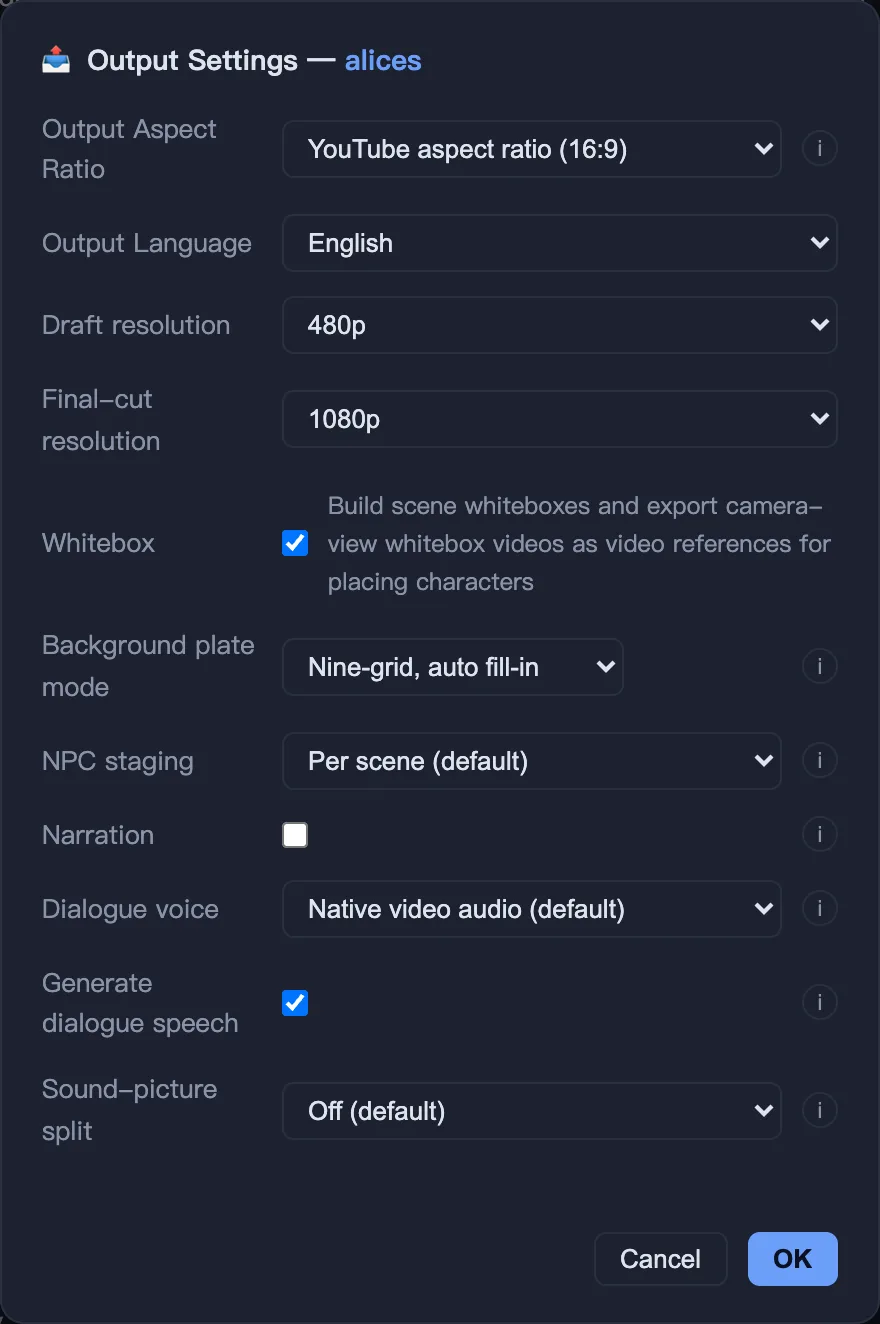
Click i next to a field to read its explanation in the dialog.
Picture and language
| Field | Options | New projects | What it does |
|---|---|---|---|
| Output Aspect Ratio | YouTube aspect ratio (16:9), Douyin aspect ratio (9:16), Cinema aspect ratio (2.35:1), Custom aspect ratio… | 16:9 | Shapes framing, storyboard composition, keyframes, video and the final cut. For a custom ratio, type width:height, for example 21:9 or 4:3. |
| Output Language | English, 中文, 日本語, 한국어, Tiếng Việt, Español, français, Deutsch, Indonesia, Português, русский, عربي | The interface language | The language of the screenplay, dialogue, narration, subtitles, voice-over and publishing materials |
| Draft resolution | 480p, 720p, 1080p, 4K | 480p | Resolution of iteration and review versions |
| Final-cut resolution | 480p, 720p, 1080p, 2K, 4K | 1080p | Target for the approved final cut. When it differs from the draft, the final is made by upscaling, not by generating again. |
Good to know:
- Publishing platforms are not set here. You tick them on the Final Release page. A platform with another aspect ratio (for example TikTok when the main ratio is 16:9) gets a cropped version of the master at publishing time; nothing is generated again.
- Higher resolutions cost more to generate. 4K is supported only by standard Seedance 2.0.
- The output language does not change the language in which agents talk to you. That follows the interface language.
TIP
Keep drafts at a low resolution while you iterate, and set the final cut to the resolution you publish at. The approved shots are then upscaled once instead of every draft being generated at full resolution.
Scene building (Film & series)
| Field | Options | New projects | What it does |
|---|---|---|---|
| Whitebox | On / off | On only with the Seedance 2.5 preset | Builds a 3D whitebox of each scene and exports camera-view whitebox videos as video references, so characters stand in the right place. See 3D whitebox previs. |
| Background plate mode | Nine-grid, auto fill-in, Nine-grid, manual fill-in | Nine-grid, auto fill-in | Shown with whitebox on. Each scene gets one 3×3 grid of background plates from its top-down plan, and each shot uses the best-matching tile. When no tile fits a shot's camera, auto fill-in renders one extra plate for that shot (billed as one image), and manual fill-in generates nothing: you capture the plate yourself in the panorama or world-model viewer. A scene can override this on the scene preview page. See Background plates. |
| Scene plate mode | Auto: front always, reverse as shots need, Front only, Both front and reverse | Auto | Shown with whitebox off. One front plate per scene, looking in from the doorway, plus a reverse plate when a shot looks the other way. Choose Front only for flat animation or one-sided sets. |
| NPC staging | Per scene (default), All off | Per scene | Adds passers-by and foreground objects so scenes have depth. Per scene: the script breakdown decides for each scene whether and how densely; you can switch scenes on the script preview or storyboard page. Extras named in the script are not affected. See Background extras (NPCs). |
Sound (Film & series)
| Field | Options | New projects | What it does |
|---|---|---|---|
| Narration | On / off | Off | On: a narration script and narration track are made. Off: the film has no narrator at all; pictures and dialogue carry the story. Characters' off-screen and inner-voice lines are controlled by Sound-picture split. |
| Dialogue voice | Native video audio (default), Post-production dubbing | Native | Native: the video model generates the dialogue with the picture. Dubbing: after the group video is made, each line is synthesized with the character's voice at the moment they speak, keeping the picture. |
| Generate dialogue speech | On / off | Off | Keeps a line-by-line TTS recording of all dialogue in each character's voice, updated when lines or voices change. Used by the animatic, the whitebox reel and dubbing. Always on with post-production dubbing. |
| Sound-picture split | Off (default), Script markers only, Auto | Off | Lets lines be heard off camera: O.S. (speaker present but out of frame) and V.O. (inner voice, letters, remembered voices). These lines are synthesized in post with the character's voice. Script markers only honours (O.S.) and (V.O.) written in the script; Auto also converts suitable lines in the storyboard. |
See Dialogue, voices and narration.
Other project types
The dialog is the same for every type, but the film-only switches (whitebox, narration, intro and outro and others) are turned off when an Audio to video, Digital human, Mashup or Motion graphics project is created. Motion graphics projects set their length, frame rate, narration, subtitles and music in the wizard instead. See Choose a project type.
Where it is saved
The settings are stored in the project's settings.json, so they travel with the project.