Reference files
The 🖼 Reference Files page is where you show the team what the film should look and sound like. Upload images, music, reference videos, fonts and documents, write a short note on each file, and the visual and music agents check them before they start work and follow your notes.
Everything on the page lives in the project's refs/ folder.
Open the page
Open the Preview design outputs menu (the picture icon in the console's top bar) and choose 🖼 Reference Files. After a new project is initialized, the Workflow Orchestrator also points you here and waits until you confirm your references are ready, or say you want to skip them.
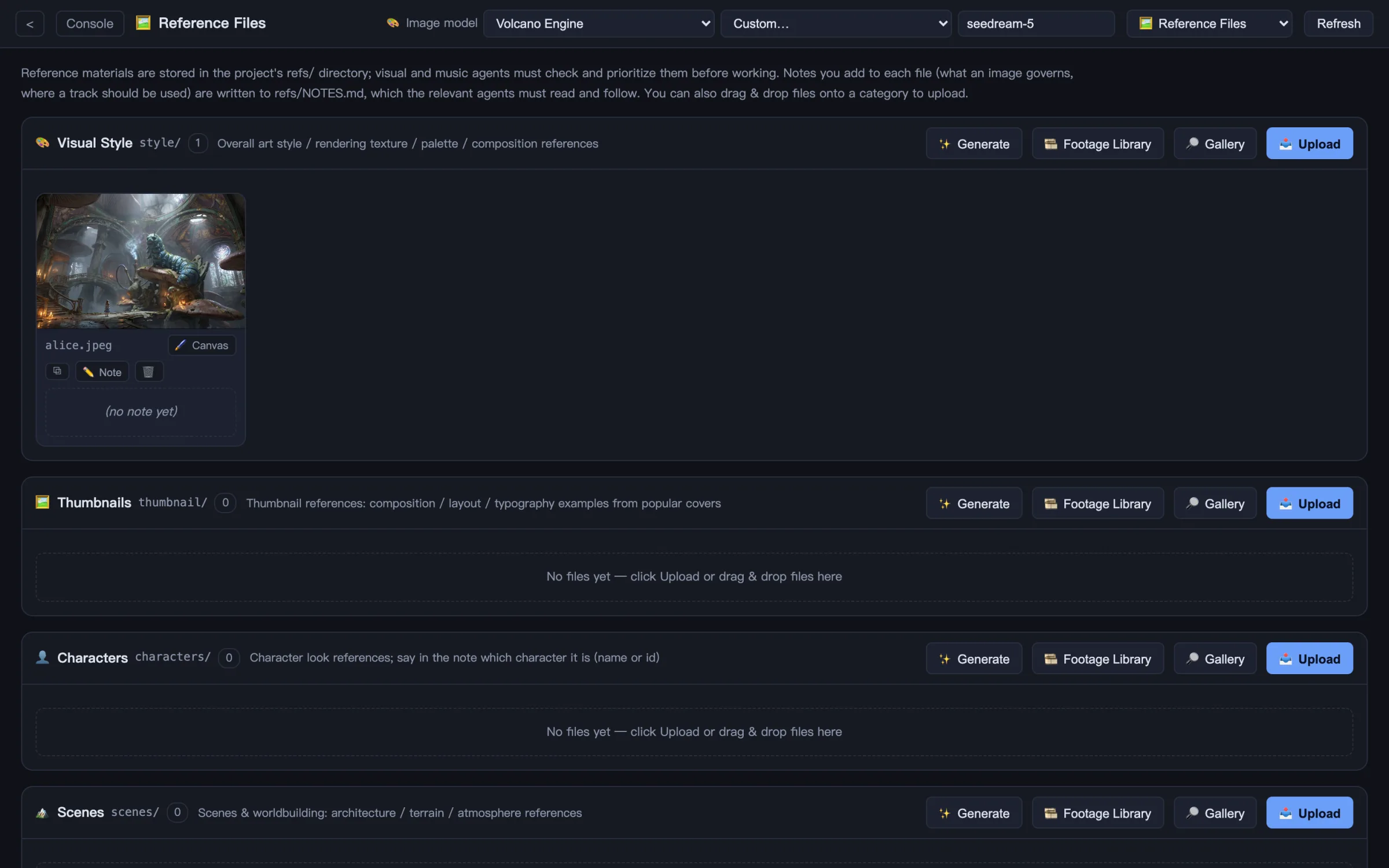
Sections
Each section is one subfolder of refs/. The section header shows its folder, the number of files and a short description.
| Section | Folder | What to put there |
|---|---|---|
| 🎨 Visual Style | style/ | Overall art style, rendering, palette and composition references |
| 🖼 Thumbnails | thumbnail/ | Covers you like: composition, layout and type |
| 👤 Characters | characters/ | Character looks. Say in the note which character it is (name or ID) |
| 🏔 Scenes | scenes/ | Architecture, terrain and atmosphere |
| 🐎 Creatures | creatures/ | Creatures, mounts and beasts. Say in the note which one |
| 🗡 Props | props/ | Props, artifacts and costumes. Say in the note which prop or costume |
| 🧊 3D Models | models3d/ | GLB models (added after v1.0.45); see 3D models |
| 🎵 Audio | music/ | Music you want used; the music agent picks from it first |
| 🎞 Video | video/ | Reference videos for motion, camera movement, pacing and transitions |
| 🔤 Font | fonts/ | Fonts (.ttf, .otf, .ttc) for titles, covers, captions and subtitles |
| 📝 Text | text/ | Lore notes, copy and other text the agents should read |
| 📎 Other | other/ | Any other format (PDF, spreadsheets, archives). Add a note saying what it is for |
| 📂 Root files | refs/ | Files loose in the refs/ folder itself. They are all treated as overall style references |
Two more sections appear only for the project types that use them: 🎙 Narration audio (every project type except Film & series) and 🗣 Cloned voices (digital-human projects). For those projects they are listed first. In a project that does not use them, they show only if they already hold files.
Add files
There are several ways to add a file to a section:
- 📤 Upload opens a file picker. You can pick several files at once.
- Drag and drop files onto a section.
- ✨ Generate makes an image with AI. See Generate reference images.
- 🔎 Gallery searches free image libraries. See Stock image search.
- 🎞 Footage Library grabs a frame from a video in your footage library: pick a footage project, play or step to the frame you want (◀ Previous frame / Next frame ▶, or the
,and.keys), and click 📸 Add screenshot to reference files. The frame is cut from the original video at full resolution.
✨ Generate, 🔎 Gallery and 🎞 Footage Library are on the image sections only: Visual Style, Thumbnails, Characters, Scenes, Creatures, Props and Other.
Good to know:
- A single file can be up to 100 MB.
- Some sections accept only certain files: Font takes
.ttf,.otfand.ttc; 3D Models takes.glb; the narration-audio and cloned-voice sections take.mp3,.wav,.flac,.m4a,.aacand.ogg. - File names are changed to plain letters, digits,
.,-and_. If a file with the same name is already there,_1,_2… is added. - Files go straight into the section's folder. There are no subfolders per character or prop: the note says which one a file is for.
Write a note for each file
The note is how you tell the agents what a file is for, for example "the hero's hairstyle as a young man is based on this one" or "use this track for the final battle".
- Click ✏️ Note under the file.
- Write the note and click Save.
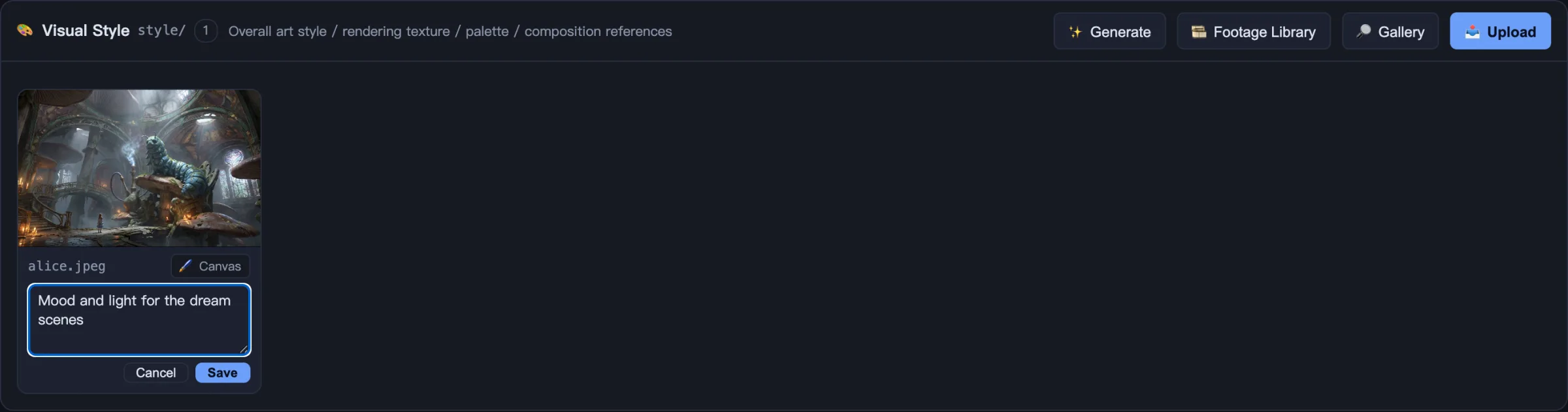
Notes are saved in refs/annotations.json and written into a marked block of refs/NOTES.md, which the agents must read. You can also write in NOTES.md yourself, outside the marked block; the page never touches that part.
Other actions on a file
| Button | What it does |
|---|---|
| Click the image | Shows it full size. Click again to close |
| 🖌 Canvas | Opens a PNG, JPG or WebP image in the Canvas to edit it |
| ⧉ | Copies the file's path in the project, such as refs/style/alice.jpeg, so you can paste it into a chat |
| 🗑 | Deletes the file and its note |
WARNING
Deleting a reference file cannot be undone.
Audio files have a player on the card, videos play in place, fonts show a sample in that font, and 3D models show a still that you can click to rotate. Files added from the gallery, generated with AI or grabbed from the footage library show where they came from under the file name.
How the agents use your references
- Your references come first. When a style decision (art style, palette, rendering) conflicts with a reference image, the reference wins. When a reference conflicts with the written settings in the world bible, the agent reports it to you instead of choosing.
- Who reads what. The art director reads
style/and the root files; character, costume, creature, prop and scene designers read their sections and find the right files by your notes; the music agent listens tomusic/and decides where each track fits; video agents look atvideo/; cover and title work usesthumbnail/andfonts/. - Other and 3D files are used on demand. Files in Other and 3D Models are read only when a note points them at the current task, or the Workflow Orchestrator names them in a work order.
- They leave a trace. Work based on a reference records which files it used (
user_refs). The art director writes into the art style which reference image shaped which decision. - Empty is fine. Without references the agents design on their own. At the art style sign-off, the art director reminds you that you can still add references and rerun the style.
Common questions
I added references after the work started. Will they be used? New work reads refs/ when it starts. Work that is already done is not redone on its own: ask the Workflow Orchestrator in the console chat, or use ✏️ Edit on a preview page, to redo what should follow the new reference.
I have old subfolders such as refs/characters/<name>/. They still work. Files in an existing subfolder are matched by the folder name.