Creative brief
The creative brief tells the whole team what kind of work this is and how it should look. Its two fields are given to every agent as the top creative premise, so the screenplay, the art and the video prompts all start from the same idea.
You fill in the brief when you create a project. Change it any time in 🎛️ → Creative Brief.
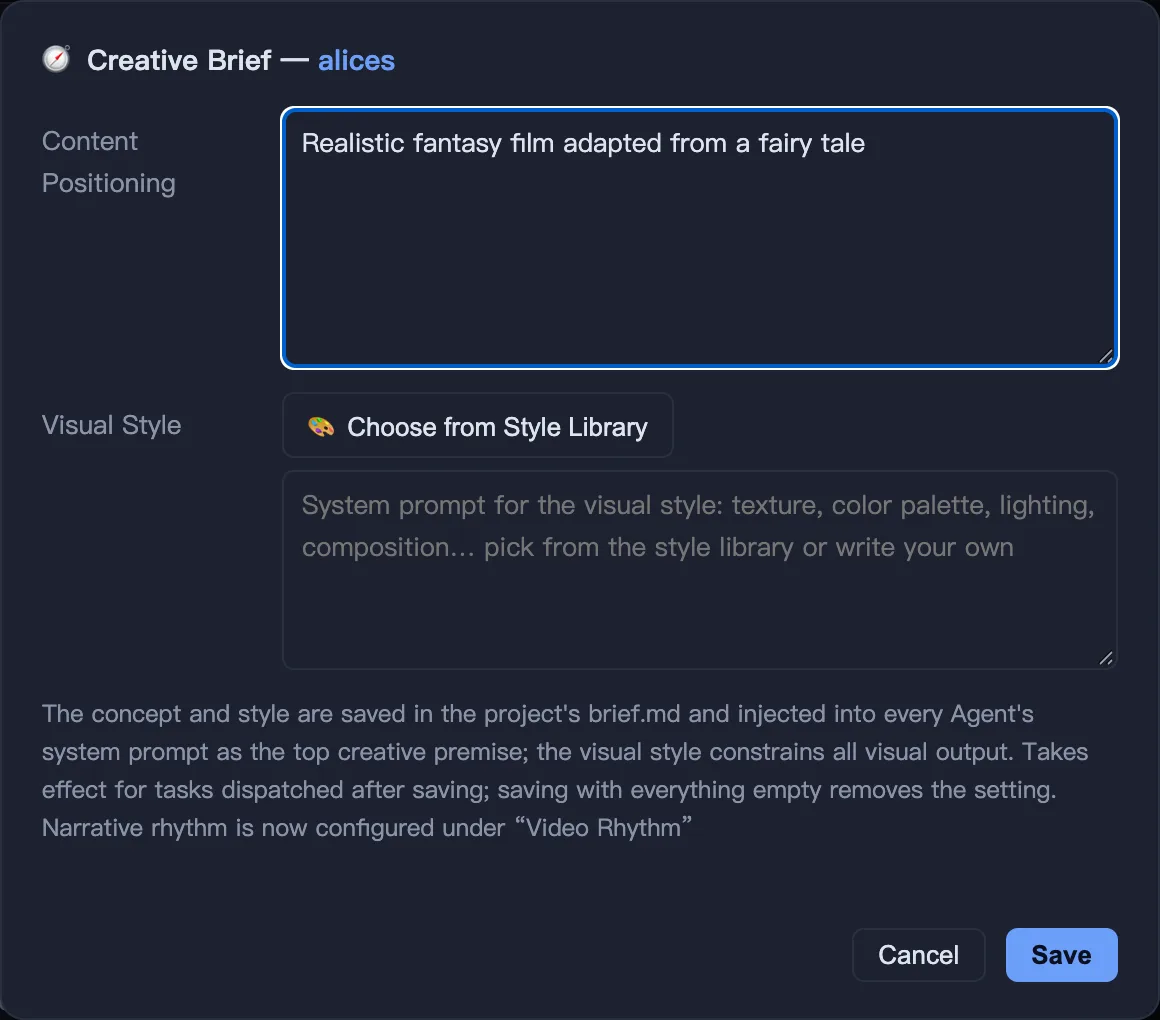
Fields
| Field | What to write | Used for |
|---|---|---|
| Content Positioning | Drama or documentary, genre and tone, target audience, what to keep or drop when adapting | Every agent's decisions: story, pacing, dialogue, design |
| Visual Style | A style prompt: texture, colour palette, lighting, composition | All visual output: concept art, storyboard sketches, image and video prompts |
Both fields are optional. Keep them short and concrete; one or two sentences of positioning is often enough, for example "Realistic fantasy film adapted from a fairy tale".
Pick a style from the library
- Click 🎨 Choose from Style Library.
- Filter by All, Live-action, 3D or 2D, or type in Search styles….
- Click 🔍 on a card to see its sample image large.
- Click a card. Its style prompt is filled into Visual Style.
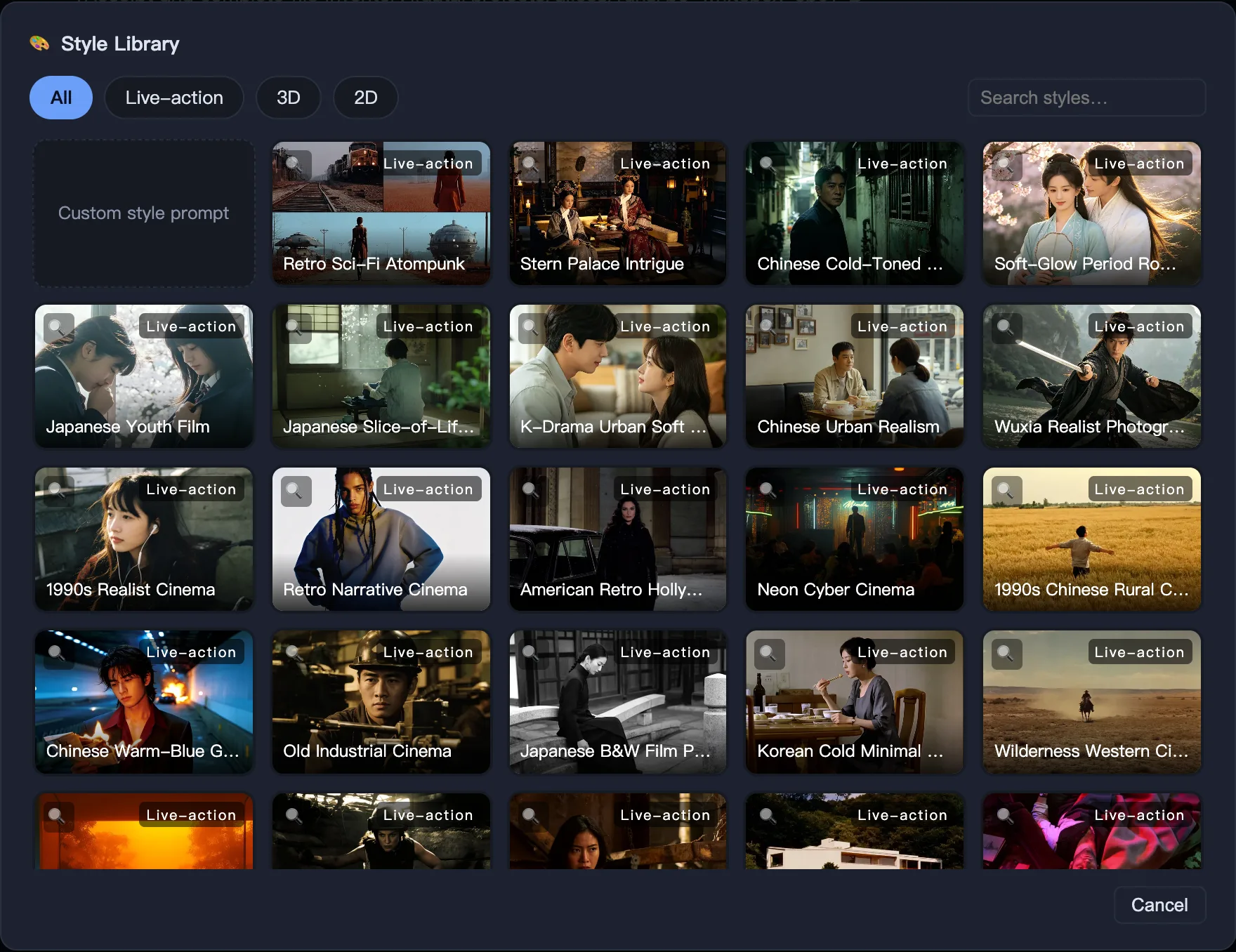
The style prompt is filled in the interface language. Edit it freely after picking; the card of the current style stays highlighted only while the text is unchanged. Click Custom style prompt to close the library and write your own.
Save
Click Save. Good to know:
- The brief is saved in the project's
brief.md. - It applies to tasks dispatched after you save. Work that is already running keeps the old brief.
- Saving with both fields empty removes the brief.
- A new brief does not redo finished work by itself. Ask the Workflow Orchestrator which steps to redo, or send revision notes. See The Reviser and revision notes.
Narrative rhythm used to be part of the brief. It is now in 🎛️ → Video Rhythm; see Video pacing.