Music and sound effects
An episode's sound comes from three places: effects and ambience that the video model generates with each group clip, background music (BGM) added in post, and voices (dialogue, off-screen lines and narration). The Audio Mixing Agent combines them into one track per episode. This page shows how each part is made and where you can change it.
Before you start
- Providers for music and for patch sound effects are set on ⚙️ → Generation Models. See Music and sound models.
- If you have music you want to use, put the files in the project's
refs/music/folder (or add them on the 🖼 Reference Files page). See Reference files.
Sound effects and ambience
Effects and ambience are not separate files by default. They are written as sound cues and generated together with the picture:
- The Sound Effect Agent goes through the shot list and the blocking beats and writes a cue for each audible event, for example "a single dry crisp page turn of a thick book". At least 90% of key actions get a cue.
- The Ambience Agent writes one ambience cue per scene, for example a still summer afternoon with bees and distant sheep bells.
- The Prompt Agent copies these cues word for word into each group's prompt, and the video model produces the sounds in the clip.
Cues are written in the interface language and saved in assets/audio/sfx/<ep>/audio_cues.json.
The sound-effect cue sheet
When an effect is missing or wrong in the generated clip and regenerating the group is not worth it, a separate effect can be laid in during the mix. Manage these on the 🎚️ Post-production page: in SFX & sound, click Open cue sheet next to SFX cue sheet.
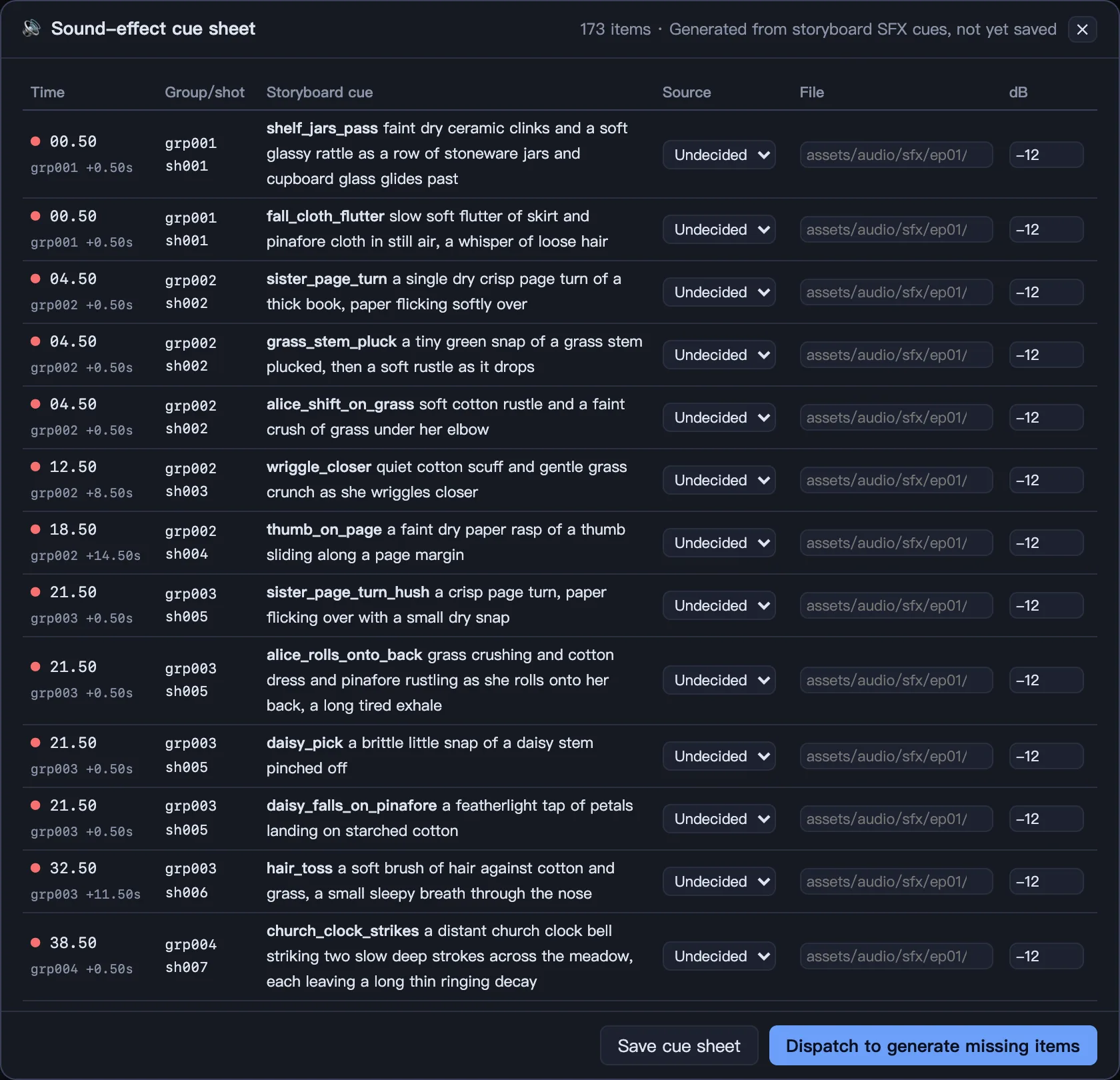
Each row is one cue from the storyboard, with its time in the episode. For each row choose a Source:
| Source | Meaning |
|---|---|
| Undecided | Not handled yet (shown with a red dot) |
| Library | Use an existing file: an entry from the sound library or a path in the project |
| Generate | Leave the file empty; Dispatch to generate missing items has the Sound Effect Agent make it |
| Skip | Deliberately left out |
Set the level in dB (−12 by default), add your own cue under Add cue, then click Save cue sheet. Dispatch to generate missing items saves the sheet and sends the generate rows to the Sound Effect Agent.
Generated effects use the sound-effect provider on the Generation Models page: code-synthesized sounds, a search of Openverse for free (CC0 or public-domain) recordings, or a generation provider such as ElevenLabs. Non-looping effects are trimmed of silence and normalized. Where a found recording requires attribution, it is credited at the end of the film.
Background music
The Music Agent scores each episode after reading the colour script's emotional curve and the episode's pacing:
- Where music goes. It picks the moments worth supporting: the opening, turning points, conflict and climax, the ending, montage and wordless stretches. Dialogue-heavy stretches and everyday transitions usually stay without music. Music covers 30–60% of the episode.
- Your music first. Files in
refs/music/are listened to and used where their mood and tempo fit. A note inrefs/NOTES.mdcan say where a piece should go. Pieces that are not used are listed with a reason. - The project music library. Music from earlier episodes is kept in the project's music library. Recurring themes can come back as they are in up to three episodes, after which they return as variations, and each episode always gets some new music. See Music library.
- New music for the remaining spots is generated with the music provider on the Generation Models page.
Each cue gets in and out points and a license record (generated, your own file, or from the library), which the copyright review checks. The files and the cue sheet are saved in assets/audio/bgm/<ep>/, and new pieces are added to the music library with their mood, genre, tempo and instruments.
Music is never generated inside the group videos; it is always a separate track.
Review the music
On 🎦 Storyboard Preview, each music cue appears as a 🎵 line at the shot where it enters: cue ID, mood, in and out times, and a player once the audio exists. Cues that could not be placed at a shot are listed at the top of the episode. Click ✏️ Edit on a cue to ask for a change.
The mix
The Audio Mixing Agent builds the episode track from:
- The native audio of each group clip (dialogue, effects, ambience), joined in order with short crossfades at the seams.
- The BGM, placed by the cue sheet.
- The narration, if narration is on.
- Off-screen and voice-over lines, if there are any.
- Patch effects from the cue sheet.
Music dips under dialogue and narration automatically. The whole track is brought to −14 LUFS (±1) with true peaks at or below −1 dBTP, and saved as assets/audio/final/<ep>.wav.
The mix follows the group versions you adopt on the Post-production page. If you shorten a group or adopt a new version after the mix was made, the checks mark the mix as out of date, and it is mixed again from the current versions so music and narration stay in place.
Adjust the sound
On the 🎚️ Post-production page, the SFX & sound section takes these adjustments:
| Adjustment | What it does |
|---|---|
| Ambience | Adds a looping background bed at a set level |
| BGM segment | Marks a stretch of the episode with a mood and has the Music Agent redo that part |
| Dialogue / narration level | Fixes lines buried under music |
| Mix target | Changes the episode's loudness target |
| Remove vocals | Removes speech from a clip's native audio and keeps effects, ambience and music |
| Remove ambience | Keeps only the voices |
Remove vocals and Remove ambience use a voice-separation model on your computer, downloaded on first use (about 64 MB). After you submit either one, the episode has to be mixed again before the change reaches the final cut; use Dispatch remix on the adjustment.
Under the monitor, the five sound lanes (Original, Dub, Narration, BGM, SFX) each have a 🔊 button, so you can listen to them separately. See Post-production.