3D models
The 🧊 3D Models section of the Reference Files page holds GLB models of your characters, creatures and props. You can rotate them in a viewer, and you can generate a model from one or more reference images. Agents use a model as a guide to shape and proportions from every angle.
TIP
Added after v1.0.45. If you don't see it, update VideoAgents.

Before you start
- To upload, you only need a
.glbfile (binary glTF 2.0). - To generate, set up at least one 3D provider in 🎨 Generation Models → 🧊 3D models. See 3D model providers.
Upload a model
- On the Reference Files page, scroll to 🧊 3D Models and click 📤 Upload, or drag a file onto the section.
- Write a ✏️ Note saying which character, creature or prop the model is for.
Only .glb files are accepted, and the service checks that the file really is binary glTF 2.0. A .gltf file usually needs separate .bin and texture files, so it is not accepted.
Look at a model
Each card shows a still of the model. Click the card to open the viewer:
- Drag to rotate, scroll to zoom, right-drag to pan, double-click to reset the view.
- Auto-rotate, Wireframe, Clay (hides textures to show the shape), Ground grid and Reset view switch display options.
- Download saves the file. A line at the bottom shows the triangle count, texture count and size.
Draco- and meshopt-compressed GLB files can be previewed; KTX2 textures cannot. A model without materials, such as an untextured result, is shown in matte grey.
Generate a model from reference images
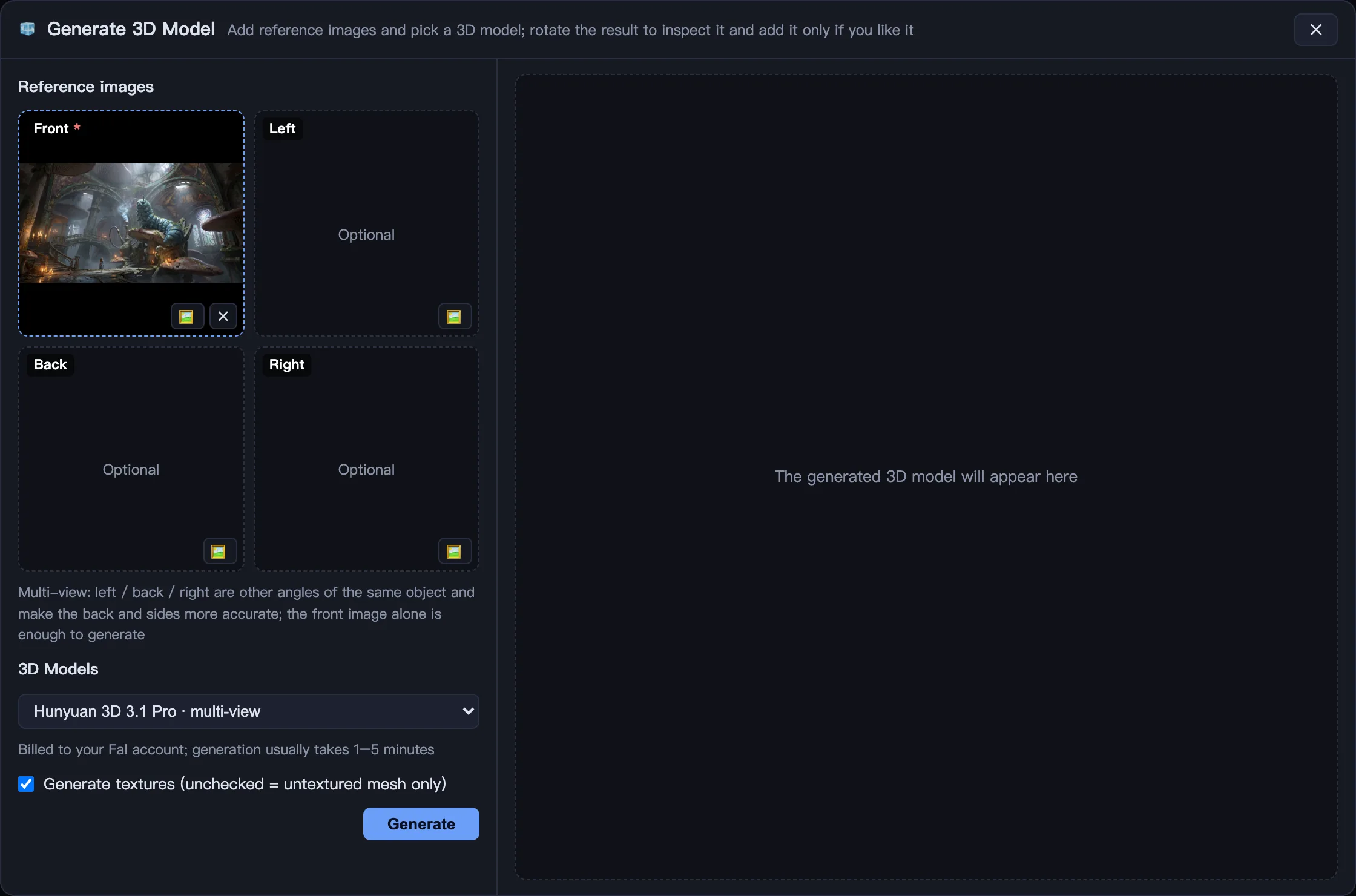
- In the 🧊 3D Models section, click ✨ Generate. The Generate 3D Model window opens.
- Fill the Reference images slots:
- Front is required. Left, Back and Right are optional.
- Fill a slot by clicking it to upload an image, by dropping an image on it, or with 🖼 to pick an image already on the Reference Files page.
- Pick a model in 3D Models. The menu is grouped by provider (Tripo, Fal, RH, Local Hunyuan3D). Providers without a key are greyed out, and models that take more than one view are marked multi-view. The default is the active provider on the Generation Models page; your last choice is remembered in the browser.
- Leave Generate textures ticked for a textured model, or untick it for an untextured mesh only. It is ticked by default for cloud providers; for a local Hunyuan3D server it follows the Generation Models page.
- Click Generate. Generation usually takes 1–5 minutes. You can close the window; the job keeps running.
- The result opens in the viewer inside the window. Click Add to "3D Models" to keep it, or Regenerate to discard it and try again.
WARNING
Cloud generation is billed to your account with the provider (Tripo, Fal or RunningHub). The window shows which account each model bills.
More views, better backs and sides
3D generators do not take any set of pictures. They take fixed views of the same object: the front, plus left, back and right. The extra views make the back and sides more accurate; the front alone is enough to generate. Support differs by model:
| Provider | Multiple views |
|---|---|
| Tripo | Every model has a multi-view mode. It needs the front plus at least one other view |
| Fal | Hunyuan 3D 3.1 Pro, Tripo H3.1, Meshy 7.1, Rodin 2.5 and Hi3D 3.0 take several views. Hunyuan 3.1 Rapid, Tripo P2, TRELLIS 2 and Idol Max / Max Turbo take one image. Tripo H3.1 on Fal reads views by position: without a left view, back and right are dropped |
| RH | Switches to the matching multi-view endpoint by the number of views; meshy6 takes one image |
| Local Hunyuan3D | One image |
For a model that takes one image, the window greys out the other slots. A view a model cannot use is not sent, and the result says so.
What gets saved
- A generated model waits in
assets/refs_gen3d/until you add it. When you add it, it is copied torefs/models3d/gen3d_<job>.glb. - Models you did not add, and images you uploaded in the window, are deleted after a day.
- The provider, model, texture setting and the image used for each view are saved in
refs/annotations.json. The card shows 🧊 AI-generated with the provider and model.
How agents use 3D models
- Agents use a model only when its note points to what they are working on (a character, creature, prop or scene), or when the Workflow Orchestrator names the file in a work order.
- They use it to understand shape, proportions and parts from every angle.
- A GLB is not an image, so it is never sent to an image or video model as a reference picture. If an agent needs a particular angle, it says so. Rotate the model in the viewer, take a screenshot and upload it to the matching image section (for example 👤 Characters).
Troubleshooting
"No 3D model available" No 3D provider is set up. Enter a key or server address in 🎨 Generation Models → 🧊 3D models.
A local Hunyuan3D job fails with textures on. The local server must be started with --enable_tex to make textures. Start it that way, or untick Generate textures.
"No model after 35 minutes; gave up" The provider did not return a model in time. Try again, or try another model.
"This generation is no longer on record (was the service restarted?)" Jobs are kept in memory. After a restart, generate again.