Sign-off gates
A sign-off gate is a point where the crew stops and waits for you. Nothing after the gate starts until you sign off, so the creative decisions stay yours and nothing expensive runs before you approve the step that feeds it.
A film project has up to 12 gates. Some come once per project, some once per episode, and two only for episode 1.
The gates
| Gate | Shown as | When | What you review | Where to look |
|---|---|---|---|---|
| H1 | World bible sign-off | Once, after the world bible is merged | Whether the world is understood correctly | Worldview Preview |
| H1A | Characters & assets sign-off | Once, after characters and assets | Characters' looks, personalities, relationships and voices; creatures; scenes and environments | Character, Creature and Scene Preview |
| H2 | Art style lock | Once, after the art style | The visual style and the main characters' concept art | Character Preview, Worldview Preview |
| H3 | Screenplay sign-off | Episode 1 only | The script breakdown: scenes, characters, dialogue, narration, pacing, emotion and hooks | Script Preview |
| H3S | Storyboard sign-off | Every episode, before the shot list | The scene-by-scene shot table and the director's plan; pencil sketches are optional | Storyboard |
| H3W | Whitebox sign-off | Every episode, only when the whitebox is on | The 3D whitebox of each group: cameras, blocking, facing, objects passing through each other, and the whitebox reel | Storyboard Preview, Director's Console |
| H3A | Storyboard & shot list sign-off | Every episode, before any video | The shot list, generation groups, narration placement, each group's sound, concept art coverage and suggested transitions | Storyboard Preview |
| H3V | Video prompt sign-off | Every episode, before anchor images and videos | Each group's video prompt and its reference images, videos and audio | Storyboard Preview |
| H3B | Visual generation sign-off | Every episode, after the group videos | The final group clips: picture and native sound quality | Post-production |
| H3P | Post-production sign-off | Every episode, after subtitles | Effects, packaging, picture repairs, lighting, grading and sound adjustments | Post-production |
| H4 | First-episode final cut sign-off | Episode 1 only | The whole first episode | Final Release |
| H5 | Release sign-off | Every episode, after the QA reviews | Whether the episode can be published | Final Release |
The first three lock the world; see Worlds and works. H3 and H4 make episode 1 a pilot: problems are caught before they repeat in every episode.
Other project types have their own gates: audio to video has AVH1–AVH5, mashup has MH1–MH3, motion graphics has a storyboard check (optional) and a final check, and digital human has none. Plugins can add gates too.
Where gates appear
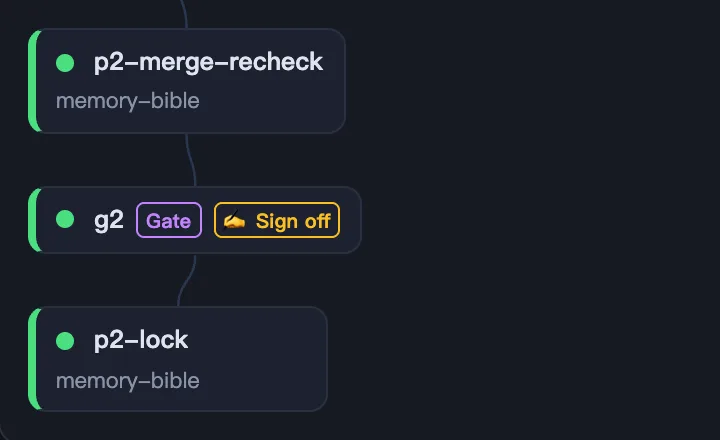
On the Workflow Preview page, gates are tasks with a Gate badge, and the ones that need you also have ✍️ Sign off. A gate waiting for you is shown as Awaiting Sign-off.
In the console, when the crew reaches a gate, a sign-off card appears at the bottom right with the gate's name (for example, 🚧 H3A Storyboard & shot list sign-off (ep01)) and what to check.
As a desktop notification, so you know even when the console is in the background.
On some preview pages: the Storyboard page shows the H3S sign-off, and the Post-production page shows H3P.
In Feishu, if you linked it under ⚙️ → Advanced → Mobile Messages, as a card with buttons. See Mobile messages.
Sign off or hold
- Open the pages listed for the gate and review the work.
- If something should change, ask for it before you sign: use the ✏️ Edit buttons on the preview pages, or tell the Workflow Orchestrator in its chat.
- On the card, click Sign off to let the crew continue, or Hold to keep it stopped.
Sign-off cards say Awaiting sign-off; never auto-confirms: they wait for you as long as it takes. Your answer is the same whichever place you give it from.
The H3A card also has a Video prompt skill menu. Check it before you sign: signing freezes the project's video prompt skill setting. See Video prompts and prompt skills.
Checks before you can sign
Some gates check the work first:
- H3A is raised only after its machine checks pass, such as concept art coverage and whether the narration fits the shots.
- H3V refuses a sign-off while any group of the episode has no video prompt.
- H3W refuses a sign-off while blocking whitebox issues are open or a group has no whitebox plan.
- H3P refuses a sign-off while post-production adjustments are still being made or the post-production check fails.
When a sign-off is refused, the card stays open and shows the reason. Fix the problem, then sign again.
Every gate also checks the QA defects in its scope: it passes only when no blocker or major defect is still open, unless you have waived it.
When a signed step changes
A signed step counts as final. If it changes later, the sign-off no longer covers it and is marked stale:
- The Storyboard page shows Sign-off is stale when the storyboard changed after H3S.
- The Post-production page shows H3P sign-off expired when the adjustments changed after H3P.
- When a Reviser change makes a sign-off such as H3S, H3A or H3B stale, you get a desktop notification.
In each case the Workflow Orchestrator raises a new sign-off card for you. One exception: after H3V, rewriting the prompts of a few groups does not need a new sign-off; only rewriting the whole episode's prompts does.
Full-auto mode
To let a project run without you, check Full-auto mode in the summary row of its Workflow Preview page. It is off by default and set per project.
While it is on:
- Every sign-off card of the project is signed automatically, and other confirmations get their default answer, without pop-ups or notifications.
- Where the crew would normally ask you to choose, the agents decide by the standard of getting the film finished: they keep settled decisions and assets, pick the safest option with the least rework, and report what they chose and why.
- The checks before signing still apply. When one fails, the agents fix the problem and sign again.
- The retry count still applies. When retries run out, the best existing version is kept. Content-safety and copyright problems are never waived automatically.
- It never changes your settings, turns on paid options or switches engines.
Turning it on answers the cards already waiting. Turning it off brings back manual sign-off; sign-offs already made stay. Full-auto mode does not wake an idle project; use 🤖 auto-run for that.
WARNING
In full-auto mode, video and other paid generation goes ahead without your review. Use it only when you are happy with the project's settings and providers.
Records and backups
Each signed gate leaves a record in the project folder, runs/<gate>/gate.json, with the decision, who signed and when, the checks that ran and any waivers. See Files, runs and versions.
To keep a copy of the project at every sign-off, turn on 💾 Auto backup on the 🎛️ → Version History page. Each sign-off then zips the whole project into a folder you choose.