Video pacing
Video Rhythm controls the pace of a Film & series project: the beat pattern of each episode and the season, how long episodes and shots are, whether shots chain into long takes, and how scenes and episodes join.
You set these values in step 3 of the New project wizard. Change them any time in 🎛️ → Video Rhythm, then click OK. Changes apply to tasks dispatched after you save, and only to the current project.
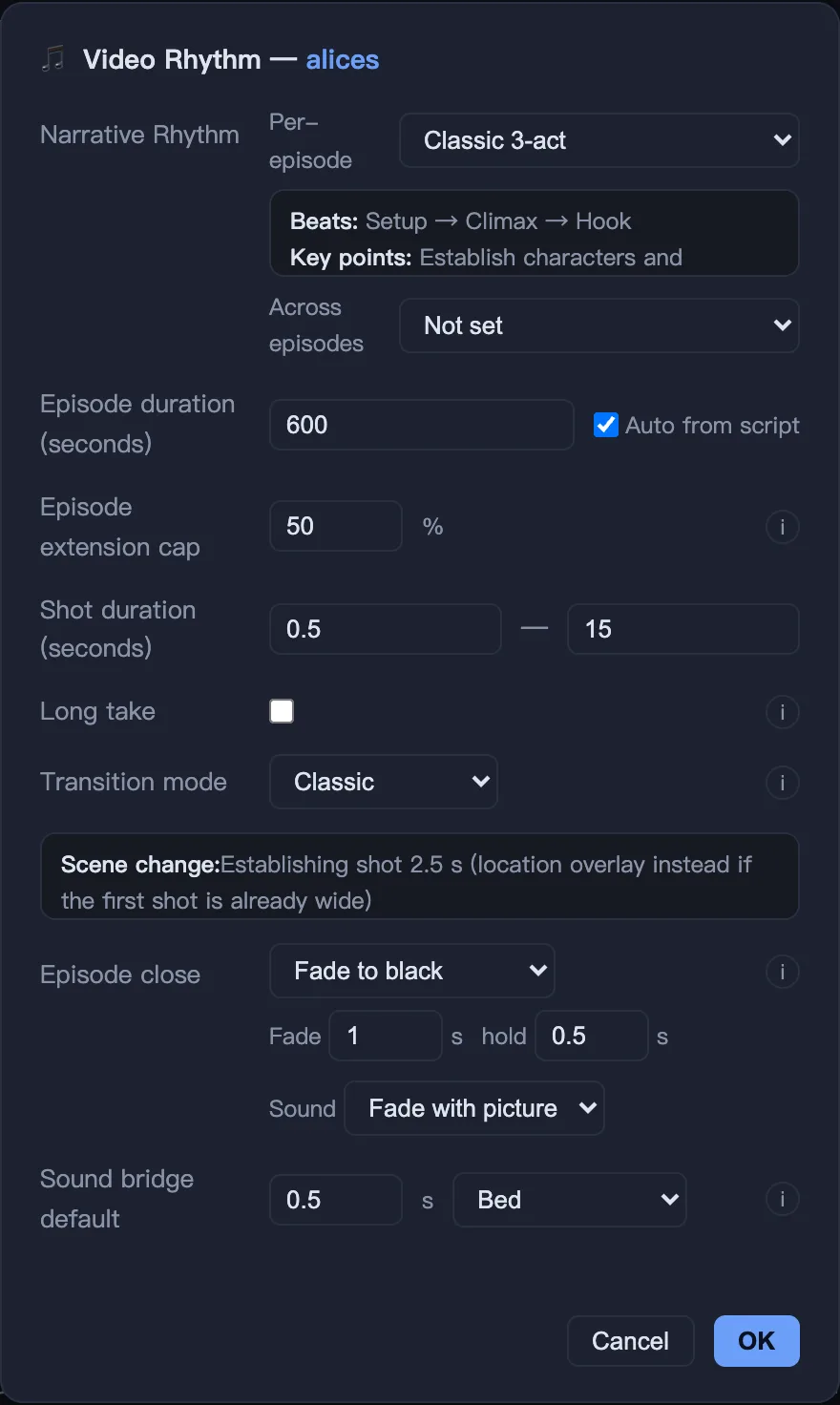
Narrative rhythm
Two menus give the story team a beat pattern to follow. Pick one to see its beats, key points and the genres it suits. Pick Custom to type your own beat chain, for example A → B → C. Not set leaves the choice to the agents. The rhythm is saved in the project's brief.md together with the Creative brief.
Per-episode shapes each episode:
| Rhythm | Beats | Suits |
|---|---|---|
| Classic 3-act | Setup → Climax → Hook | Conventional and serious drama, novel adaptations |
| Short-drama inverted | Conflict → Curiosity → Backstory → Bigger conflict | Vertical micro-dramas, web-novel adaptations |
| Constant escalation | Small crisis → mini climax → bigger crisis → … → full blow-up | Suspense, thriller, chase, disaster |
| Kishōtenketsu | Intro → Development → Twist → Conclusion | Slice-of-life, healing, literary stories |
| Pressure–payoff | Repression → small payoff → deeper repression → big payoff | Underdog rise, revenge, comeback stories |
| Golden 3 seconds | 3-second hook → conflict or twist within 15 s → mid push → cliffhanger in the last 10 s | Vertical episodes under 1 minute, teasers |
| Mystery & reveal | Pose mystery → clues → misdirection → reveal → new mystery | Detective, suspense, puzzle stories |
| Slow burn | Low-key daily life → layered details → single emotional burst → afterglow | Documentary, romance, family, period drama |
| Dual storylines | Line A setup → line B conflict → line A escalates → lines converge | Dual protagonists, parallel timelines |
| Circular | Opening image → change → return to the opening image | Fables, poetic shorts, single-episode films |
| Anticlimax | Normal setup → the expected climax is pulled away → open space | Art-house, black comedy, absurdist shorts |
| Comedy setup–punchline | Situation → reinforce expectation → unexpected turn → punchline → callback | Comedy, sitcom, light short dramas |
Across episodes shapes the season:
| Rhythm | Beats | Suits |
|---|---|---|
| Standalone episodes | Each episode is a closed loop | Anthologies, short collections |
| Serialized | Hook at the end of every episode; the main arc runs to the end | Continuous drama, long serials |
| Window–develop–close | Dense opening episodes → longer subplots mid-run → concentrated payoff at the end | 80–100 episode micro-dramas |
| Mid-season twin peaks | Setup → mid-season climax → slowdown → season-end climax | 8–12 episode series |
| Episodic + arc | A standalone case per episode; the main arc advances every 3–5 episodes | Detective, professional dramas, adventure |
Length
| Field | What it does | Range | New projects |
|---|---|---|---|
| Episode duration (seconds) | Target length of each episode. Episode planning, pacing and editing are based on it. | Above 0 | 300 |
| Auto from script | No fixed length: the episode split and each episode's length follow the script's structure | On / off | Off |
| Episode extension cap | When an episode's content needs more time than the episode length, it may grow by up to this percentage. If it still does not fit, dialogue is trimmed, then short action shots are merged. 0 = no extension. | 0–200% | 50% |
| Shot duration (seconds) | Shortest and longest shot | Minimum above 0, maximum ≥ minimum | 0.5–15 |
Projects created before these defaults existed show 600 seconds and shots of 1–10 seconds until you change them.
Long take
| Field | What it does |
|---|---|
| Long take | On: each video group continues from the one before it, at cuts and in continuous action alike. Off (default): only the text of the prompts carries continuity. |
| Join method | Last-frame image: the next group uses a screenshot of the previous group's last frame as a reference. Tail video clip: the next group extends the last 2–3 seconds of the previous group's video, and falls back to the last frame when the model or footage does not allow it. |
WARNING
Continuing again and again from low-resolution frames or video tails can lower image quality and character consistency. The dialog warns you when the project's draft resolution is 480p or lower.
See Long takes and continuity.
Transitions
Transition mode decides what happens at each scene change, time jump or flashback. The transition designer proposes a transition for each boundary by this mode; you preview, accept or edit each one on the storyboard page, and they are applied at the final render.
| Mode | What it does |
|---|---|
| Minimal | Hard cuts. Only boundaries named in the director's transition list get a dissolve or a dip to black or white. No title cards or establishing shots. |
| Classic | Scene change: 2.5-second establishing shot (a location overlay if the first shot is already wide). Time jump: 2.5-second time card. Into a flashback or dream: white flash, freeze and a "N days ago · place" overlay; out of it: match cut. Same scene: hard cut. Episode opens with a fade in. Transitions may take up to 8% of the episode. |
| Cinematic | Like Classic, with an establishing shot plus location overlay at scene changes, a time card plus establishing shot at time jumps, and generative bridges offered for flashbacks. Up to 10% of the episode; the first shot of a new scene must be an establishing shot. |
| Custom | You choose the handling of each boundary type and the options below. |
New projects start with Classic. Projects created before transition modes existed use Minimal.
With Custom you get:
| Field | What it does | Default |
|---|---|---|
| Boundary handling | One choice for each of Scene change, Time jump, Enter flashback/dream, Exit flashback/dream, Same scene, same time and Episode open: per the director's list, hard cut, dissolve, dip to black or white, time card, location overlay, establishing shot (with or without overlay), time-lapse, generative bridge, paired camera move, audio lead (J-cut) or audio tail (L-cut) | Establishing shot, time card, dip to white, per director's list, hard cut, per director's list |
| Explanatory cards | Forbid = no time, place or chapter text in the whole episode; transitions use pictures only | Allow |
| Transition time budget | Share of the episode that inserted transitions may take. Each insert is at most 4 s and each boundary at most 6 s. | 8% (0–30%) |
| Generative transitions | Allows generated bridges and image-to-video establishing shots | Off |
| First shot of a new scene | Must be an establishing shot | Off |
WARNING
Generative transitions call the video model and are billed per run. With them on, each transition card shows an estimated cost before you click.
Episode close and sound bridges
| Field | What it does | Range | Default |
|---|---|---|---|
| Episode close | How each episode ends: Fade to black, Fade to white, Cut to black (sudden blackout), Cut to white, or None (hold last frame). The outro follows. | — | Fade to black |
| Fade | Length of the fade | 0.3–3 s | 1.0 s |
| hold | How long the black or white frame stays. A cut to black or white needs more than 0. | 0–3 s | 0.5 s (1.0 s for cuts) |
| Sound | Fade with picture or Silence at black | — | Fade (silence for cuts) |
| Sound bridge default | At group boundaries, how far the sound runs ahead of the cut (J-cut) or past it (L-cut). Bed carries only the ambience; Off-screen line lets a nearby off-screen line cross the cut and needs sound-picture split. Hidden in Minimal mode. | 0.1–1.5 s | 0.5 s, Bed |
An episode can override its close and each boundary can be changed on the storyboard preview's transition cards. See Transitions.