Switch, import and export projects
Every work you make lives in its own project. The project list in the top bar shows all of them with their type, auto-run state, running agents and disk use, and lets you switch, create or import projects.
Open the project list
Click the project name next to Project in the top bar. The Project dialog opens on the page that holds the current project, which is highlighted.
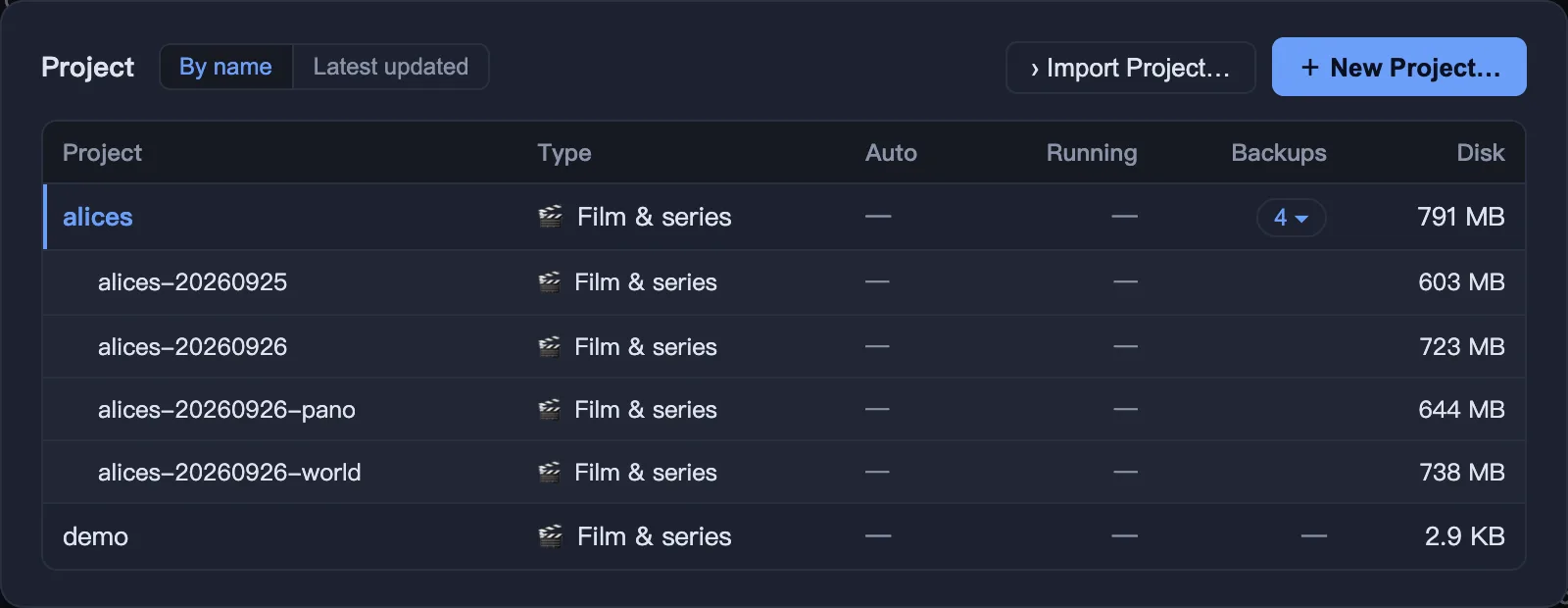
| Column | What it shows |
|---|---|
| Project | The project name |
| Type | The project type, such as 🎬 Film & series or 🎙️ Audio to video. See Choose a project type. |
| Auto | 🤖 when auto-run is on for the project |
| Running | How many agents are running now; +N is the number of queued tasks |
| Backups | How many backups the project has. Click the number to show or hide them. A green dot means one of the backups is running. |
| Disk | The size of the project folder. It is counted when you open the dialog and reused for 10 minutes. |
- Switch the order with By name and Latest updated. The browser remembers your choice. With Latest updated, a project's backups count toward its date.
- The list shows 10 projects per page; use the page buttons at the bottom.
- The dialog updates by itself when a project starts or stops running.
- Press Esc or click outside the dialog to close it. You can also move through the rows with Tab and open one with Enter.
Switch to another project
Click a project's row. The console switches to it: the agent list, the chat, the Run Panel and the auto-run button now belong to that project. Tasks in the project you left keep running.
Everything you open from the console, such as preview pages and the 🎛️ settings, works on the project selected here.
Backups
A project whose name is another project's name plus a date, such as alices-20260925 or alices-20260926-world, is listed as a backup of that project. This is the name Copy project suggests (see Copy and delete projects). Backups are folded under their source and open like any project. If the source project is deleted, its backups are listed as normal projects.
Create a project
Click + New Project… to start the wizard. See New project wizard.
Import a project
You can bring in a project as a .zip file: one exported from another computer, or a backup made by Auto backup.
- Click › Import Project… and pick the
.zip. - A status box in the top-right corner shows the upload and extraction progress.
- When it finishes, the console switches to the imported project.
The zip can hold the project folder itself, or the folder's contents at its top level. The project is named after the zip's top-level folder, or after the file name. If a project with that name already exists, the imported one gets -2, -3 and so on, and the status box tells you the original name.
Export a project
There is no export button. A project is a folder, so you move it by zipping that folder:
- Click the folder icon in the top bar to open the current project's folder.
- Zip the whole folder (on macOS, right-click it and choose Compress).
- On the other computer, use › Import Project… with that zip.
You can also let VideoAgents make the zips for you: with Auto backup on, every sign-off saves a zip of the whole project that › Import Project… can restore. See Copy and delete projects.
TIP
A project folder holds the project's settings, story files, world bible, images, videos and run records. The console's chat history is stored outside the project folder, so it does not travel with the zip. Stop running tasks before you zip a project, so no file is half-written.
Where projects are stored
Each project is a folder under data/projects/<project>/ in the VideoAgents data folder. See Projects and the project folder and Project folder.