Stock image search
The 🔎 Gallery button on the Reference Files page searches free image libraries and adds the images you pick to a section of your references. Each image keeps a record of its author, source and license, so you know which ones need a credit.
Before you start
- Openverse works without a key.
- Pexels and Pixabay need a free API key. Until you add one, they are greyed out in the source menu with "(needs an API key: ⚙️ Settings → Storage & Image Libraries)".
- The Translate to English button uses the text model of the built-in Agentics engine. See The built-in Agentics engine.
Add Pexels and Pixabay keys
- In the console, open ⚙️ → Storage & Image Libraries.
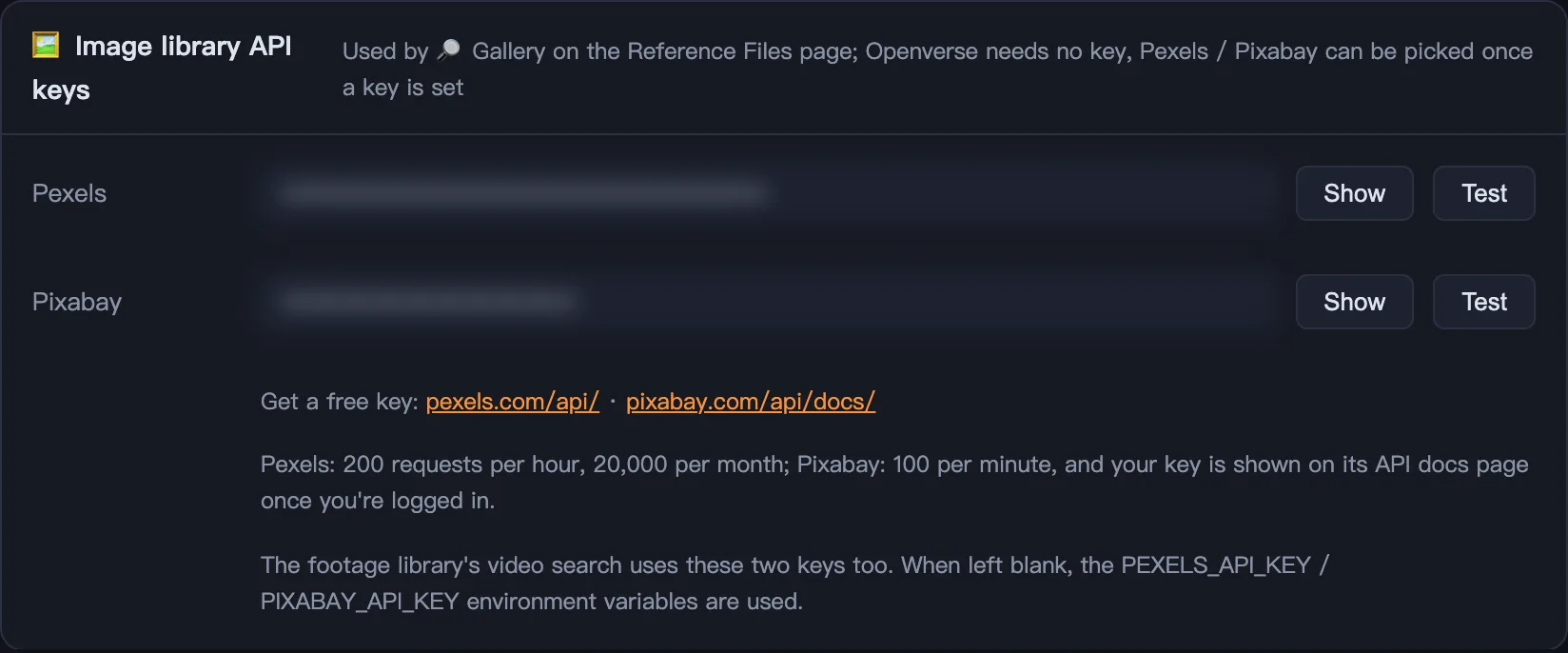
- In the 🖼 Image library API keys card, paste your key next to Pexels or Pixabay. The links under the fields go to the sign-up pages (pexels.com/api and pixabay.com/api/docs).
- Click Test to run one real search with the key. "✓ Works" means the key is good.
- Click Save Settings at the bottom of the page.
Good to know:
- Pexels allows 200 requests an hour and 20,000 a month; Pixabay allows 100 a minute.
- If a field is empty, the
PEXELS_API_KEYandPIXABAY_API_KEYenvironment variables are used instead. - The video search of the footage library uses the same two keys.
Search and add images
- On the Reference Files page, click 🔎 Gallery on the section you want to fill (for example 👤 Characters). That section becomes the target.
- Pick the Image source: Openverse, Pexels or Pixabay. The choice is remembered.
- Type keywords and press Enter or click Search.
- Narrow the results if you like: Any orientation (Landscape, Portrait, Square) and Any type (Photo, Illustration / artwork). Pexels has photos only, so the type menu is hidden for it.
- Add images in one of two ways:
- One at a time: click a section icon under a result. The image goes straight into that section, whichever section you opened the gallery from.
- Several at once: click the images to tick them, check the target section in the footer, optionally write a Note, and click Add to Reference Files.
- Close the window with ✕ or Esc. The Reference Files page shows the new files.
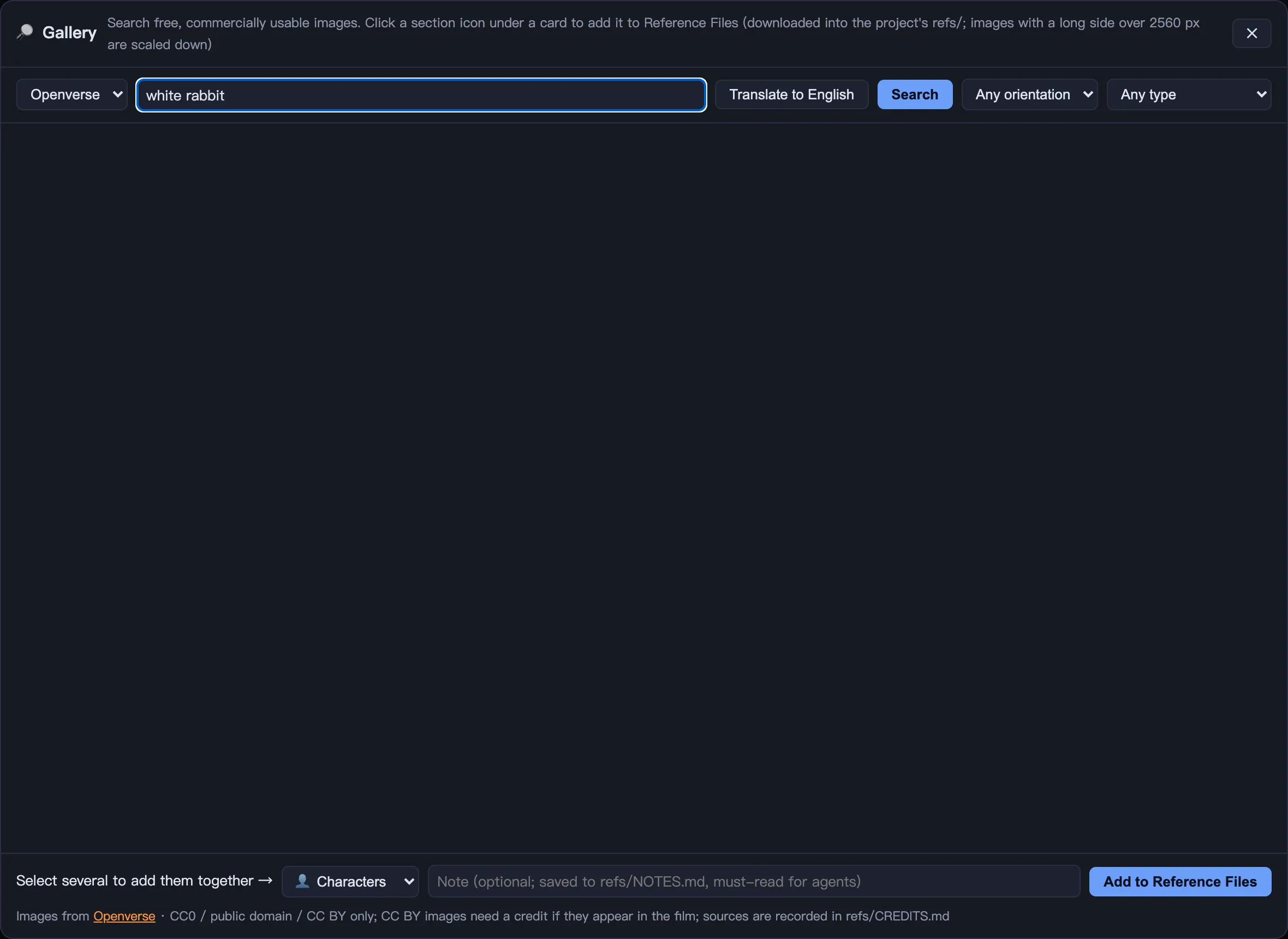
Click 🔍 on a result to see a larger image with its author, source page, license and size. You can add it from there too.
Good to know:
- The note in the footer only applies to images added to the target section. You can always add or change notes later on the Reference Files page.
- Load more fetches the next page of results.
- The status line shows the number of results and, where the library reports it, your remaining quota.
- The same search within 24 hours is served from a cache and does not use quota.
Translate a search into English
Openverse titles are mostly in English, so searches in other languages find little. When your keywords contain Chinese, Japanese or Korean, Translate to English becomes available. It turns the keywords into English with the Agentics engine's current text model and searches again. Each click is one model call.
Image sources and licenses
| Source | Key | What you get | License |
|---|---|---|---|
| Openverse | Not needed | Openly licensed images from Flickr, Wikimedia Commons, Europeana, The Met, the Smithsonian, the Cleveland Museum of Art and other collections | Only CC0, public domain and CC BY are offered. CC BY images need a credit if they appear in the film |
| Pexels | Needed | Photos | Pexels License: commercial use, no credit needed |
| Pixabay | Needed | Photos and illustrations | Pixabay Content License: commercial use, no credit needed; images showing trademarks can't be used commercially |
Without a key, Openverse allows 20 searches a minute and 200 a day, and at most 240 results per search. If you saved an Openverse Client ID and Secret for sound effects on the 🎨 Generation Models page, image search uses them too.
What gets saved
- The image is downloaded into
refs/<section>/with a name such asopenverse_1a2b3c4d.jpgorpexels_123456.jpg. Images with a long side over 2,560 px are scaled down to 2,560 px; transparent images stay PNG. - Adding the same image to the same section again does not download it twice.
- The source (site, author, license, page, credit line and your search words) is saved in
refs/annotations.json. The card shows it under the file name, with CC BY licenses in yellow. refs/CREDITS.mdlists every imported image and marks the CC BY ones. It is rewritten on every import or delete.
TIP
An image that only guides the agents and never appears on screen needs no credit. If a CC BY image does end up in the film, a cover or promotional material, use its credit line from refs/CREDITS.md in the end credits or the release notes.
Images from the gallery are treated like images you uploaded: the agents use them according to their section and your notes.
Troubleshooting
Pexels or Pixabay is greyed out. Add its key under ⚙️ → Storage & Image Libraries and save. Then reopen the Reference Files page: the source list is loaded once each time the page opens.
Searches find almost nothing on Openverse. Use a few short English keywords. For keywords in another language, try Translate to English.
"Translate to English" fails. The translation uses the Agentics engine's current channel. Check that a text model is set up for it, or type the English keywords yourself.