Auto run
With auto-run on, you do not have to keep telling the team to continue. Whenever the project has been idle for a while and there is still work to do, VideoAgents wakes the Workflow Orchestrator, which dispatches the next tasks. It stops at sign-off gates and waits for you.
Turn auto-run on or off
Click the 🤖 button in the Run Panel. It reads 🤖 Auto-Run when on and 🤖 Stopped when off.
- Each project has its own switch. It is off by default and stays as set after a restart.
- The switch acts on the project selected in the top bar.
- You can also send
/auto on,/auto offor/auto off allin any chat or from your phone. See Chat commands. - The project list shows 🤖 in the Auto column for every project with auto-run on.
What auto-run does
Once per idle interval, auto-run checks each project that has it on:
- If tasks are running or a confirmation is waiting for your answer, it does nothing.
- If the workflow still has work that can start, it sends a status-check message to the Workflow Orchestrator, which dispatches the next tasks. The message shows in the chat marked 🤖 Auto-Run.
- If only sign-offs are left, it sends you a desktop notification instead.
- If the session usage of the Workflow Orchestrator's engine has reached the threshold, it skips this round.
With Multi-episode parallel off (the default, in Agent advanced settings), the team finishes one episode before the next. If the current episode is stuck on held or blocked steps, auto-run tells you that the following episodes are waiting.
Settings
Open ⚙️ → Auto-Run, change the values and click Save.
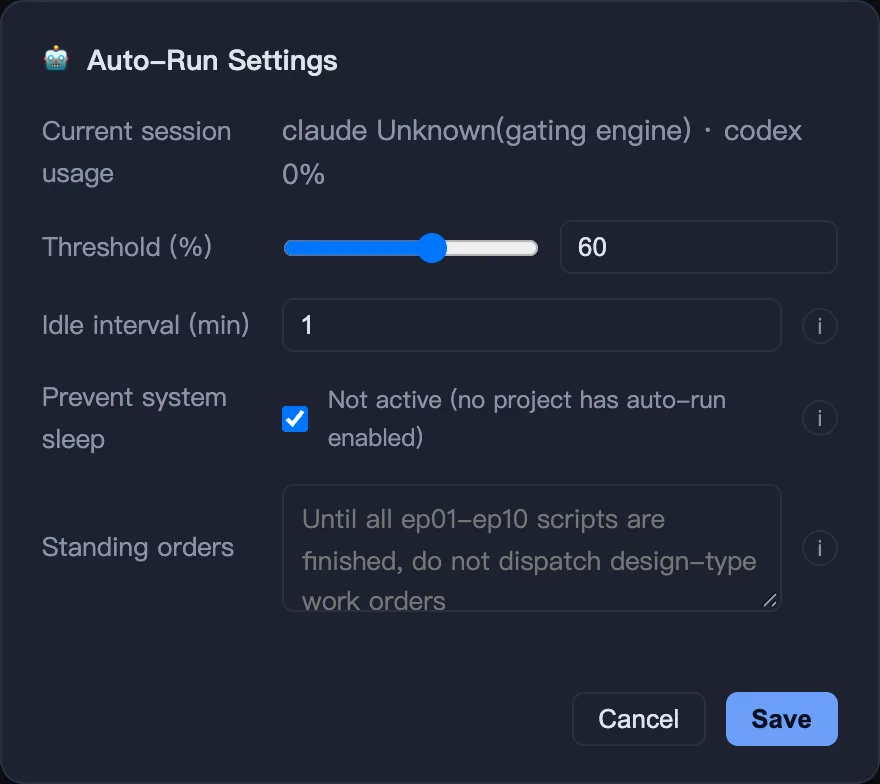
| Field | What it does | Range | Default | Applies to |
|---|---|---|---|---|
| Current session usage | Shows the current 5-hour session usage of Claude Code and Codex. The engine used for the threshold is marked (gating engine). | — | — | — |
| Threshold (%) | When the Workflow Orchestrator's engine reaches this session usage, auto-run skips the round. If usage cannot be read, the round goes ahead. | 1–100 | 80 | All projects |
| Idle interval (min) | How often auto-run checks | 1–720 | 5 | All projects |
| Prevent system sleep | While any project has auto-run on, keeps the computer from going to sleep when idle. The display can still turn off, and closing the lid or shutting down is not blocked. Released when the app quits. macOS and Windows only. | On / off | On | All projects |
| Standing orders | Text added to every message auto-run sends to the Workflow Orchestrator. It survives even when the orchestrator's session is restarted. | Up to 2,000 characters | Empty | Current project |
Standing orders
Use standing orders for rules that should hold for a long time. Write them as conditions, for example:
Until all ep01–ep10 scripts are finished, do not dispatch design work orders.
Leave the box empty to add nothing.
When to use it
- Long unattended runs, such as overnight generation. Set Retry count in Agent advanced settings so failed work can be redone without you.
- When you are away: link Mobile messages to get notices and answer sign-off cards from your phone.
WARNING
Auto-run keeps spending engine quota and generation credits while you are away. Watch Resource usage, and lower the threshold if you want to keep part of your session quota for your own work.
Stopping
⏹ Stop (or /stop all) stops the tasks that are running, but auto-run starts dispatching again after the next idle interval. To stop for good, also turn auto-run off with the 🤖 button or /auto off.