Console tour
The console is the page you work in most: you pick a project, talk to agents, watch their runs and open every setting from here. This page walks through each part so you know where things are.
The desktop app opens the console when it starts. When you run VideoAgents from source, it is at http://127.0.0.1:8630/ by default.
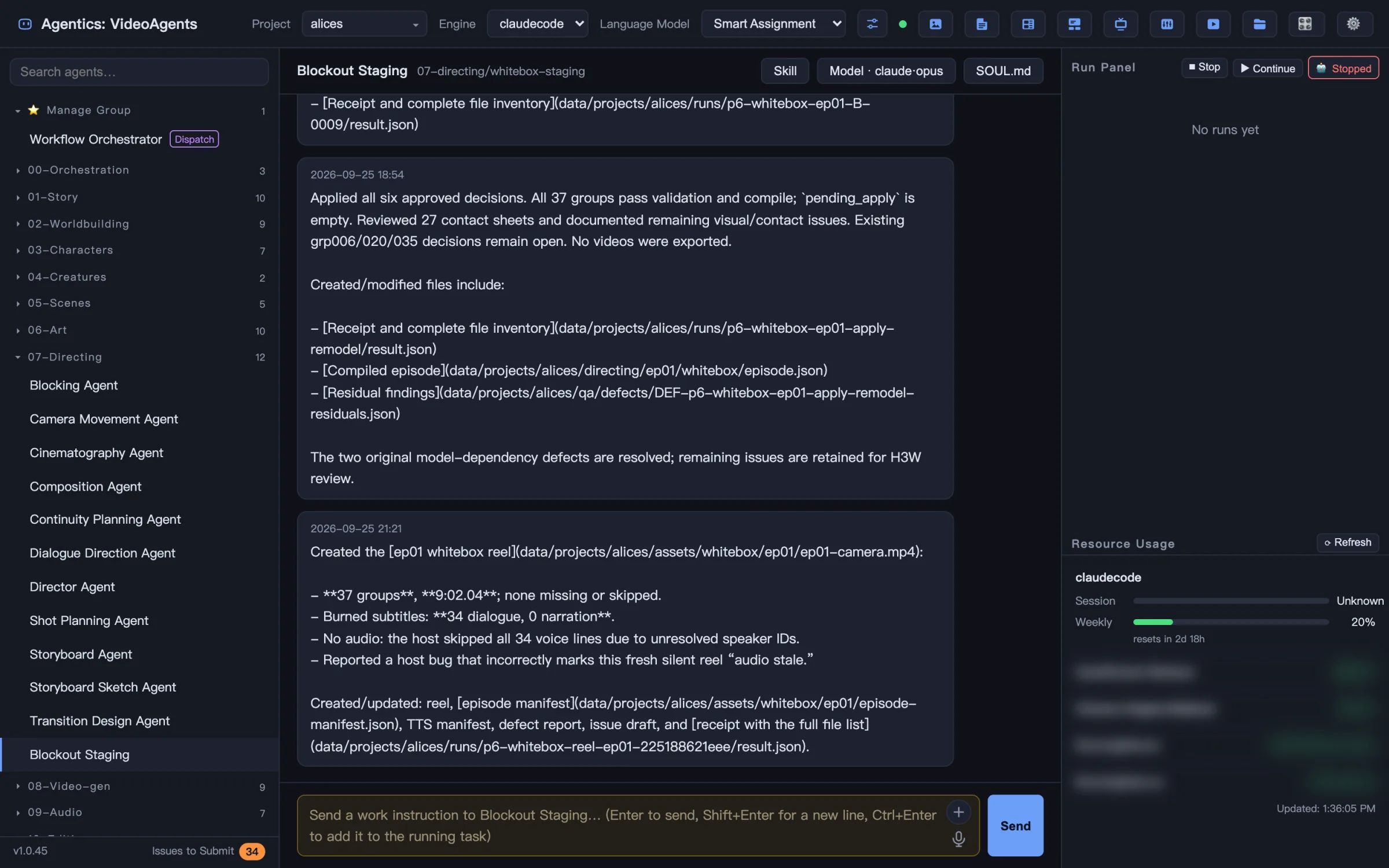
The console has four areas:
| Area | What it is for |
|---|---|
| Top bar | Pick the project, engine and language model; open preview pages, the project folder and the settings menus |
| Agent list (left) | Every agent of the current project, grouped by department |
| Chat (middle) | The conversation with the selected agent, and the box where you type instructions |
| Right column | The Run Panel (running and finished tasks) and Resource Usage (engine quota and account balances) |
Top bar
From left to right:
| Item | What it does |
|---|---|
| Project | Shows the current project. Click it to open the project list, where you switch, create or import projects. See Switch, import and export projects. |
| Engine | The agent engine that runs the agents: claudecode, codex, kimicode, pi, opencode, grok, antigravity or agentics. See Agent engines. |
| Language Model | The model the engine uses. Smart Assignment gives the creative core (orchestration, story, characters, scenes, art, directing) a high-tier model and the other agents a low-tier one; the slider button next to it changes which two models are used. See Language models and smart assignment. |
| Dot | Live connection to the service: green when connected, red when the page has lost the connection. Hover it to see the web and API ports. |
| Picture icon | The preview menu: Reference Files, Novel Text, Workflow Preview, Worldview Preview, Scene Preview, Character Preview, Creature Preview and Prop Preview. |
| Page icons | Script Preview, Storyboard, Storyboard Preview, Director's Console, Post-production and Final Release. Motion graphics projects show Code Preview instead of the Director's Console. Hover an icon to see its name. |
| Folder icon | Opens the current project's folder on your computer. |
| 🎛️ | Project settings. These apply to the current project only. |
| ⚙️ | Global settings. These apply to every project. |
Every preview page opens for the project selected in the top bar.
The 🎛️ project settings menu
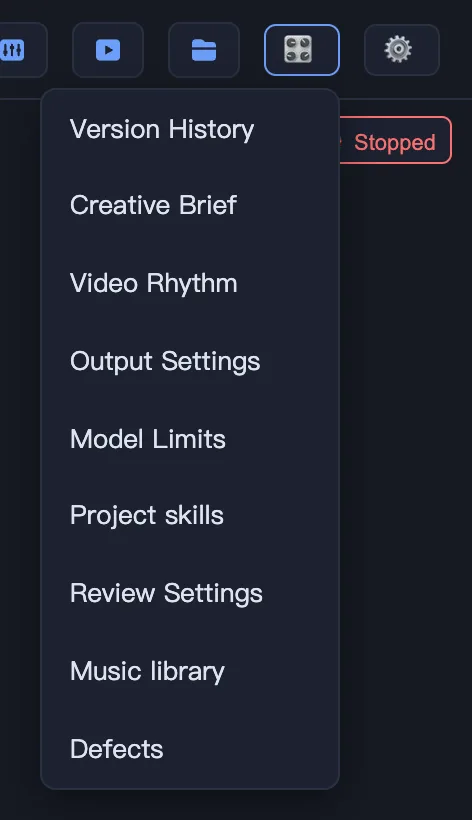
| Menu item | Guide |
|---|---|
| Version History | Copy and delete projects |
| Creative Brief | Creative brief |
| Video Rhythm | Video pacing |
| Output Settings | Output settings |
| Model Limits | Model limits |
| Project skills | Project skills |
| Review Settings | Review settings |
| Music library | Music library |
| Defects | QA reviews and defects |
The ⚙️ global settings menu
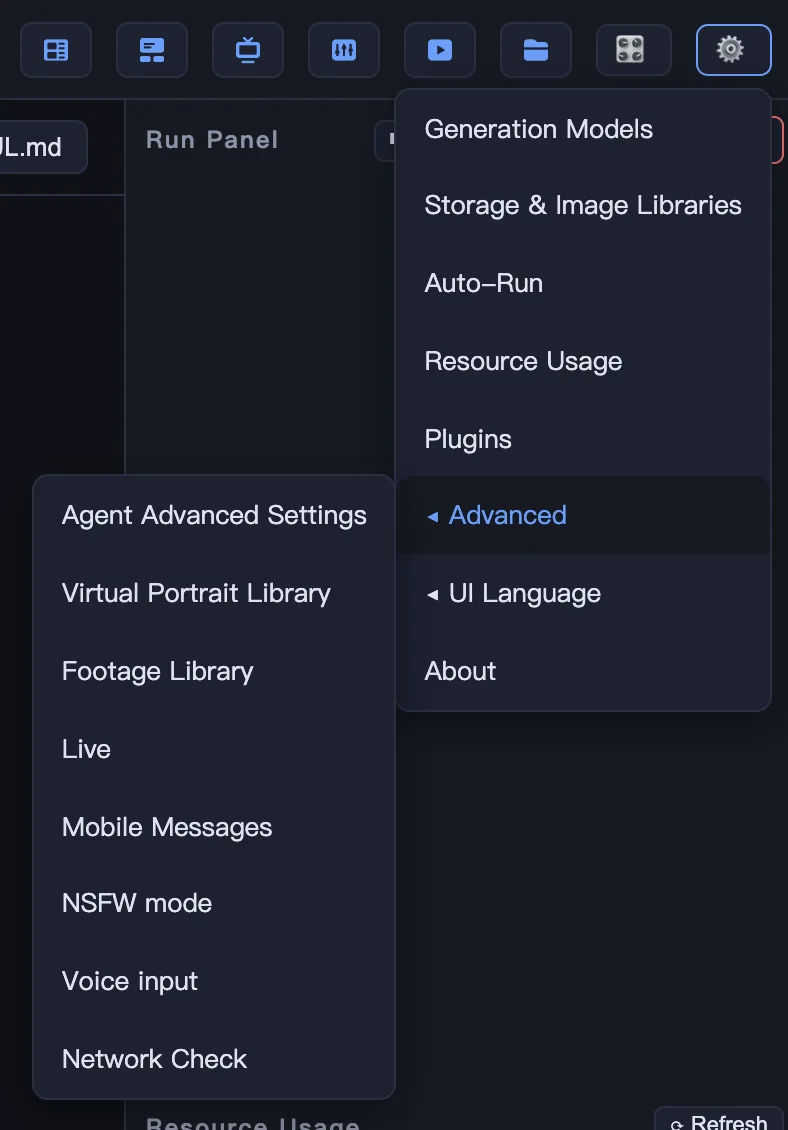
| Menu item | Guide |
|---|---|
| Generation Models | Engines & models |
| Storage & Image Libraries | Object storage and stock libraries |
| Auto-Run | Auto run |
| Resource Usage | Resource usage |
| Plugins | Install plugins |
| Advanced → Agent Advanced Settings | Agent advanced settings |
| Advanced → Virtual Portrait Library | Virtual avatar library |
| Advanced → Footage Library | Footage library |
| Advanced → Live | Live generation |
| Advanced → Mobile Messages | Mobile messages |
| Advanced → NSFW mode | NSFW mode |
| Advanced → Voice input | Voice input |
| Advanced → Network Check | Network check |
| UI Language | Interface language |
| Account | Desktop app only: shows the signed-in account and its balance, and lets you sign in or out |
| About | Opens the VideoAgents repository on GitHub |
Agent list
The left column lists the agents of the current project, grouped by department (00-Orchestration, 01-Story, 02-Worldbuilding and so on). Click a group name to fold or unfold it.
- ⭐ Manage Group is always at the top. It holds the Workflow Orchestrator, marked Dispatch. Talk to it to run the whole team.
- A yellow, pulsing dot next to an agent means it has a task running or queued in this project.
- Type in Search agents… to filter by name or ID. Matching groups unfold.
- Each project type has its own team, so the list changes when you switch to a project of another type.
At the bottom of the column you see the VideoAgents version (for example v1.0.45) and Issues to Submit with a count. See Issues to submit.
Chat
Click an agent to open its conversation. The header shows the agent's name and ID and the buttons Skill, Model and (in Debug mode) SOUL.md. Type in the box at the bottom and press Enter to send. See Chat with agents.
Each project keeps its own conversations, so switching the project reloads the selected agent's chat for that project.
Right column
- Run Panel lists the tasks of the current project with their status, time and cost, and has the ⏹ Stop, ▶ Continue and 🤖 auto-run buttons. See Run Panel.
- Resource Usage shows engine quota and provider balances. See Resource usage.
Confirmation and sign-off cards appear in the bottom-right corner of the page when an agent needs your answer.