Scenes and top-down layouts
A scene is one place in your world: a room, a courtyard, a stretch of riverbank. The scene agents give each place an ID, a written profile and lighting schemes, then draw a top-down layout that the 3D set, panoramas and background plates are built from. You review all of it on the Scene Preview page.
What counts as a scene
- One scene is one space. It must be something that can be drawn as a single top-down plan with one set of landmarks. If the story moves from an airport hall into the plane, those are two scenes.
- Each scene has an ID such as
SCN-mad-tea-party. Shots, lighting schemes, plates and file folders all refer to it. - Scenes are nested: region › building › room. A room points to its building as its Parent. Region-level entries that only group other scenes have no layout of their own.
- Inside and outside. Each scene is marked INT, EXT or INT/EXT (a half-open space such as a pavilion). A place gets separate inside and outside scenes only when the story has action on both sides.
Who makes what
| What | Made by | When | Saved in |
|---|---|---|---|
| Scene list with IDs, levels, aliases and chapters | Scene Agent | While the world bible is built | bible/scenes/index.json |
| Architecture: form, materials, details, things to avoid | Architecture Agent | Same | bible/scenes/<SCN-ID>/architecture.json |
| Environment: weather, season and time of day at each story point | Environment Agent | Same | bible/scenes/<SCN-ID>/environment.json |
| Lighting schemes | Lighting Agent | Same | bible/scenes/<SCN-ID>/lighting.json |
| Top-down layout (projects with Whitebox on) | Environment Concept Agent | At the start of each episode | assets/concepts/scenes/<SCN-ID>/layout_top.png and layout.json |
| Front and reverse scene plates (projects with Whitebox off) | Environment Concept Agent, then the system | At the start of each episode | assets/concepts/scenes/<SCN-ID>/main_01.png, reverse_01.png |
| 3D set | Scene Modeling | After the layout, per episode | bible/scenes/<SCN-ID>/whitebox.json |
Pictures are drawn per episode: only the scenes that episode uses and that have no pictures yet. Scenes drawn for an earlier episode are reused, so a scene that no episode uses yet has a profile but no pictures. That is expected.
Top-down layouts
When 🎛️ → Output Settings → Whitebox is on, each scene gets a layout pack:
layout_top.png: a straight-down plan view of the whole space, at least 2560 × 1440. It has no people, text or arrows and no time of day: the light is flat and neutral. It is a spatial reference, not a picture for the film. The 3D set is measured from it, and panoramas and nine-grid plates use it, but it is never sent to the video model.layout.json: the same space in words. It records which direction is at the top of the plan, at least three landmarks (doors, windows, main furniture, terrain) with their positions, and nine named camera views ("from the door, looking at the fireplace, wide, eye level").
If you put pictures in refs/scenes/ or refs/style/ (see Reference files), the Environment Concept Agent passes them to the image model when it draws.
When Whitebox is off there is no layout pack. Each scene gets a front plate instead (see Background plates).
Open Scene Preview
- In the console's top bar, open the preview menu (the picture icon, Preview design outputs) and choose 🏔 Scene Preview. From any other preview page, pick it in the page menu at the top right.
- Pick a scene in the list on the left. Type in Search scenes… to filter by name, ID or alias, or choose an episode in the menu next to it to see only the scenes that episode uses.
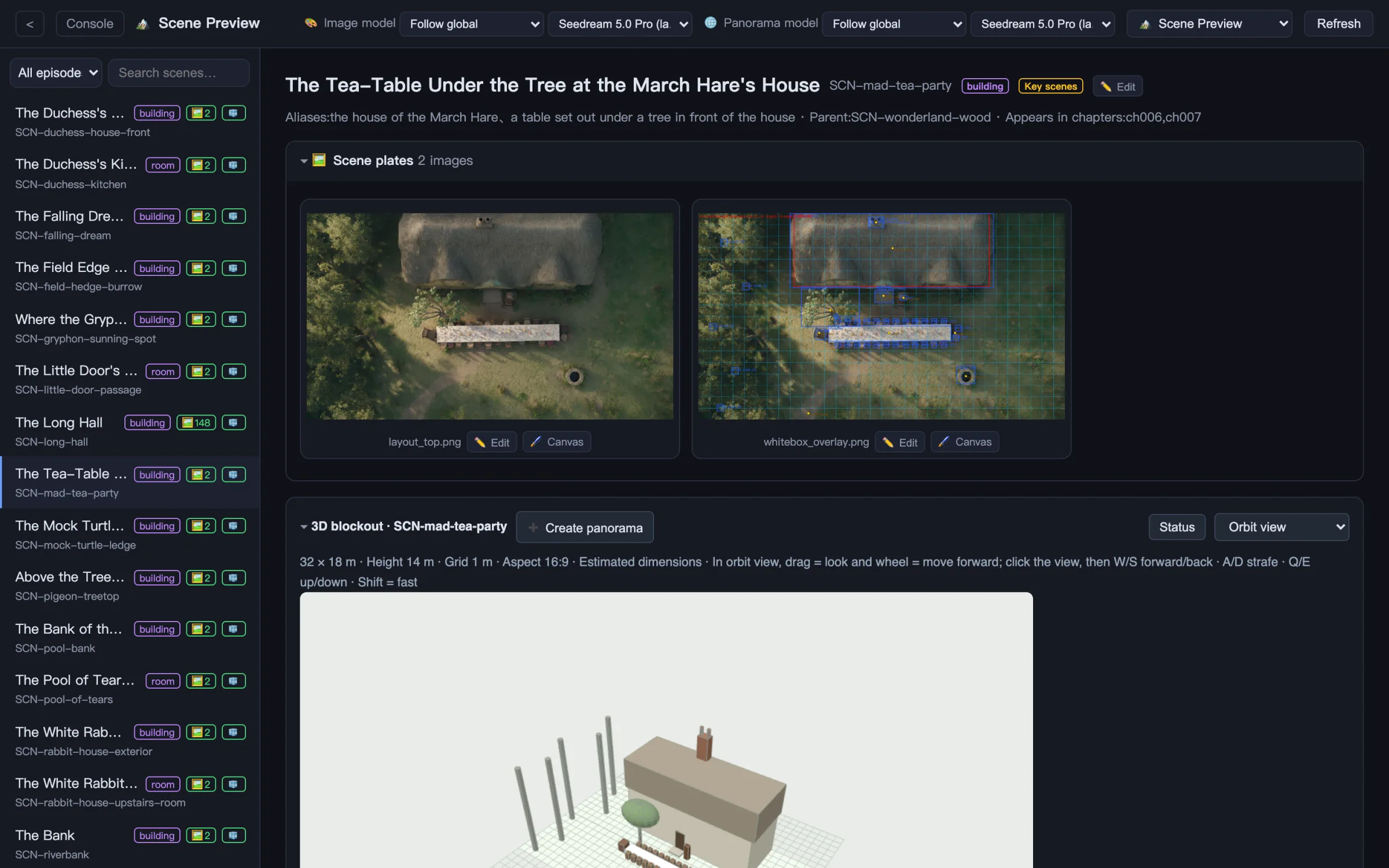
Badges in the list:
| Badge | Meaning |
|---|---|
| building, room, region | Level in the scene hierarchy |
| 🖼 with a number | How many images the scene folder holds |
| 🧊 | The scene has a 3D set |
To link someone straight to a scene, add ?id=<SCN-ID> to the page address, for example /preview/scenes?id=SCN-mad-tea-party.
What the scene page shows
At the top: the scene name and ID, its level, a Key scenes badge for important or frequent places, and ✏️ Edit. The line below lists Aliases, Parent, Appears in chapters and Frequency when known. Below that come these sections, in this order:
| Section | What it holds | More |
|---|---|---|
| 🖼 Scene plates | Every image in the scene folder: layout_top.png, whitebox_overlay.png (the layout check for the 3D set) and concept art. Subfolders such as candidates/ (replaced images) appear as folder cards. Click an image to enlarge it. | |
| 3D blockout | The scene's 3D set | 3D sets |
| 🌐 Panoramas | 360° pictures taken inside the 3D set | 360° panoramas |
| 🌍 World model | Walkable 3D worlds built from a panorama | World models |
| 🎦 Shot background plates | The scene's plate library | Background plates |
| 🖼 Scene plates (front / reverse) | Front and reverse plates, Whitebox-off projects only | Background plates |
| Architecture/spatial structure, Environment, Lighting design, whitebox | The scene's bible files, shown field by field |
Click a section heading to fold or unfold it. The page remembers which sections you folded and keeps them folded for every scene.
Lighting schemes
Open Lighting design to see the scene's lighting schemes. The Lighting Agent writes one scheme for each time-of-day and weather combination the story actually uses, such as late afternoon and fair. Each scheme records the key light, its direction, the fill, any practical lights, colour temperature and contrast.
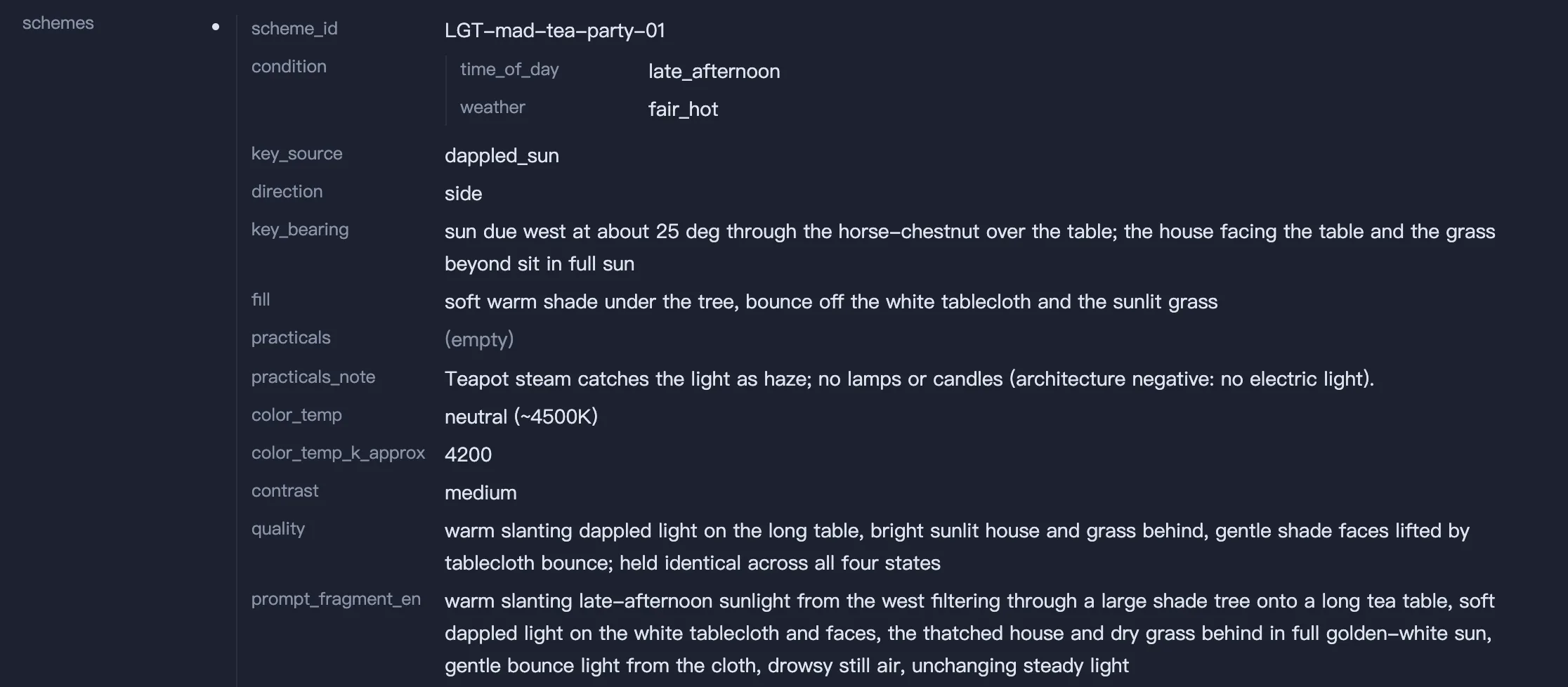
The prompt_fragment_en field is a ready-made lighting sentence. Every shot group that uses this scheme gets the sentence word for word in its video prompt, so the light in a place reads the same in every shot. Panoramas and plates use the same scheme IDs (LGT-…), which is why you pick a lighting scheme when you create a panorama.
Change a scene
- ✏️ Edit next to the scene name opens a note box at the bottom right, already filled in with the scene. Write what should change ("the kitchen door is on the east wall, not the north wall") and send it. The note goes to the Reviser, who updates the scene files.
- ✏️ Edit under an image sends a note about that image to the Reviser.
- Canvas under an image opens it in the image editor, where you can make the change yourself. See Canvas: edit an image.
Image models for scene pictures
Two pickers at the top of the page choose the image model for this page's pictures, separately from the global Generation Models setting:
| Picker | Used for |
|---|---|
| 🎨 Image model | Layout plans, concept art and background plates |
| 🌐 Panorama model | 2:1 panoramas only. It must handle any aspect ratio. |
Follow global uses the image model set on the Generation Models page. The panorama picker does not fall back to the page's 🎨 Image model.
Files
| Path | What it is |
|---|---|
bible/scenes/index.json | The scene list |
bible/scenes/<SCN-ID>/architecture.json, environment.json, lighting.json | The scene's profile and lighting schemes |
bible/scenes/<SCN-ID>/whitebox.json | The 3D set |
assets/concepts/scenes/<SCN-ID>/layout_top.png, layout.json | The top-down layout and its landmarks |
assets/concepts/scenes/<SCN-ID>/whitebox_overlay.png | Layout check image for the 3D set |
assets/concepts/scenes/<SCN-ID>/plates/, panos/, world/ | Background plates, panoramas, world models |