Image models
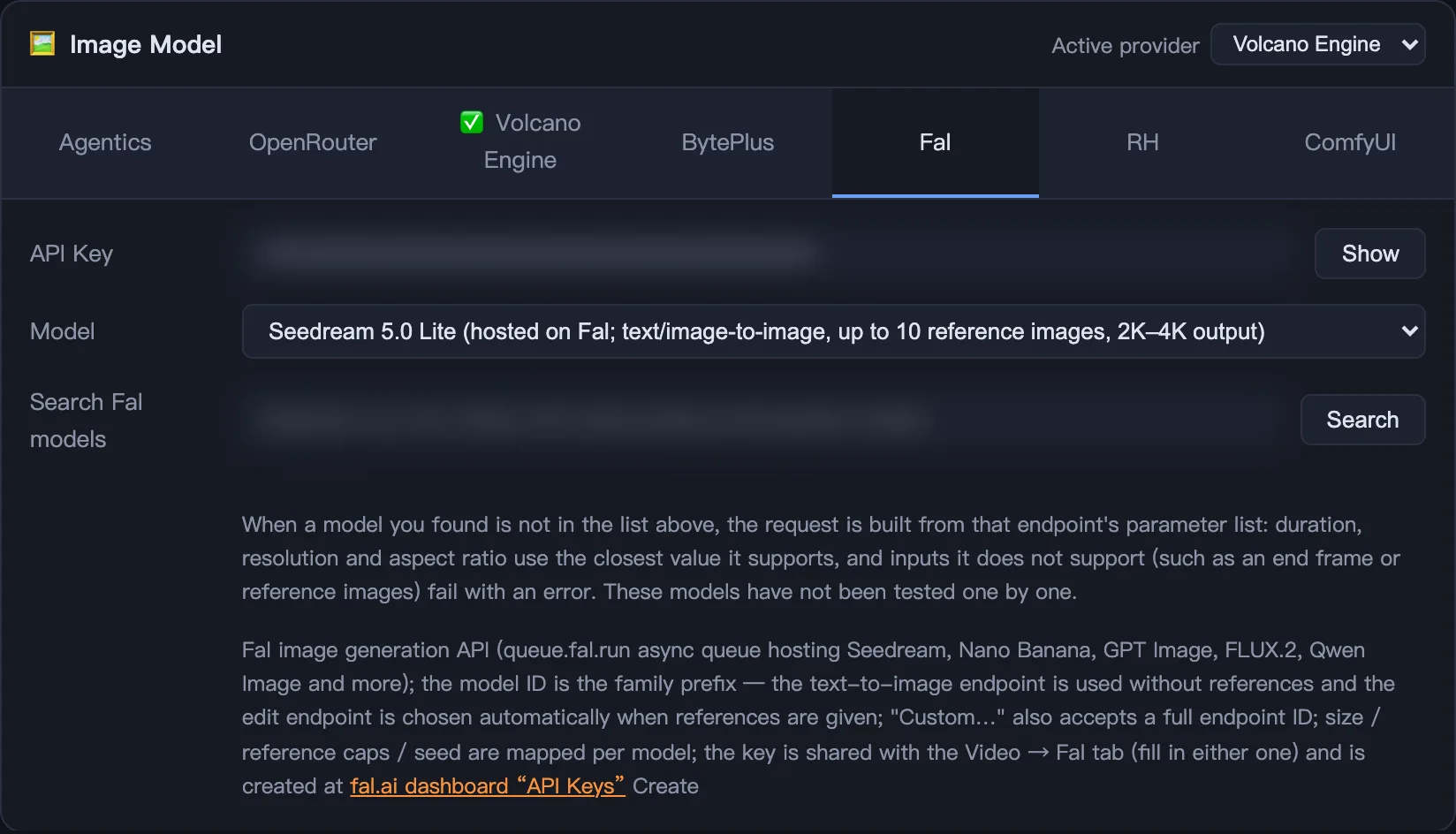
The image model draws every still in a project: character and costume sheets, scene images and plates, creatures, props, keyframes, covers and storyboard sketches. You choose one provider and model for the whole app on the Generation Models page, and you can override it on some preview pages.
Open the settings
- Open ⚙️ → Generation Models.
- Find the 🖼 Image Model card.
- Click a tab to see or edit that provider's settings.
- Choose the provider agents should use in Active provider at the right of the card's title bar. The ✅ marks it.
Changes save automatically when a field loses focus or a menu changes; the top right of the page says ✓ Saved automatically.
Providers
| Tab | What it is | What you enter | Default model |
|---|---|---|---|
| Agentics | Your VideoAgents desktop account | Nothing; sign in. Pick a Text-to-image model and an Image-to-image model | MiniMax-H3-Image (minimax-h3-image-t2i / minimax-h3-image-i2i); FLUX.2 dev in v1.0.45 and earlier |
| OpenRouter | Image models on OpenRouter | API Key (sk-or-v1-…), Model | Seedream 4.5 |
| Volcano Engine | Seedream on Volcano Ark | Ark API Key, Model | Seedream 5.0 Pro |
| BytePlus | Seedream on BytePlus ModelArk (outside China) | ModelArk API Key, Model | Seedream 5.0 Lite |
| Fal | Image endpoints hosted on fal.ai | API Key, Model | Seedream 5.0 Lite |
| RH | RunningHub's standard model API | Provider (site), API Key for that site, Text-to-image model, Image-to-image model | Seedream 5.0 Lite |
| ComfyUI | Your own workflows on a local ComfyUI, Comfy Cloud or RunningHub | See ComfyUI | — |
New installs use Agentics as the active provider.
Which model is used when
Image jobs either start from text only, or from reference images (a character sheet, a scene, an earlier version). Providers handle that for you:
- Agentics, RH and ComfyUI have two settings, one for text-to-image and one for image-to-image. The image-to-image one is used whenever references are attached.
- Fal: you pick a model family; the text-to-image endpoint is used without references and the edit endpoint with them. Size, reference limits and seed are mapped per model.
- OpenRouter, Volcano Engine, BytePlus: one model does both.
Provider notes
OpenRouter. Click Verify Key to check the key; it shows your quota. The model list is loaded from OpenRouter's catalog with recommended models on top (marked ⭐). If the catalog can't be loaded, the recommended list is shown; click Refresh List to try again. Choose Custom… for any other model ID.
Volcano Engine and BytePlus. The model menu lists the Seedream versions that are on sale. For a newer model, choose Custom… and enter its Model ID, or an inference endpoint ID (ep-…). Seedream 5.0 Pro and Flash need an output of at least 1280×720. On BytePlus, Seedream 5.0 Lite is the default because images with faces made with it pass Seedance video review by default.
Fal. The built-in list includes Seedream 5.0 Lite / Pro / Flash and 4.5, Nano Banana 2.1 / Pro / 2, GPT Image 2.5 and 2, FLUX.3, FLUX.2 Pro / Max, FLUX Kontext Max, Qwen Image 3, HunyuanImage 3.0 and Ideogram V4.5. To use another model:
- Type a keyword in Search Fal models (for example
flux) and click Search. Leave it empty to list popular models. - Click Use next to a result. It is filled into Model and saved.
Results marked Adapted from the endpoint's parameters are not in the built-in list: the request is built from that endpoint's parameters, the closest supported size is used, and inputs the endpoint doesn't take (such as reference images) fail with an error. The Fal key is shared with the Video Model card, so you only enter it once.
RH. Choose the site in Provider (runninghub.ai or runninghub.cn). The two sites have separate accounts and keys, and each key is saved separately. The model menus are read from RunningHub's documentation the first time you open the tab (about a minute), then cached for a day; Refresh model list reloads them. The RH model API only accepts enterprise shared API keys.
MiniMax. A MiniMax tab exists for Image-01 but is hidden unless it is already the active provider.
Override the image model on a page
Some pages have their own 🎨 Image model menu at the top: the Storyboard (for sketches) and the Scene, Character, Creature and Prop previews. Follow global uses the Generation Models setting; pick a provider and model to use a different one for that kind of image only. For example, draw storyboard sketches with a cheap, fast model. The choice is saved per kind, not per project.
The Canvas page has its own provider and model menus for edits on that page only. See Canvas: edit an image.
Good to know
- Each generation records the model, provider and references it used. See Files, runs and versions.
- When NSFW mode is on, flagged work can use a separate fallback image model. See NSFW mode.
- Providers bill your own account. See Cost control.
Troubleshooting
Choosing Agentics in Active provider jumps back. The Agentics provider needs the desktop app and a signed-in account. The reason appears at the top right of the page.
A Volcano Engine model fails with "ClosedEndpoint" or similar. Volcano retires older Seedream versions. Pick a model from the menu, which lists the versions on sale.
A Fal model found by search fails. It may not accept the inputs the job sends, for example reference images. Pick a model from the built-in list or one marked Built-in mapping.