ComfyUI
Use ComfyUI when you want to pick the exact model, nodes and settings yourself, or run open models on your own GPU. Every generation card that has a ComfyUI tab can run a ComfyUI workflow, and the workflow can run in three places: your own ComfyUI, Comfy Cloud or RunningHub.
Where ComfyUI is available
The ComfyUI tab appears on these cards of ⚙️ → Generation Models. Each card has its own connection and workflows.
| Card | Workflows |
|---|---|
| 🖼 Image Model | Text-to-image API and Image-to-image API (used when reference images are attached) |
| 🎬 Video Model | Workflow API |
| 🎵 Music Model | Workflow API |
| 🎙 TTS Voice Model | Voice Clone API and, in voice design mode, Voice Design API |
| 🧑 Digital Human | InfiniteTalk workflow |
| 🔍 Upscale | Upscale workflow API |
To use it, set up the ComfyUI tab, then choose ComfyUI in that card's Active provider.
Run modes
Pick one in Run mode:
| Run mode | Where the workflow runs | What you enter |
|---|---|---|
| Local | Your own ComfyUI server | Service URL (default http://127.0.0.1:8188) |
| Cloud (Comfy Cloud) | Comfy Cloud | API Key from platform.comfy.org |
| RunningHub China (.cn) / RunningHub International (.ai) | Your RunningHub workspace | API Key for that site, and the workflows you add |
Local
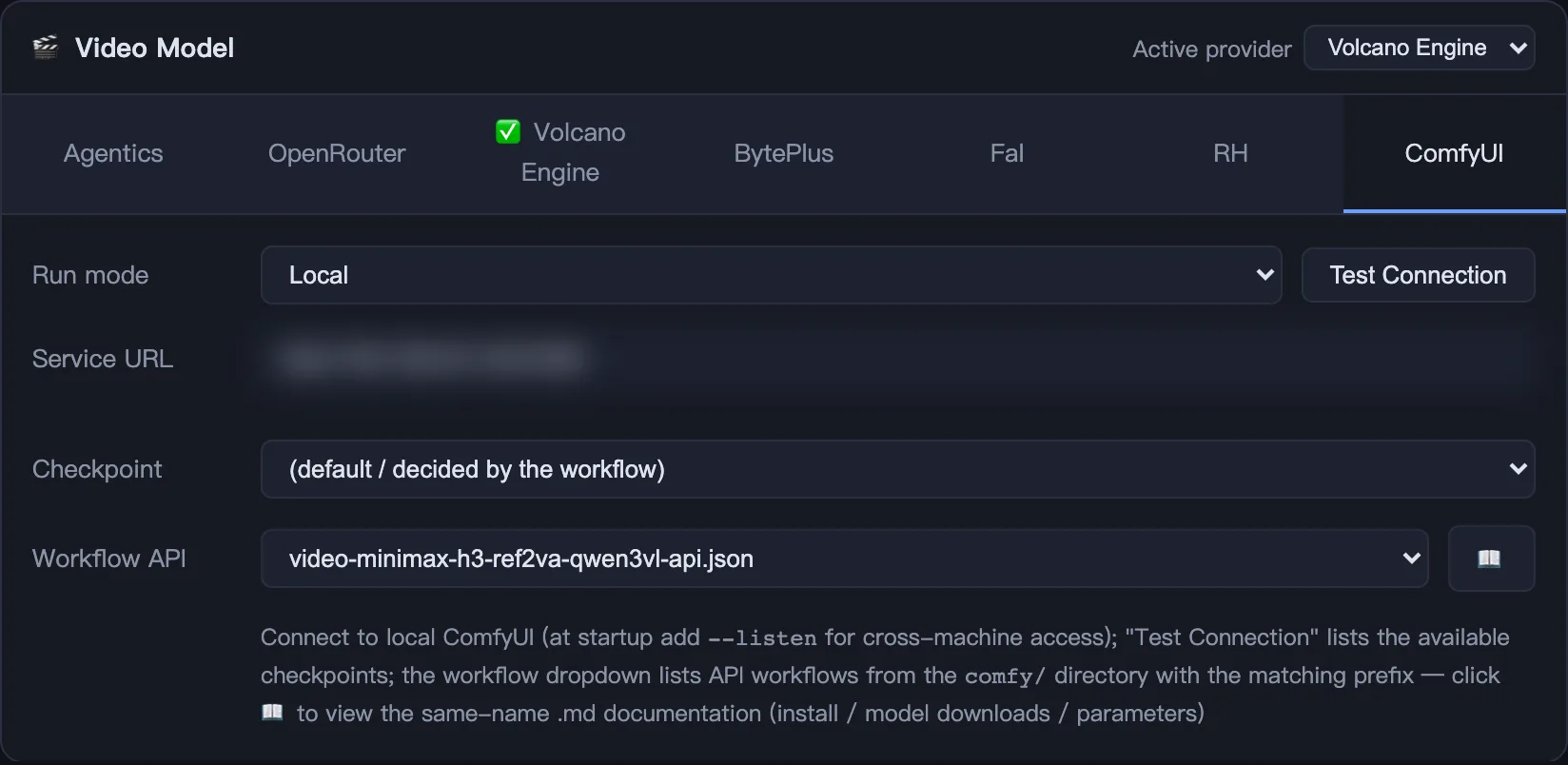
- Start ComfyUI. To reach it from another computer, start it with
--listen. - Enter the Service URL.
- Click Test Connection. It shows the ComfyUI version and fills the Checkpoint menu with the checkpoints on the server.
- Leave Checkpoint on (default / decided by the workflow) unless the workflow takes a checkpoint from VideoAgents.
- Pick a workflow in Workflow API. The menu lists the API-format workflows in the
comfy/folder whose names start with that card's prefix (image-,video-,music-,tts-,digitalhuman-,scale-). Click 📖 to read the template's notes: what to install, which model files to download and its settings. Custom… takes a path to your own workflow, for examplecomfy/my.json.
Comfy Cloud
Workflows run on Comfy Cloud, so you don't need a GPU. The API key needs a Comfy Cloud subscription and shares its monthly allowance with the web app; the free plan has no API access. The workflow menus are the same as for Local. Workflows that need custom nodes (for example ACE-Step, IndexTTS-2 or MiniMax-H3) may not work there; check with Test Connection.
RunningHub
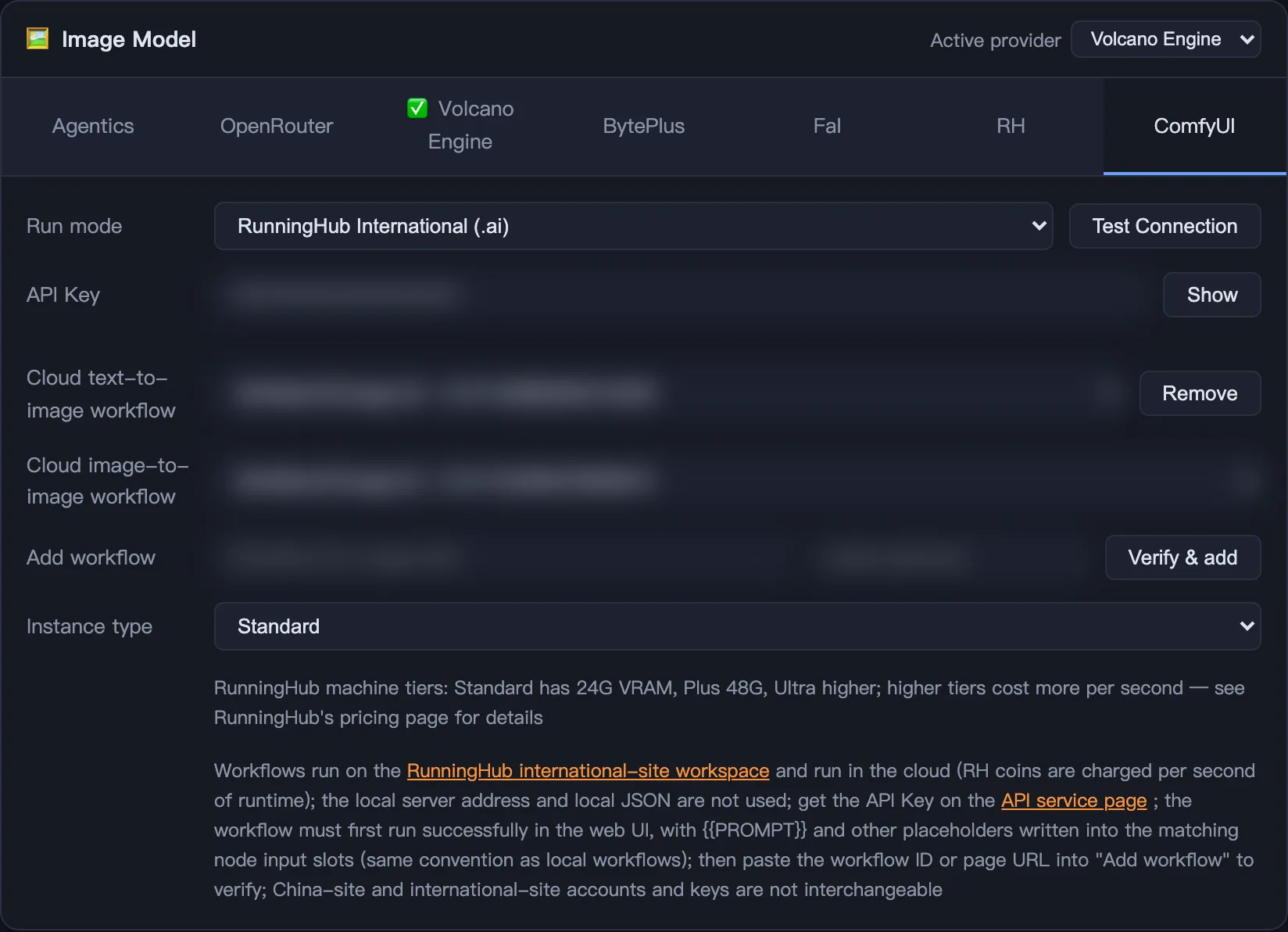
Workflows run in your RunningHub workspace and are charged in RH coins per second of run time. The local service URL and the comfy/ files are not used.
- Get an API key from the RunningHub API service page of your site. The China and international sites have separate accounts and keys; each is saved separately.
- In your RunningHub workspace, run the workflow successfully once, with the placeholders (see below) written into the node inputs, as for a local workflow.
- Paste the workflow ID or page URL into Add workflow, add an optional label, and click Verify & add. The status line shows the node count and the placeholders it found. A workflow without placeholders is bound automatically where VideoAgents can recognize the inputs.
- Pick the added workflow in the cloud workflow menu (for images, Cloud text-to-image workflow and Cloud image-to-image workflow). Remove takes it off the list.
- Choose an Instance type: Standard (24 GB VRAM), Plus (48 GB) or Ultra (more). Higher tiers cost more per second; see RunningHub's pricing.
Test Connection checks the key and shows your RH coin balance and running tasks. Each time the settings are saved, VideoAgents refreshes its copy of your RunningHub workflows; if that fails, the page says so and generation keeps using the old copy.
Placeholders in your own workflows
VideoAgents fills these text placeholders in an API-format workflow:
| Kind | Placeholders |
|---|---|
| Text | {{PROMPT}}, {{NEGATIVE}}, {{CHECKPOINT}}, {{FIRST_FRAME}}, {{LAST_FRAME}}, {{TEXT}}, {{LYRICS}}, {{VOICE}}, {{REF_AUDIO}} |
| Numbers | {{WIDTH}}, {{HEIGHT}}, {{SEED}}, {{DURATION}} (seconds), {{FRAMES}}, {{SPEED}} |
| Digital human | {{IMAGE}}, {{AUDIO}}, {{PROMPT}}, {{SEED}}, {{FRAMES}} |
Audio results must be saved with a SaveAudio or SaveAudioMP3 node. For voices, {{TEXT}} is the line to speak and {{REF_AUDIO}} is the reference clip uploaded to ComfyUI; for music, {{LYRICS}} and {{DURATION}} are filled in. The number of reference images an image workflow accepts is read from its LoadImage nodes.
Bundled templates
| Card | Templates in comfy/ |
|---|---|
| Image | FLUX.2 dev, Krea 2 Turbo, MiniMax-H3-Image (added after v1.0.45), NoctQ v4, Qwen-Image 2.1 (bf16 and GGUF), Z-Image Turbo (each as -t2i and -i2i), Ideogram 4 (text-to-image), Qwen-Image-Edit 2511 (image-to-image) |
| Video | MiniMax H3 (Ref2VA, first/last frame 360° orbit), FastH3, LTX 2.5, Sulphur, Wan 2.1 (text-to-video and Fun Camera) |
| Music | ACE-Step v1 (recommended), MiniMax Music 3 |
| Voice | IndexTTS-2 (recommended), Qwen3-TTS Voice Clone and Voice Design |
| Digital human | InfiniteTalk, InfiniteTalk fp8 + lightx2v |
| Upscale | SeedVR2 |
Open 📖 next to a template for its install steps and model downloads. Check each model's license before commercial use.
Good to know
- In NSFW mode, choosing ComfyUI as a fallback image or video provider means choosing a run mode.
- On the preview pages' 🎨 Image model menu, the second menu for ComfyUI is the run mode too.
Troubleshooting
Test Connection fails in Local mode. Check that ComfyUI is running and that the Service URL and port are right. From another computer, ComfyUI must be started with --listen.
A job fails with a missing node or model file. Open 📖 for the template and install the listed custom nodes and model files.
Verify & add rejects a RunningHub workflow. Make sure the run mode matches the site the workflow belongs to and that the workflow has run successfully in your workspace.