Generate reference images
When you have no picture that shows what you mean, make one. The ✨ Generate button on the Reference Files page creates an image from your prompt with the image model you pick for that page. You look at the result first and add it to your references only if it is right.
Before you start
- An image model set up on the 🎨 Generation Models page. See Image models.
- ✨ Generate is on the image sections: Visual Style, Thumbnails, Characters, Scenes, Creatures, Props and Other.
WARNING
Each generation is one paid call to the image model you picked.
Pick the image model for this page
At the top of the Reference Files page, 🎨 Image model sets the channel and model that ✨ Generate uses.
- Follow global (…) uses the image setting on the Generation Models page. It is the default.
- Pick a channel and a model to use something else for reference images only. The choice is saved for this page and does not change the global setting or the other preview pages.
- Channels without a key are shown as "(not configured)" and cannot be picked.
Generate an image
- On the section the image is for, click ✨ Generate. The ✨ Generate Image window opens with that section's name in the title.
- In Prompts, describe the image, for example "close-up of a bronze vessel, eye level, light grey background".
- Optionally click 🎨 Style Library and click a style. Its prompt is added to the prompt box (see below).
- Pick the Aspect: 16:9, 9:16, 1:1, 4:3 or 3:4. The choice is remembered in your browser.
- Click Generate, or press Ctrl+Enter (⌘+Enter on a Mac). The status line shows the channel, model and seconds elapsed.
- When the image appears, click it to see it full size. Then:
- Add to "section name" copies it into the section. The button changes to ✓ Added.
- Regenerate discards this image and makes a new one from the current prompt.
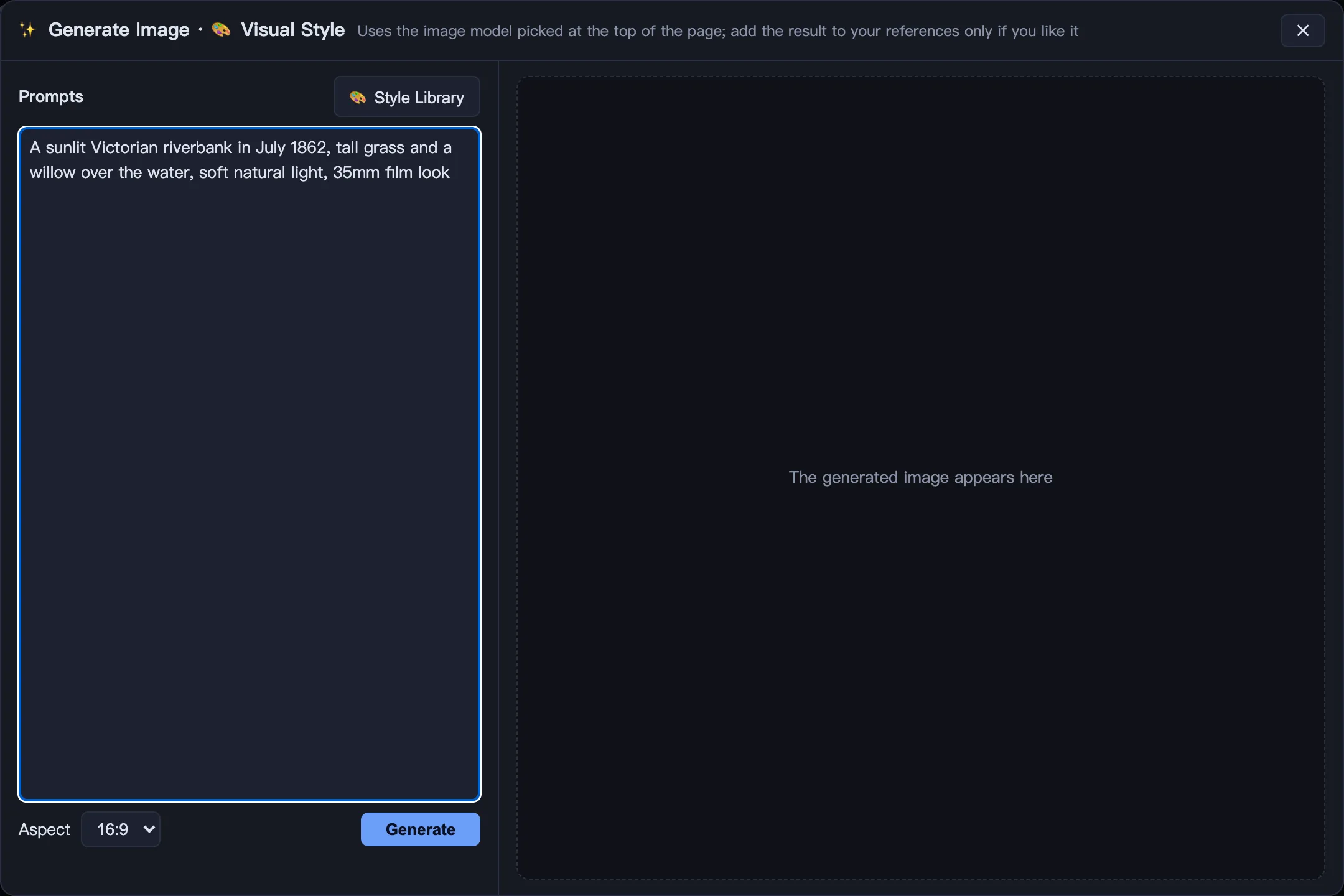
You can close the window while the image is being made; generation keeps going. Open ✨ Generate again on the same page to see the result.
Use a style from the style library
🎨 Style Library opens the same library of visual styles as the project's art style picker and the Canvas. Filter by Live-action, 3D or 2D, or search by name.
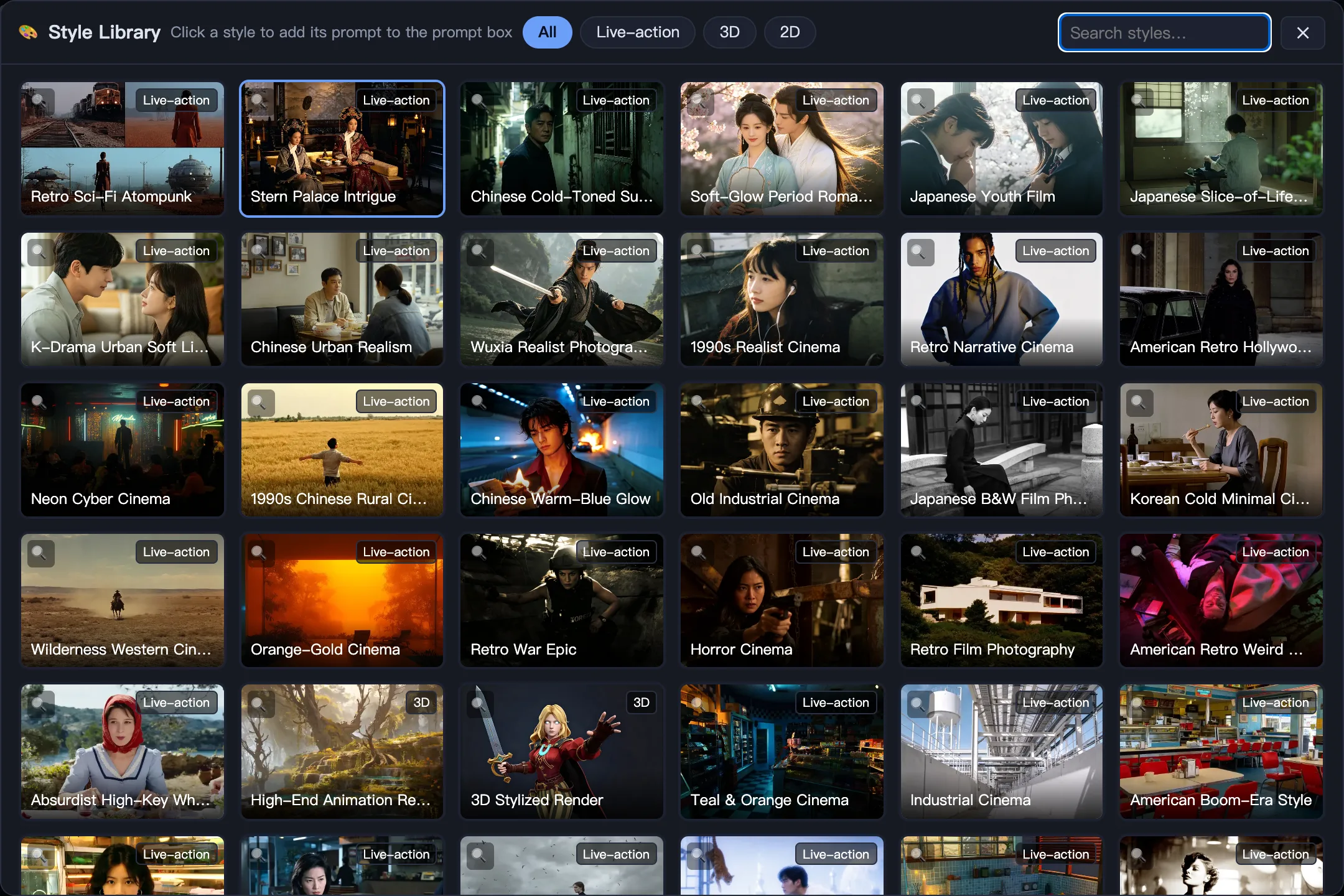
- Clicking a style adds its prompt to the end of your prompt and shows a 🎨 tag with the style's name.
- Clicking another style replaces the first one.
- ✕ on the tag removes the style's prompt again.
Picking a style here only affects this image. It does not change the project's art style.
What gets saved
- Until you click Add, nothing goes into
refs/. The image waits inassets/refs_gen/and is deleted after a day. Regenerate deletes the previous one at once. - When you add it, it is copied to
refs/<section>/gen_<job>.<ext>. The extension follows the actual image format, since many channels return JPEG. - The prompt, channel, model, aspect and style are saved in
refs/annotations.json. The card shows ✨ AI-generated with the channel and model; hover over that line to see the prompt. - Write a ✏️ Note on the new file like any other reference, so the agents know what it is for.
Troubleshooting
"This generation is no longer on record (was the service restarted?)" Generation jobs are kept in memory. After the service restarts, generate the image again.
"Generation failed: …" The message comes from the image channel. Check the model and key on the Generation Models page, or pick another model at the top of the page.
The image takes a very long time. After 35 minutes without an image, the job gives up and says so.