Art style
The art style decides how every image and video in the project looks: live-action or animation, palette, light, texture, what must never appear. You set the direction with a visual style prompt and reference images; the art director turns it into the project's style bible, and once you lock it, all later pictures follow it.
Set the direction
Visual style in the creative brief
Every project has a Visual Style: a short system prompt for the look of the film (texture, palette, lighting, composition). You set it in the new project wizard, and change it later in 🎛️ → Creative Brief.
- Open 🎛️ → Creative Brief.
- Under Visual Style, write your own prompt, or click 🎨 Choose from Style Library and click a style. Its prompt fills the field.
- Click Save.
The style library holds over 1,300 styles, filtered by Live-action, 3D and 2D, with a search box. Click 🔍 on a card to see it larger. Custom style prompt closes the library so you can write your own. Style names and prompts are shown in the interface language.
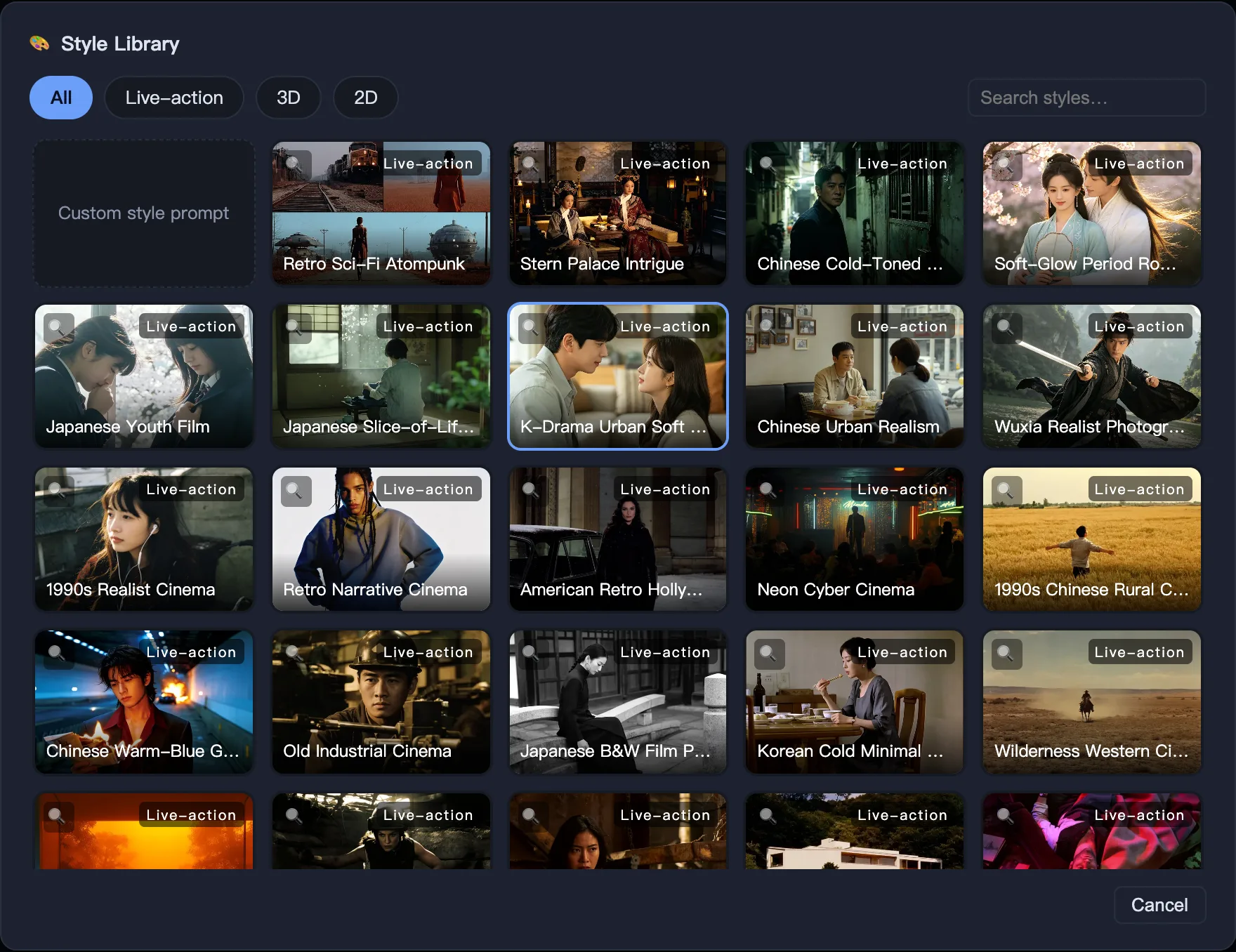
The creative brief is saved in the project's brief.md and added to every agent's instructions as the top creative premise; the visual style constrains all visual work. A change applies to tasks started after you save. See Creative brief.
Reference images
Put images whose look you want in the 🎨 Visual Style section of the Reference Files page. Files loose in the refs/ folder count as style references too. When the art director's decisions and your reference images disagree, the reference images win.
The style bible
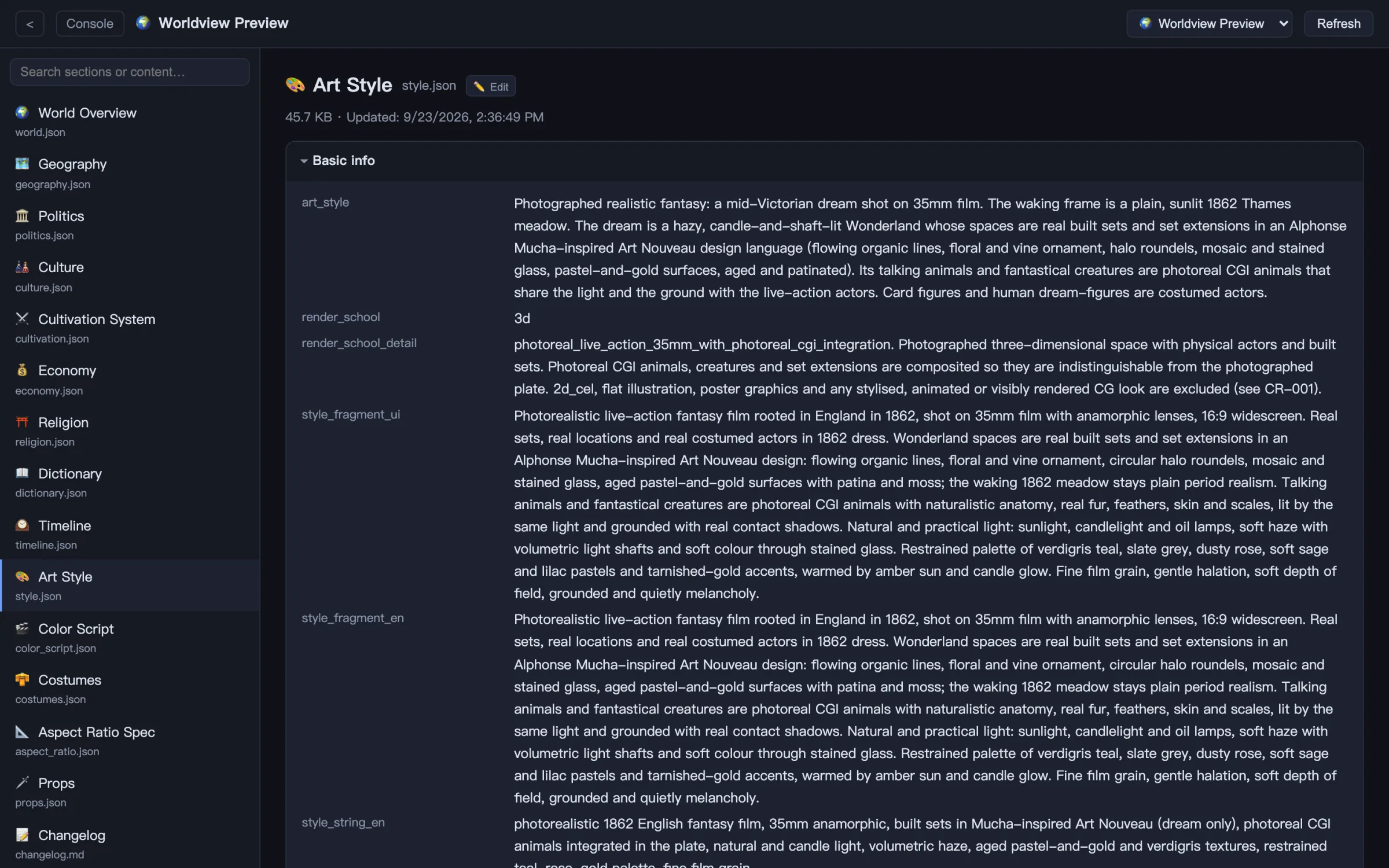
In Phase 4 of the workflow, after the world bible and characters are signed off, the art director writes bible/style.json. It first checks your reference images, then the world bible and your brief.
| Part | What it holds |
|---|---|
| Art style and render school | The overall look, and whether it is 2D cel, 3D or a mix |
| References | Three to five reference films, each with what to take from it and what to avoid |
| Style anchors and style fragment | Short phrases and one style sentence that are added word for word to every image and video prompt |
| Negative list | Things that must never appear: objects that break the world, compositions that models get wrong |
user_refs | Which of your reference images shaped which decision |
The style sentence comes in your interface language (style_fragment_ui) and in English (style_fragment_en); the negative list is always in English.
Three related files are made in the same phase:
- Color script (
bible/color_script.json) by the color-script agent: the palette and mood of each episode and act, with the highs and lows of the story, all derived from the style bible. - Aspect ratio spec (
bible/aspect_ratio.json) by the aspect-ratio agent: the master format, from 🎛️ → Output Settings, and how it is cropped or scaled for each platform you ticked on the 🎞️ Final Release page. See Output settings and Final videos and publishing. - Character and costume sheets, drawn in the style. See Characters and Costumes.
Read the style bible
Open 🌍 Worldview Preview from the Preview design outputs menu and pick Art Style. Color Script and Aspect Ratio Spec are in the same list.
Lock the style
When the style bible and the main characters' sheets are ready, you sign the Art style lock (H2). At this point the art director shows which reference image led to which decision. If you uploaded no references, it reminds you that you can still add some on the Reference Files page and have the style redone. See Sign-off gates.
After the lock:
- Every visual output follows
style.json. - Changing the style is a change request. The art director first estimates what would have to be redrawn. Scene, prop and creature images are drawn episode by episode, so only the episodes already made are affected.
TIP
Settle the style before the first episode goes far. The first episode is where most projects change their mind about the look, which is why scene, prop and creature images are drawn per episode rather than all at once.
Ask for a change
- Select Art Style on the Worldview Preview page and click ✏️ Edit to send notes to the Reviser. See The Reviser and revision notes.
- Or change the Visual Style in 🎛️ → Creative Brief and ask the Workflow Orchestrator to redo the style.
Try a style on one image
To see a style on one picture without changing the project, use the style library in the Canvas or in Generate reference images. Both only affect that one image.