Import and read the novel
A film project starts from a novel. You paste the text when you create the project (or drop files into the project's novel/ folder later), the team cleans it up and splits it into chapters, and you can read the result on the 📖 Novel Text page before any script is written.
Before you start
- A Film & series project. Other project types take a narration audio, a transcript or a topic instead of a novel; see Choose a project type.
- An agent engine that can run the Workflow Orchestrator. See Choose an agent engine.
Import the novel when you create the project
- In the console, click the Project box in the top bar, then + New Project…. In the first step of the wizard, pick 🎬 Film & series.
- In Story text, paste the novel. The field is optional: you can leave it empty and add the text later.
- Fill in the other steps (or keep their defaults) and create the project.
What happens next:
- The pasted text is saved as
novel/original.txtin the project folder. - The Workflow Orchestrator initializes the project. With a novel present, it cleans the text (garbled characters, extra blank lines), normalizes chapters and paragraphs, and splits it into chapter files under
novel/. For a long book it hands this work to the novel-parser agent. - Without a novel, it reminds you in its report to put the text into
novel/. - When it is done, it reports back and reminds you to upload reference images on the Reference Files page. It does not start the story work until you confirm the references are ready or say you want to skip them.
See New project wizard for every step of the wizard.
Add or replace the novel later
The novel lives in the novel/ folder of the project. To add it after the project exists, or to replace it, put your files there yourself. Click the folder icon in the console's top bar (Open the current project directory in Finder) to open the project folder.
- Markdown files (
.md) are what the Novel Text page shows. Subfolders such asnovel/chapters/are fine. - Other files, such as
original.txt, stay in the folder, but the Novel Text page does not list them. It tells you how many there are. - If you change the novel after the story work has started, tell the Workflow Orchestrator in the console chat so it can decide what to redo.
Open the Novel Text page
Open the Preview design outputs menu (the picture icon in the console's top bar) and choose 📖 Novel Text. On any preview page you can also switch to it with the page menu at the top right.
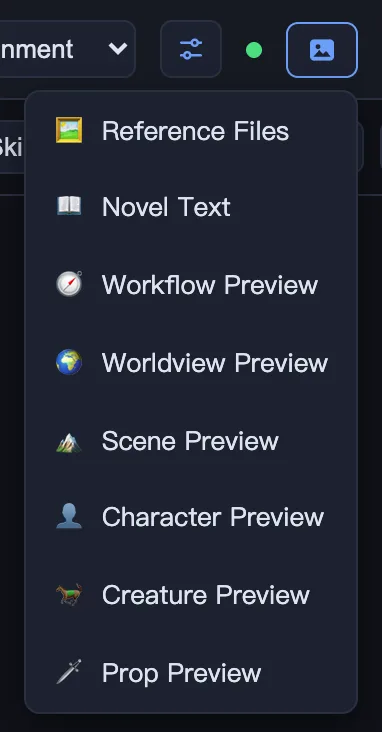
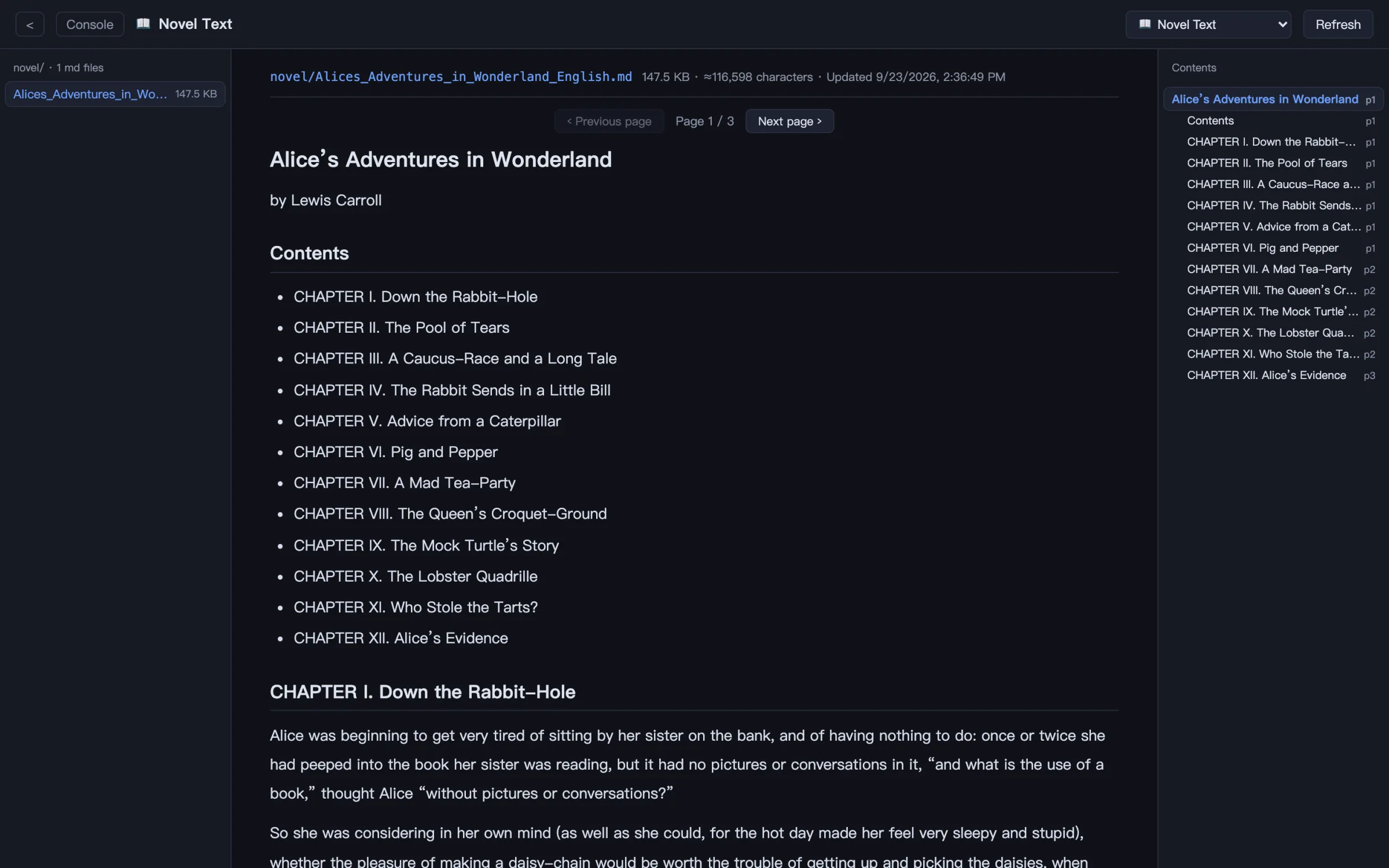
The page has three columns:
| Column | What it shows |
|---|---|
| Left: file list | Every .md file under novel/, with its size. Files at the top level come first, then each subfolder. Files are in natural order, so ch2 comes before ch10. Up to 2,000 files are listed. |
| Middle: text | The selected file, rendered as Markdown. The header shows the path, size, approximate character count and when the file was last updated. |
| Right: Contents | The top two heading levels of the file. Click a heading to jump to it. This column is hidden on narrow screens. |
Read a long book
Long files are split into pages of about 60,000 characters, cut at chapter headings, so even a very large web novel opens quickly.
- Use ‹ Previous page and Next page › above and below the text. The pager shows Page 1 / 3 and so on.
- In Contents, each heading has a page badge (
p1,p2, …). Clicking a heading on another page turns to that page first. - The page remembers, in your browser, the last file you read in each project and your page and scroll position in each file.
The page is read-only. To change the text, edit the files in novel/, then click Refresh.
What the team does with the novel
The novel is the input of the first phases of the workflow:
- Scan and parse. The novel-parser agent groups whole chapters into batches of about 10,000–15,000 characters (chapters are never split), then parses each batch: scenes, dialogue with speakers, and the people, places and objects mentioned. The results go to
story/. - Story analysis. Other story agents build the story structure, the event list and the timeline from the parsed text.
- World and characters. The world bible and the characters are drawn from the novel. Every setting cites the chapter it comes from.
TIP
The Novel Text page is available from v1.0.45.
Common questions
The page says there are no md files. Only Markdown files are listed. If you pasted the novel in the wizard, original.txt is there but not shown; the chapter files appear after the Workflow Orchestrator has finished initializing the project.
Does the novel's language decide the film's language? No. The language of the script, dialogue, narration and subtitles is set in 🎛️ → Output Settings. See Output settings.