Install plugins
A plugin adds a new team of agents to VideoAgents, usually with its own workflow, for work the built-in crew doesn't do, such as writing a prequel novel from your world bible. Install it from a zip or by copying its folder, turn it on in the Plugins dialog, and then ask the Workflow Orchestrator to use it.
A plugin contains no program code. It is a set of text files: a manifest (plugin.json), one role description (SOUL.md) per agent, and optionally a workflow file. Its agents are dispatched, reviewed and signed off like the built-in ones.
Plugins that come with VideoAgents
| Plugin | Agents | What it does |
|---|---|---|
derivative-fiction | 8 | Writes a derivative novel (prequel, side story, spin-off, "what if" branch) from the project's world bible, characters and assets: planning, outline, prose style, chapter planning, writing, line editing, QA and release. See Derivative fiction. |
fusion-fiction | 6 | Fuses two books: one supplies the story and the characters' inner lives, the other (which can be a classic) supplies the world and the characters' looks. See Fusion fiction. |
digital-human | — | Old package, shown as Merged into the app. Digital human is now a project type. |
Audio to video, Digital human and Mashup used to be plugins. Since v1.0.40 they are project types that you pick when you create a project, so their plugin packages are no longer registered and can't be installed again. See Choose a project type.
More plugins are published in the VideoAgents-Plugins repository.
Open the Plugins dialog
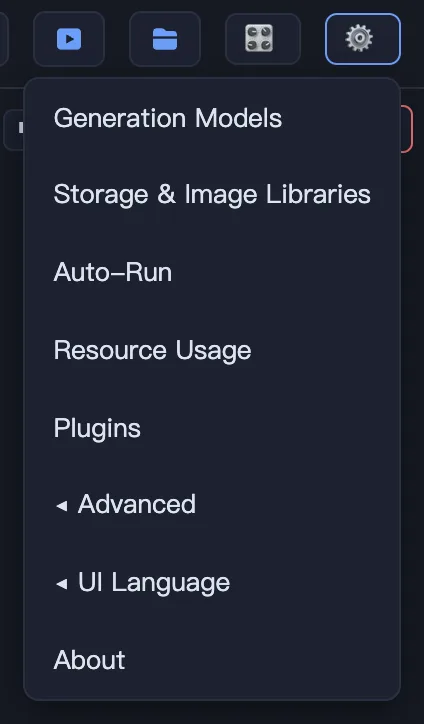
Open ⚙️ → Plugins in the console's top bar.
The dialog lists every plugin VideoAgents has found. Each card shows:
- the plugin's name and version,
- its status: enabled, disabled, invalid (with the reasons in red) or Merged into the app,
- its description, taken from the plugin's
plugin.json, - how many agents it has and its workflow file.
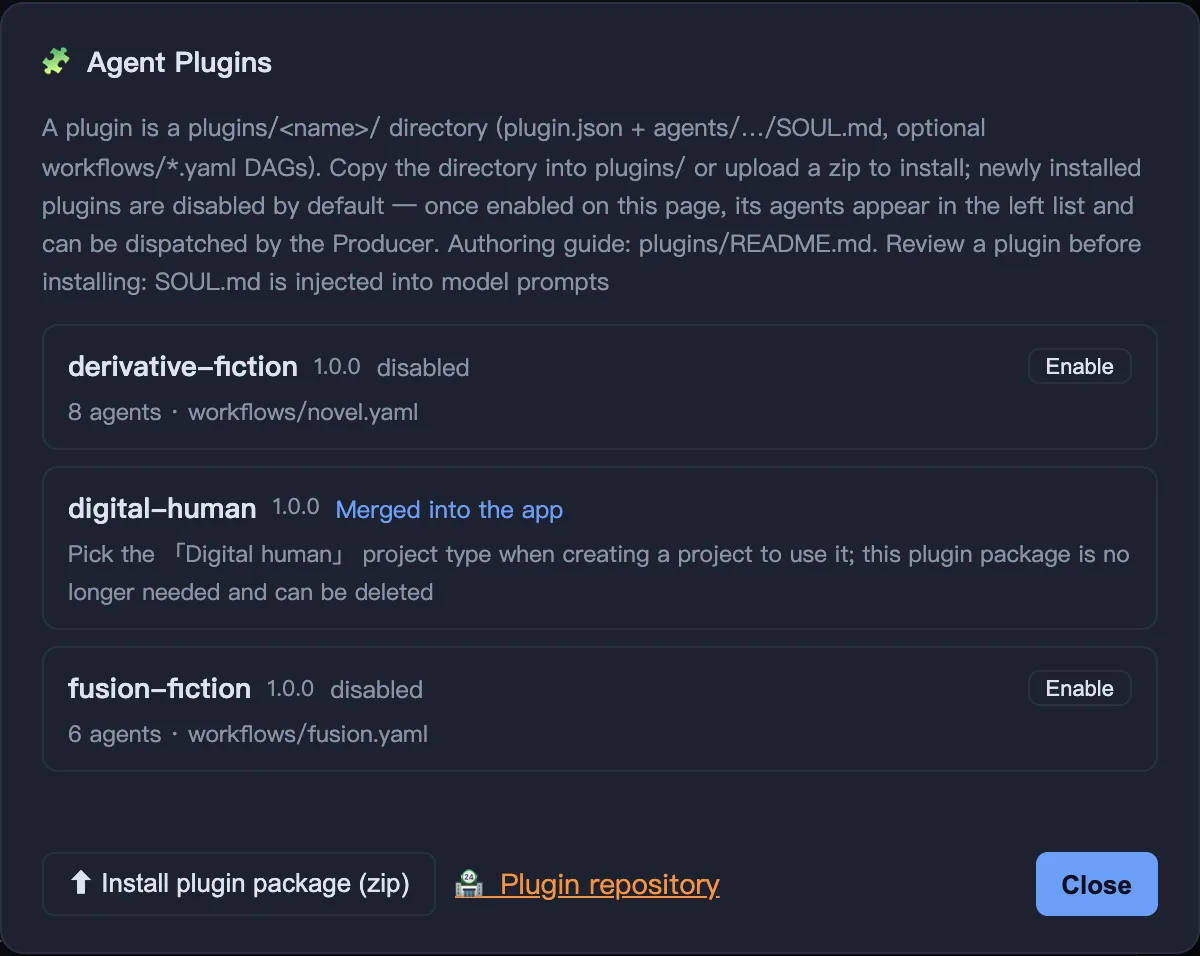
The 🏪 Plugin repository link at the bottom opens the plugin collection in your browser.
Install a plugin
Read a plugin before you install it
Each agent's SOUL.md is copied word for word into that agent's instructions. A plugin from someone you don't know could tell agents to overwrite your world bible, write outside their own folder or fake their reports. Open every file in the package and read it first. If in doubt, don't install it.
From a zip file
- Open ⚙️ → Plugins.
- Click ⬆ Install plugin package (zip) and choose the zip file.
- The plugin appears in the list, disabled.
The zip can hold the plugin's files at its root or inside one folder. Limits: the zip may be up to 50 MB, up to 200 MB once extracted, and hold up to 5,000 files.
The install is refused when:
- a plugin with the same name is already installed. Delete the old one first, so old and new files don't mix;
- the name is one of the merged project types (
audio-to-video,digital-human,mashup); - the zip contains no
plugin.json, or the file is not a valid zip.
By copying the folder
Copy the plugin's folder into the plugins/ folder inside VideoAgents' data folder. VideoAgents finds it within about 30 seconds; reopen the Plugins dialog to see it.
| How you run VideoAgents | Plugins folder |
|---|---|
| Desktop app on macOS | ~/Library/Application Support/@videoagents/desktop/data/plugins/ |
| From source | data/plugins/ in the repository |
The folder name must match the name in its plugin.json. To keep plugins somewhere else, set VIDEOAGENTS_PLUGINS_DIR before starting VideoAgents (see Configuration).
Turn a plugin on
New plugins are always installed disabled. Click Enable on its card. Right away:
- its agents appear in the agent list on the left, grouped under the plugin's own category, and you can chat with them;
- the Workflow Orchestrator is told which plugins are enabled, what agents they have and where their workflow is, so it can dispatch work to them.
Click Disable to turn it off again. The files stay on disk.
Use a plugin
Ask the Workflow Orchestrator for the work the plugin covers, for example "Write a prequel novel about the Cheshire Cat with the derivative-fiction plugin." The orchestrator reads the plugin's workflow, adds its steps to the project's workflow (shown on Workflow Preview) and dispatches them. Plugin sign-offs reach you the same way as built-in sign-off gates.
Good to know:
- A plugin can require earlier work.
derivative-fiction, for example, needs the world bible (bible/world.json,bible/dictionary.json,bible/characters/index.json). If something is missing, the orchestrator runs the main workflow's steps for it first. - Each plugin writes its results in its own folder inside the project, for example
derivative/forderivative-fiction. New lore a plugin invents goes into<folder>/bible-delta/; it never changes your world bible inbible/directly. - A plugin can put the main workflow's video steps on hold when it starts, if none of them has started yet.
derivative-fictiondoes this, since a novel needs no pictures or sound. The steps are only suspended: ask for the video later and the orchestrator resumes them.
Remove a plugin
Click Delete on its card and confirm. The plugin's folder is removed from disk, which can't be undone. Results it already wrote into your projects are kept.
Plugins that ship with VideoAgents have no Delete button. Disable them instead.
Troubleshooting
The card says invalid. The red lines say why. A plugin with any error is not registered at all. Common causes:
plugin.jsonis missing or is not valid JSON;- the
nameinplugin.jsondiffers from the folder name; - an agent listed in
plugin.jsonhas noagents/<category>/<name>/SOUL.md; - an agent id is already used by a built-in agent or by another plugin (the first one found keeps it);
- a workflow file listed in
plugin.jsondoesn't exist; - the manifest lists no agents.
See Write a plugin for the full rules.
I enabled a plugin but its agents don't show. Check that the card says enabled and not invalid. Agents of a plugin with errors are not registered even when it is enabled.
The card says Merged into the app. That workflow is now built in. Create a project of that type instead; the old package can be deleted if it is not one that shipped with VideoAgents.