Open a sample project
The fastest way to see what VideoAgents makes is to open a project someone has already worked on. The VideoAgents-Samples repository has complete projects you can import and browse. Looking around costs nothing: nothing is generated until you ask an agent to do something.
What is in the sample
The repository currently holds one project, alices, an adaptation of Lewis Carroll's Alice's Adventures in Wonderland in English. It contains:
| Part | Where to look |
|---|---|
| The novel, split into chapters | Novel Text |
| The world bible: world overview, geography, culture, timeline, art style, costumes and more | Worldview Preview |
| Characters with reference sheets and costumes, plus creatures, scenes and props with their concept art | Character Preview, Creature Preview, Scene Preview, Prop Preview |
| The screenplay of episode 1 | Script Preview |
| The storyboard and shot list of episode 1, with 3D whitebox plans | Storyboard, Storyboard Preview, Director's Console |
| The workflow and the sign-offs already given | Workflow Preview |
| Every file the agents wrote, with their run records | The project folder |
The sample has been signed off up to the storyboard of episode 1.
Before you start
- VideoAgents is installed and running. You don't need an engine or providers just to look around.
- About 260 MB of free space for the download, and as much again for the imported project.
Get the sample
Download the repository: on the VideoAgents-Samples page, use Code → Download ZIP, or clone it:
bashgit clone https://github.com/AgenticsWorld/VideoAgents-Samples.gitUnzip the download if needed. Inside you find the
alicesfolder.Compress the
alicesfolder on its own intoalices.zip, using your system's compress command.
WARNING
Don't import the zip that GitHub gives you as it is. It wraps the whole repository in one more folder, so VideoAgents would treat the repository folder as the project. Zip the alices folder itself.
Import it
- In the console's top bar, click the project name next to Project.
- In the Project dialog, click › Import Project….
- Choose
alices.zip.
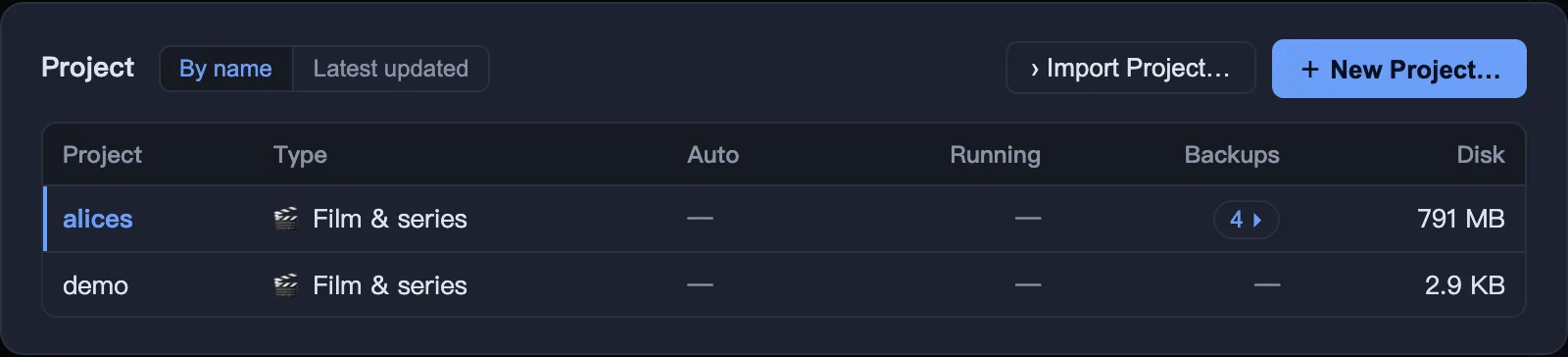
A status box at the top right shows the upload and then the unpacking. When it says ✅ Imported project alices, the console switches to the new project.
The project takes its name from the folder inside the zip. If you already have a project with that name, the import picks a new one, such as alices-2, and tells you the original name.
Look around
Open the pages from the preview menu (the picture icon in the top bar) and the icons next to it. A good order:
- Novel Text, to see the source.
- Worldview Preview, for the world bible every later step treats as fact.
- Character Preview, for character cards, reference sheets, voices and costumes.
- Scene Preview and Prop Preview.
- Script Preview, for the screenplay of episode 1 with its timing, events and hooks.
- Storyboard and Storyboard Preview, for the shot list and the generation groups.
- Workflow Preview, to see which steps are done and where the gates are.
Opening pages, playing media and reading files is free. Be careful with buttons that generate or regenerate something, such as ✏️ Edit followed by Send: they start agent tasks on your engine and may call paid providers.
To open the project folder itself, click the folder button in the top bar. See Projects and the project folder for what each folder holds.
Good to know
- Agent chats are empty. Chat histories are kept outside the project folder, so they are not part of a project zip. The agents' reports are still in the project's
runs/folder. - The project brings its own settings. Output, rhythm, model limits and review settings come from the sample. Before you generate anything in it, check 🎛️ → Model Limits against your video model and 🎛️ → Output Settings.
- Import works for any project zip, not just samples: a project you zipped yourself, or a backup made by 💾 Auto backup. A zip can be up to 20 GB and hold up to 200,000 files.
- Remove it when you are done from 🎛️ → Version History. See Copy and delete projects.
Continue the sample
You can carry on where the sample stopped, for example to generate episode 1's video. Make sure an engine and providers are set up, then tell the Workflow Orchestrator in its chat what you want, or click ▶ Continue in the Run Panel.
WARNING
Continuing generates images, video and sound with your providers and is billed to your accounts.