Storyboard board
The 📋 Storyboard page shows how the Storyboard agent has broken an episode into shots: one card per scene, one row per shot, with a small pencil sketch next to each shot. You use it to check composition, blocking and rhythm, to ask for changes, and to sign off the storyboard before the shot list is finalized.
Before you start
- The episode needs a storyboard. The Storyboard agent writes it to
directing/<ep>/storyboard.jsonafter the screenplay and the director's plan. Until then the page shows only the director's plan and a short notice. - Sketches are drawn with an image model. Pick a cheap one for sketches if you like (see The top bar). The provider's key comes from the 🎨 Generation Models page.
WARNING
Drawing and redrawing sketches calls your image model, which your provider bills.
Open the page
In the console, click the 📋 Storyboard icon in the top bar, or pick 📋 Storyboard from the page menu at the top right of any preview page. Pick the episode in the episode row. An episode with a storyboard is marked ✅, followed by the number of sketches drawn (for example 🖊 101).
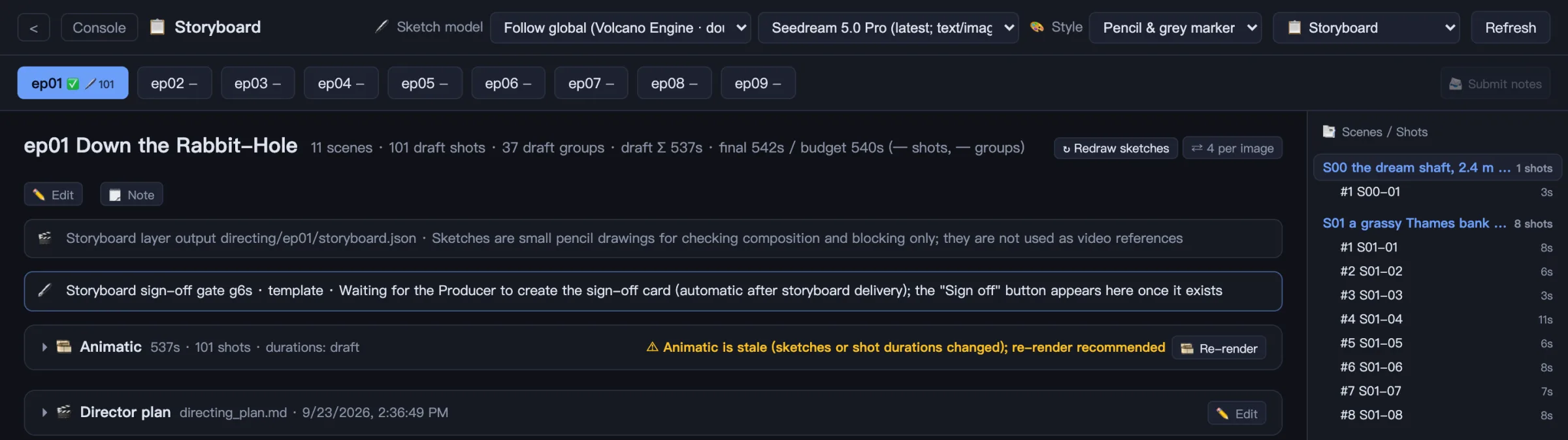
The top bar
| Control | What it does |
|---|---|
| 🖊 Sketch model | The image provider and model for sketches. Follow global uses the console's global image provider. The choice is shared by all projects. |
| 🎨 Style | The look of new sketches, saved per project. Sketches already drawn keep their style until you redraw them. |
The five styles:
| Style | Look |
|---|---|
| Pencil & grey marker (default) | Pencil with grey marker, like a live-action film storyboard |
| Pencil & sepia | Quick pencil lines, vertical hatching and a little sepia pencil, like an anime storyboard |
| Rough ink | Bold black pen lines and dense hatching, like an action-film storyboard |
| Grey + accent color | Flat grey tones with one accent colour, like a tablet sketch |
| Project style | The project's own look, taken from Visual Style in 🎛️ → Creative Brief. Colours, rendering and character looks match the project; the framing rules are the same as the other styles. Greyed out until the brief has a visual style. Available from v1.0.44. |
The title row and the panels below it
The title row counts the scenes, draft shots and draft groups, the draft total, and, once shot planning has run, the final length against the budget. It also holds the buttons that draw sketches for the whole episode (see Draw sketches), plus ✏️ Edit and 🗒 Note for the episode as a whole.
Below it:
- A line naming the source file. Sketches are small pencil drawings for checking composition and blocking only; they are not used as video references.
- The storyboard sign-off strip (see Sign off the storyboard).
- 🎞 Animatic: the sketches strung together into a video. See Animatic.
- 🎬 Director plan: the director's plan for the episode (
directing/<ep>/directing_plan.md), collapsed by default. Click the heading to read it.
The Scenes / Shots list on the right jumps to any scene or shot.
Read a scene card
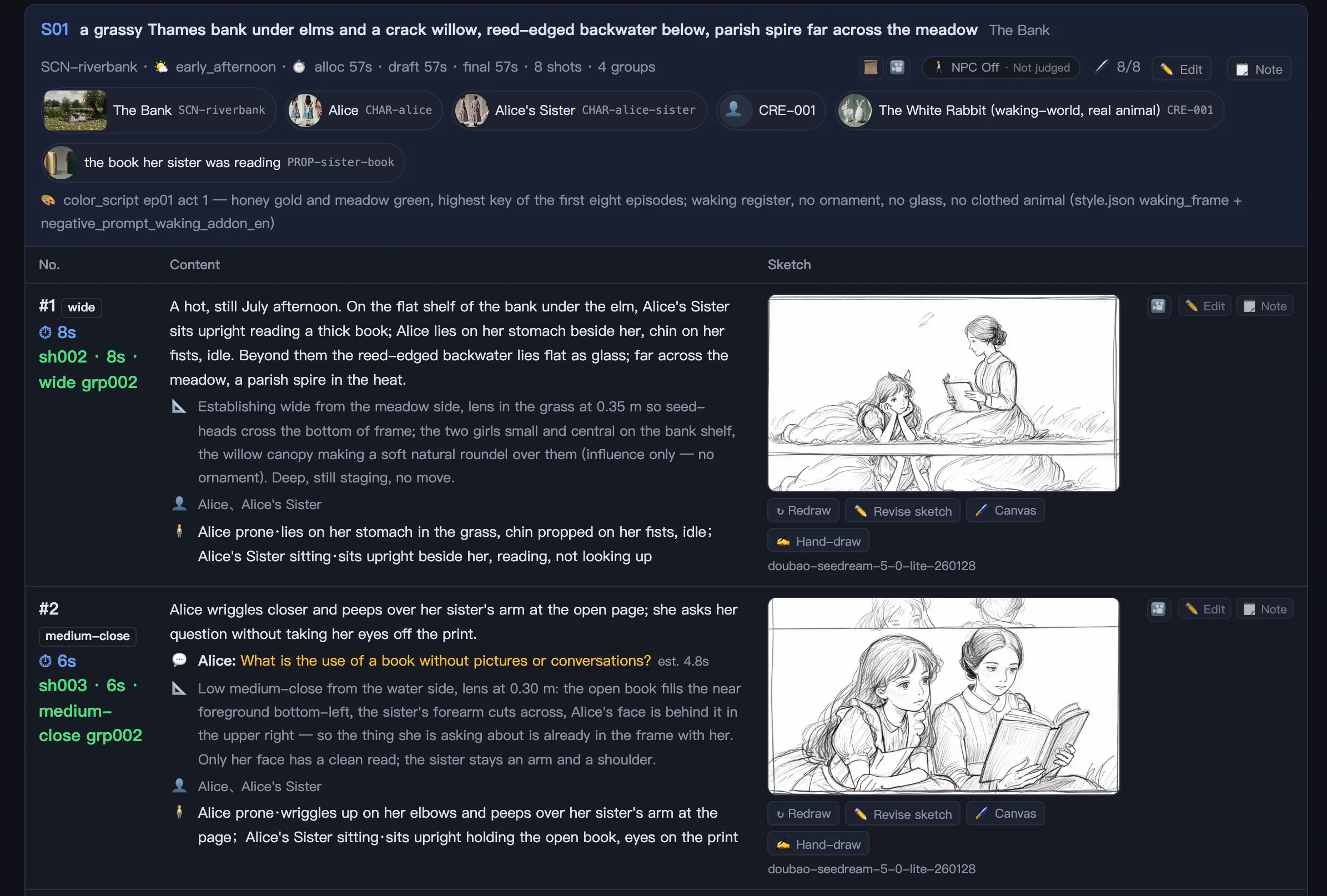
The scene header shows the scene number and location, the scene name and ID, the time of day, ⏱ the allotted, draft and final seconds, the number of shots and groups, and 🖊 n/m sketches drawn. Under it are chips for the scene, the cast's character sheets, creatures and props (click a picture to enlarge it), and the scene's colour-script note. The 🚶 NPC chip switches background extras for the scene; see Background extras (NPCs).
Each shot row has three columns:
| Column | What it shows |
|---|---|
| No. | The shot number in the scene, shot size and ⏱ suggested length. After shot planning, the final shot ID, length, size and group appear in green. |
| Content | What the shot shows, then: 🎬 action, 🧍 each character's pose and action, 💬 dialogue with estimated seconds, 🎙 narration that starts on this shot, 📐 composition notes, 👥 named extras, 🚶 NPC layers, 👤 cast, 📝 notes |
| Sketch | The sketch in the project's aspect ratio, its status, the model that drew it, and the sketch buttons |
The 📜 and 🎦 icons open the same scene or shot in Script Preview and Storyboard preview, with the target highlighted for a moment.
Narration is placed on the shot where it starts. When the storyboard doesn't say, the page places it from the shot list or from the narration's anchor text and marks it shot-list anchor or inferred from anchor. Narration that only matches a scene is listed in the scene header as anchored to this scene, shot not resolved.
Draw sketches
| How | Where | What happens |
|---|---|---|
| Whole episode, 4 per image | 🖊 Draw sketches (N) in the title row, with ⇄ 4 per image | Shots without a sketch are drawn in episode order, four at a time: each batch is one 2×2 grid image cut into four sketches. This is the default and uses the fewest image calls. |
| Whole episode, 1 per image | Click ⇄ 4 per image to switch it to ⇄ 1 per image, then 🖊 Draw sketches (N) | Each shot gets its own image, so sketches are larger, but it takes about four times as many image calls. |
| One shot | 🖊 Draw (or ↻ Redraw) under the shot | Draws a single full-size sketch for that shot. |
- Shots that already have a sketch are skipped. Hold Shift while you click 🖊 Draw sketches to redraw every shot.
- Once every shot has a sketch, the button reads ↻ Redraw sketches.
- The 4 / 1 choice is saved in your browser and applies to every project. ComfyUI draws one shot per image either way.
- Progress shows on the button while a batch runs, and each sketch appears as soon as it is done.
How a sketch is drawn:
- Figures first, background minimal. The prompt asks for clear character line work at the right size for the shot, readable expressions, eye lines and gestures, and the camera angle, height and lens described in the storyboard. The background is a few strokes or left empty; the location is described in a short text hint only.
- Poses as written. Each character's pose and action from the storyboard (standing, sitting, kneeling, lying and so on) is passed word for word.
- References. The character sheets of the people in the shot are passed as reference images when the image model accepts them. Scene images are not used.
- NPCs. Background extras from the storyboard are drawn as loose, nameless figures.
Sketches are saved as assets/storyboard/<ep>/<shot>.png (for example S01-03.png), with a record of each one in assets/storyboard/<ep>/index.json. Hover over a failed sketch to see the error.
Change a sketch
- ✏️ Revise sketch opens the edit popup addressed to the Storyboard Sketch agent. Write what should change ("she looks up at the clock", "lower camera"). The cell shows redrawing until the run ends, then the new sketch appears. Your note is kept with the sketch and still applies when it is redrawn later. Revising a sketch never changes the storyboard itself.
- 🖌 Canvas opens the sketch in Canvas, where you can circle a region and change it.
- ✍️ Hand-draw lets you draw the sketch yourself on your phone. See Sketch on your phone.
Ask for changes to the storyboard
- ✏️ Edit on the episode, a scene or a shot opens the edit popup pre-filled with that location. These requests go to the Reviser, who makes the change and records it so the Workflow Orchestrator can mark the affected later steps.
- 🗒 Note on the episode, a scene or a shot saves a thought without dispatching anyone: shot intent, composition, rhythm, what must stay or be avoided. Notes show in yellow and are saved in
directing/<ep>/storyboard_notes.json. The Storyboard agent, the Shot Planning agent and the Reviser read them the next time they work on this episode's storyboard. - 📨 Submit notes at the right end of the episode row sends all of the episode's notes to the Reviser as one revision order and clears them.
Sign off the storyboard
The storyboard is a sign-off gate (H3S) for every episode. After the Storyboard agent delivers, the Workflow Orchestrator creates a sign-off card, and the strip under the title row changes:
| Strip | Meaning |
|---|---|
| Storyboard sign-off gate g6s · … · Waiting for the Producer to create the sign-off card | No card yet. It is created automatically after the storyboard is delivered. |
| ✅ Sign off / ⏸ Hold | A card is waiting. ✅ Sign off asks you to confirm, then shot planning starts. ⏸ Hold keeps it waiting while you send more changes. |
| ✅ Storyboard signed off | Signed. |
| ⚠ Sign-off is stale | storyboard.json changed after you signed. The orchestrator creates a new card. |
The buttons answer the same card as the console's sign-off dialog. Sketches are not required to sign off; the card only reports how many are drawn. See Sign-off gates.
Print the storyboard
The 🖨️ button at the bottom right builds a printable page with three columns (sketch, content, shot number) and opens the print dialog, where you can print or save as PDF.
Good to know
- In motion-graphics projects the frames are rendered by code, so the sketch buttons, style and sketch model are hidden. See Motion graphics.
- If you pick Project style and later clear the visual style in the Creative Brief, sketches fall back to Pencil & grey marker and the menu turns yellow.