Storyboard preview
The 🎦 Storyboard Preview page shows an episode the way the video model will receive it: shots packed into generation groups, each with its reference images, prompt, settings and finished group video. You use it to check a group before it is generated, sign off the episode's video prompts, and send notes on anything that needs to change.
Before you start
- The episode needs a finished shot list. Until the directing stage has produced it, the page says the episode has no storyboard yet.
- Groups get prompts, references and videos as the pipeline reaches them. Early in an episode you see shots and groups only; later the same cards fill with images and video.
Open the page
In the console, click the 🎦 Storyboard Preview icon in the top bar, or pick 🎦 Storyboard Preview from the page menu at the top right of any preview page. Choose the episode in the row of episode buttons (more than 12 episodes are listed in a drop-down instead).
Links from the 📜 Script Preview and 📋 Storyboard pages open this page at the matching scene, shot or group.
What the page shows
The top bar
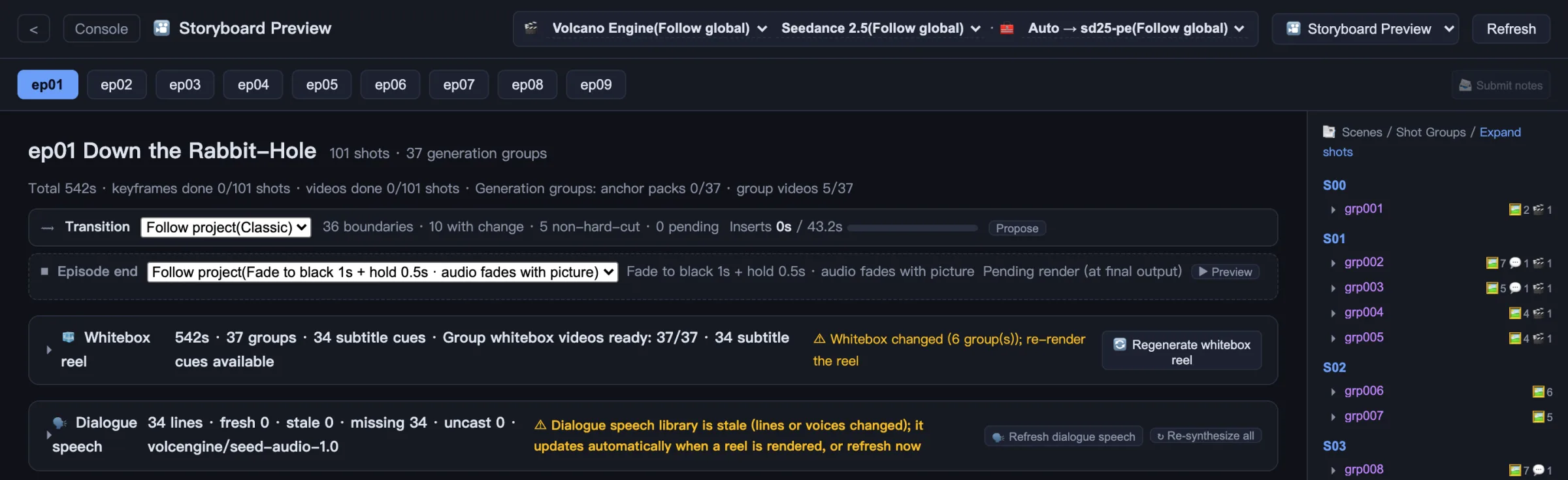
The 🎬 drop-downs show the video provider, the video model and the prompt skill this episode uses, each marked Follow global by default. Change them here to switch this episode only. See Video prompts and prompt skills for how the three levels (project, episode, group) combine.
The episode summary
Under the title you see the number of shots and generation groups, the total running time, and progress counters: keyframes, videos per shot, anchor packs and group videos (for example group videos 5/37).
Below that come the episode-wide panels:
| Panel | What it is for | More |
|---|---|---|
| ⟿ Transition and ⏹ Episode end | The episode's transition mode, the number of group boundaries and the ending (fade to black, cut to black and so on) | Transitions |
| 🧊 Whitebox reel | The whole episode rendered from the 3D whitebox cameras, with subtitle cues | 3D whitebox previs |
| 🗣 Dialogue speech | The line-by-line speech library and per-line direction | Dialogue, voices and narration |
| 🎵 music cues | BGM cues that could not be placed at a shot are listed at the top, in cue-sheet order | Music and sound effects |
The whitebox panels only appear when the project's whitebox (spatial blocking) is on. The dialogue speech panel only appears when Generate dialogue speech or sound split is on in 🎛️ → Output Settings.
Scenes and groups
The main column runs through the episode in order. Each scene starts with a heading (scene number, interior or exterior, shot and group count, length) and the director's beat note. A scene that appears more than once (for example around a flashback) is split into numbered parts so groups stay in playing order.
The right-hand navigator lists Scenes / Shot Groups. Click a group to jump to it, click the small arrow to show its shots, or click Expand shots to open all of them. Badges show what a group holds: 🖼 reference images, 🎨 sketches, 📝 a note, 💬 dialogue lines, 🎙 narration, 🎵 music cues and 🎬 group videos.
The ⧉ button next to a scene, group or shot number copies the ID, so you can paste it into a chat message.
Generation groups
A generation group is a run of neighbouring shots in the same scene that the video model makes in one call, as one multi-shot clip. The group clip is the unit that gets generated, checked, edited and versioned; the shot lengths inside it describe the intended rhythm, and the model decides the exact cut points.
- A group's total length is capped by Max shot group duration (s) in 🎛️ → Model Limits (15 seconds by default, which is the Seedance 2.0 limit; up to 30 seconds for Seedance 2.5). The same dialog caps the number of reference images, videos and audio clips per group. See Model limits.
- Groups made of many very short shots are kept to 15 seconds or less, so the model can keep up with the cuts.
- Group videos are saved as
assets/clips/<ep>/<group>.mp4, and each group's prompt asassets/prompts/<ep>/<group>.json.
The group card
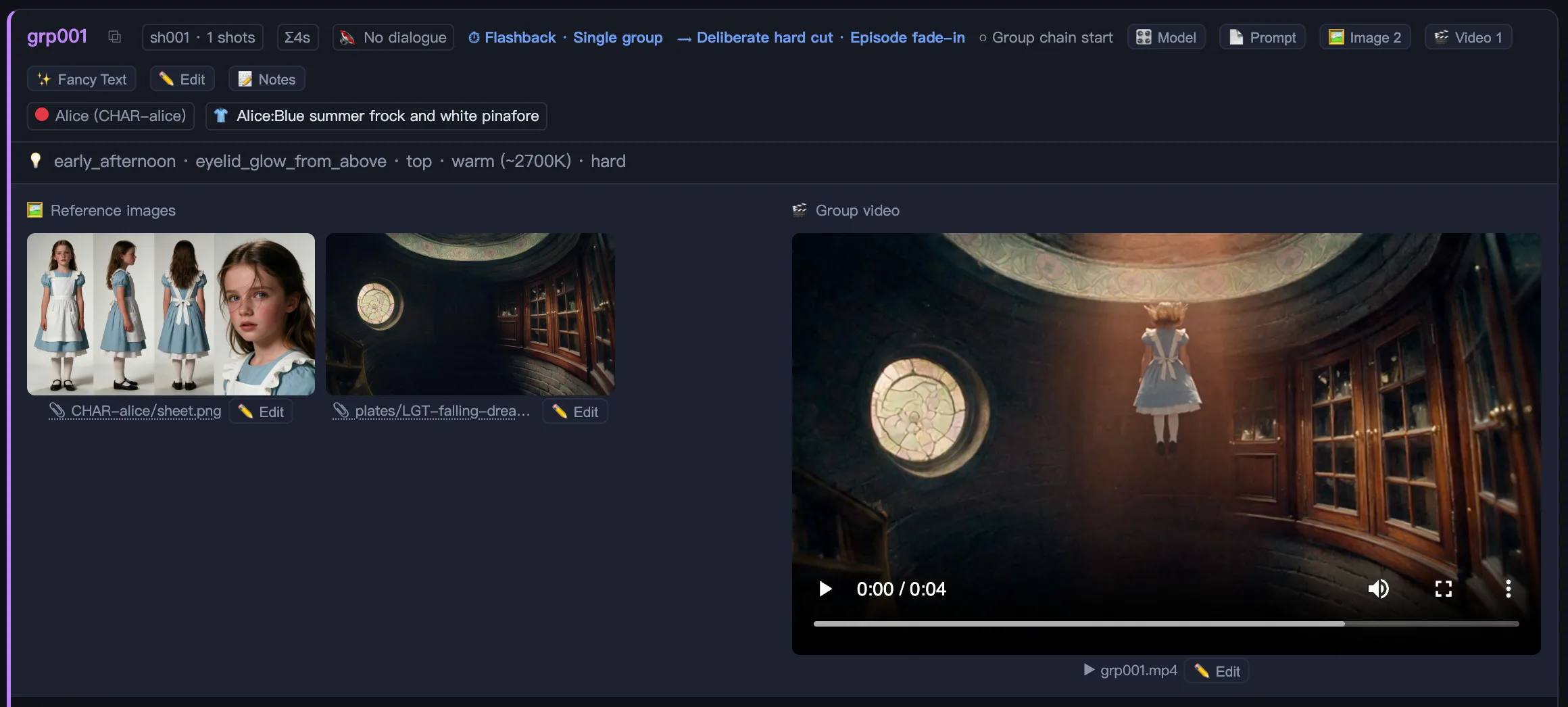
The header line shows the group ID, its shots and total length (Σ), and chips for:
- Audio: 💬 Dialogue (someone speaks on screen), 👻 Post voice (only narration or off-screen lines, added in post) or 🔇 No dialogue.
- Narrative block: for example ⏱ Flashback · Single group.
- Transition in: a non-hard-cut entry such as ⟿ Smash cut · Out of flashback.
- Chain: ◦ Group chain start, ⛓ Continue from grp004's last frame, or ✂ Hard cut from grp001 (no last frame). See Long takes and continuity.
- 🎛: shown only when this group has its own video model or prompt skill.
Then come the buttons:
| Button | What it does |
|---|---|
| 🎛 Model | Pick a video provider, model and prompt skill for this group only |
| 📄 Prompt | Read, copy or edit the text prompt sent to the video model |
| 🖼 Image | Add reference images from characters, scenes, props, creatures, storyboard sketches, a phone sketch or an upload |
| 🎬 Video | List, play, upload or delete reference videos, and check them against the model's limit |
| ✨ Fancy Text | View the on-screen text designed for this group (read-only) |
| ✏️ Edit | Send a change request for this group to the Reviser |
| 📝 Notes | Write a director's note that is added to the group's prompt |
| 🔞 | Only with NSFW mode on: mark the group so its images and video use the backup models. See NSFW mode |
Under the header:
- Cast: each character with a coloured dot (the same colour as their figure in the whitebox video), costume chips (👕 Alice: Blue summer frock…) that link to that costume on the character page, and creature chips.
- 💡 Lighting: time of day, lighting scheme, direction, colour temperature and hardness.
- 🖼 Reference images: everything passed to the model, in prompt order. Hover a caption to see its
[Image N]number. Images taken from character, scene, prop or creature pages link back to them. A ⏳ Waiting for previous group's clip tile holds the place of a last frame that does not exist yet. - 🎬 Group video: the generated clip, with ✂ Cut boundaries (the detected shot cuts) underneath. When a fancy-text version exists, it is shown instead of the plain clip.
A yellow warning appears when a group has more reference images or videos than its model accepts. Fix it with 🎛 Model (choose a model with a higher cap, such as Seedance 2.5) or by deleting references, then regenerate the group.
Shot cards
Each shot inside the group shows its length, framing and cast, the shot description, 🧍 poses, 📷 the camera position and 🎥 the camera move. Click the camera move line to show or hide the start and end frame descriptions. With the whitebox on, each shot also shows its background plates (🔁 Swap, ✏️ Edit, see Background plates) and the group's 3D blockout plays in the panel on the right.
Narration lines (🎙) appear at the shot where they start, with an estimated length, and music cues (🎵) at the shot where they enter, with a player once the audio exists.
Sign off the video prompts
When every group in an episode has a video prompt, the Workflow Orchestrator creates a sign-off card. Nothing is generated for that episode (no anchor packs, no group videos) until you sign.
- Read each group's prompt with 📄 Prompt and check its references with 🖼 Image and 🎬 Video.
- At the right of the episode row, click ✅ Sign off, or ⏸ Hold to wait. It is the same card as in the console, so you can also answer it there or in Feishu.
- After signing, the row shows Video prompts signed with the date.
Signing is refused while any group still has no prompt. Rewriting single groups afterwards (your edits, the Reviser, defect fixes) does not need a new signature; the row only shows how many groups changed since sign-off.
TIP
The sign-off chip only appears for episodes whose workflow includes this step. Episodes that had already started video generation before it was introduced (in v1.0.38) are not blocked.
Send notes and change requests
There are two ways to ask for changes:
- 📝 Notes saves a short director's intent for the group (for example "slow the whole group down; the purse stays in the lower left"). It is added to the group's prompt as a Director's note and takes effect when the group is regenerated. Saving an empty note removes it. Notes are kept in
assets/notes/<ep>/. - ✏️ Edit (on a group, shot, reference image, group video, narration line, music cue or transition) opens a message box addressed to the Reviser, with the item's location filled in. Write what should change and send.
To hand over all notes at once, click 📨 Submit notes at the right of the episode row. All of the episode's group notes, with their scene, shot and timing details, go to the Reviser as one change request, and the notes are cleared. See The Reviser and revision notes.
Good to know
- The page remembers the episode and your scroll position per project, and returns to the same card after a refresh.
- The provider, model and skill drop-downs at the top only change the current episode. A group's own 🎛 Model setting wins over the episode setting.
- Reference images and videos you add are used the next time that group is generated. Changing them does not regenerate anything on its own.