3D model providers
The 🧊 3D models card sets which service turns reference images into a 3D model (a GLB file). You use it from the Reference Files page, where ✨ Generate in the 🧊 3D models section makes a model of a character, creature or prop from a front view and optional side and back views.
TIP
Added after v1.0.45. If you don't see it, update VideoAgents.
Open the settings
- Open ⚙️ → Generation Models.
- Scroll to the 🧊 3D models card, below the world model card.
- Click a tab to see or edit a provider, then choose the default provider in Active provider in the card's title bar.
Changes save automatically.
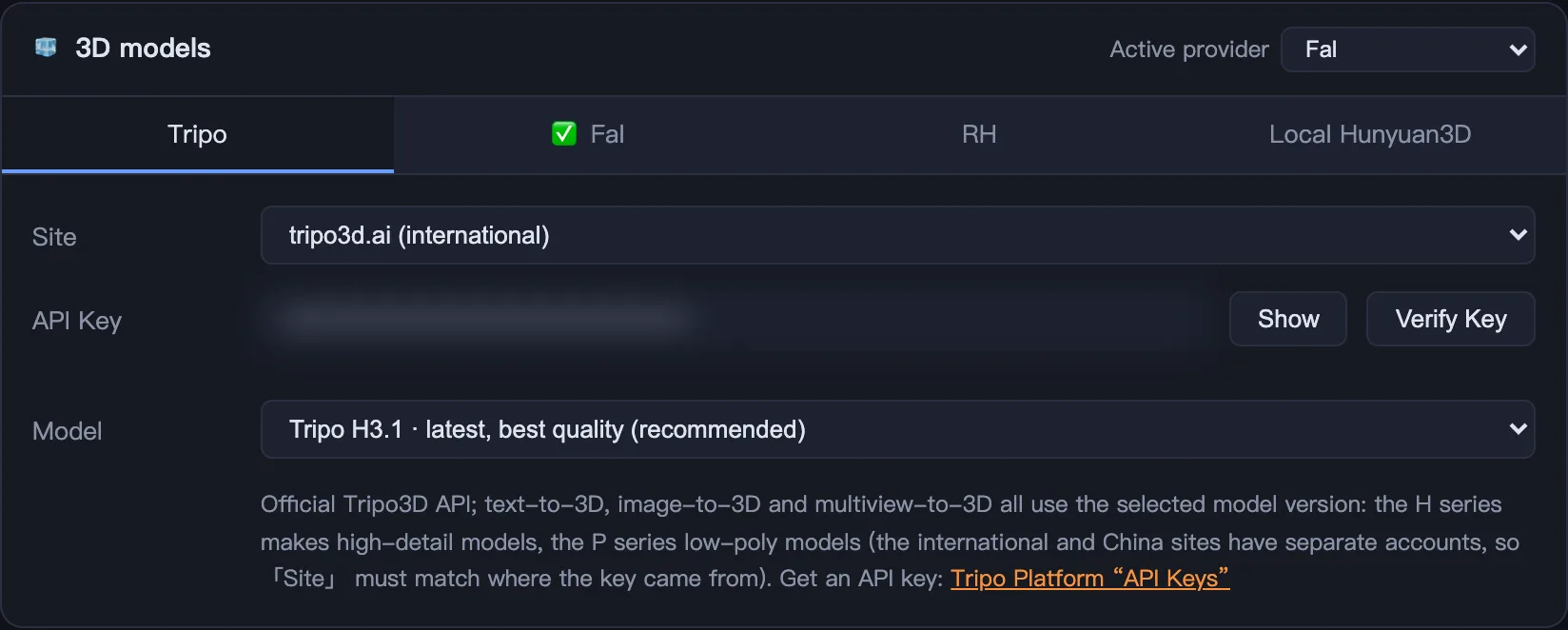
Providers
| Tab | What it is | What you enter | Default model |
|---|---|---|---|
| Tripo | The official Tripo3D API | Site, API Key for that site, Model | Tripo H3.1 |
| Fal | 3D endpoints hosted on fal.ai | API Key, Model | Hunyuan 3D 3.1 Pro |
| RH | RunningHub's standard model API | Provider (site), API Key for that site, Text-to-3D model, Image-to-3D model | Hunyuan3D 3.1 for both |
| Local Hunyuan3D | A Hunyuan3D-2 server on your computer or network | Service URL, Server model, Texture | Hunyuan3D-2mini Turbo |
New installs use Tripo as the active provider. The generate dialog on the Reference Files page starts on the active provider, greys out providers without a key, and remembers your last choice in the browser.
Tripo
- Site: tripo3d.ai (international) or tripo3d.com (China). The two sites have separate accounts, so pick the one your key comes from. Each site's key is saved separately. Get a key from the Tripo platform's API Keys page (the link on the tab follows the site).
- Verify Key shows your available credits, and frozen credits if any.
- Model: H3.1 (latest, best quality), H3.0 (stable; fine geometry, quad faces, smart low-poly, part splitting), H2.5 (balanced), P2 (low-poly, 48–50,000 faces, can make quads) and P1 (low-poly, 50–20,000 faces). The H series makes high-detail models and the P series low-poly ones.
- Every Tripo model accepts multiple views; it needs the front view plus at least one other.
Fal
- The built-in models are Hunyuan 3D 3.1 Pro and Rapid, Tripo H3.1 and P2, Meshy 7.1, Hyper3D Rodin 2.5, TRELLIS 2, Hi3D 3.0, Idol Max and Idol Max Turbo. Custom… takes a full endpoint ID.
- Search Fal models searches Fal's image-to-3D and text-to-3D categories. Click Use to fill a result into Model.
- Hunyuan 3D 3.1 Pro, Tripo H3.1, Meshy 7.1, Rodin 2.5 and Hi3D 3.0 take several views. Hunyuan 3.1 Rapid, Tripo P2, TRELLIS 2 and Idol Max / Max Turbo take one image. Tripo H3.1 on Fal reads views by position, so without a left view the back and right views are dropped.
- Idol Max (about 50 seconds) and Idol Max Turbo (about 20 seconds) return a game-ready mesh of about 30,000 triangles with textures, and always come textured.
RH
- Choose the site (runninghub.ai or runninghub.cn) and enter that site's key, as on the image and video RH tabs.
- Text-to-3D model is used when there is only a description; Image-to-3D model when there are reference images, including several views. Both menus list Hunyuan3D 3.1, Tripo, Hitem3D, Meshy and Miora endpoints from RunningHub's documentation.
- The menus load the first time you open the tab, which can take about a minute.
Local Hunyuan3D
Run the api_server.py that comes with Tencent-Hunyuan/Hunyuan3D-2 on your computer or another machine on your network. It uses your own GPU, so no cloud credits are spent.
- Enter the Service URL (default
http://127.0.0.1:8080;http://can be left out). - Click Verify. It checks that the server answers and has the endpoints VideoAgents needs, without starting a generation. A working server shows ✓ Server online.
- Set Server model to the model the server actually loaded. The server picks its model weights at startup, so this setting only records which version it runs (Turbo versions need 5 steps, the others 30 or more).
- Tick Texture only if the server was started with
--enable_tex. Without it, you get an untextured mesh.
The stock server takes one front image only.
Generate a model
On the Reference Files page, open the 🧊 3D models section and click ✨ Generate. Fill the Front slot and, for multi-view models, the left, back and right slots, pick a provider and model, and generate. Adopted models are saved in refs/models3d/. See 3D models.
WARNING
Tripo, Fal and RH bill your account for each generation.