Run Panel
The Run Panel at the top of the right column lists the tasks agents are running or have run in the current project. Use it to see what the team is doing, stop work, and switch auto-run on or off.
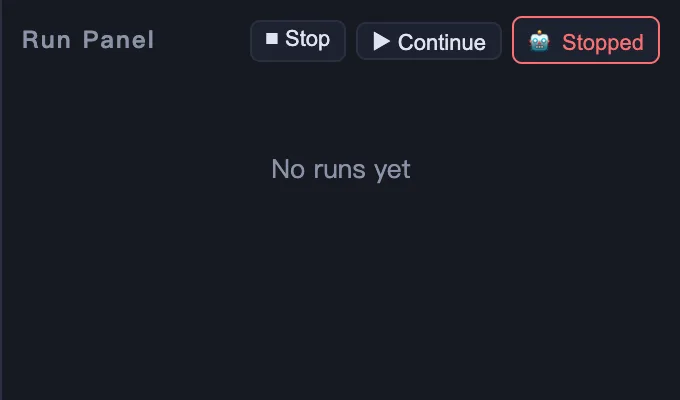
The buttons
| Button | What it does |
|---|---|
| ⏹ Stop | Stops every queued and running task, in every project. The console asks you to confirm first. Same as the /stop all command. |
| ▶ Continue | Sends "Continue" to the Workflow Orchestrator of the current project and opens its chat. Use it after you have answered a question or fixed something, to let the team carry on. |
| 🤖 Auto-Run / 🤖 Stopped | The auto-run switch for the current project. Each project has its own switch, off by default. See Auto run. |
WARNING
⏹ Stop is not limited to the current project: it stops all tasks of all projects. To stop just one task, use the ⏹ on its card.
Task cards
Each task is a card, newest first. The panel shows the latest 100 tasks of the project selected in the top bar. A card shows:
- Status dot: grey = queued, yellow and pulsing = running, green = done, red = error.
- Agent name, and the engine · model the task runs on.
- 🧰 skill: on video prompt tasks, the prompt skill in effect for the project (🧰 No skill if the project uses none). A red ✗ means the run never read the skill file and the machine check rejected it. See Model limits.
- Time and cost: running time (updated every few seconds), plus the cost in dollars and the tokens used when the engine reports them.
- ⏹: stops this task only (only on queued and running tasks).
- The instruction, with ↳ Dispatched by … when another agent sent it.
- A progress line while it runs, such as what tool it is calling.
- The error if it failed.
Click a card to open that agent's chat and see the full conversation.
A stopped task is recorded as stopped by you, not as an error, and shows ⏹ Stopped manually in the chat.
Confirmation and sign-off cards
When an agent needs a decision, a card appears in the bottom-right corner of the page. There are two kinds:
| Card | Looks like | What happens if nobody answers |
|---|---|---|
| Confirmation (for example Rerun or Skip after a failed check) | ❓ and a yellow border, with a countdown | When the countdown ends, the highlighted default option is applied. The wait is set by Retry confirmation wait in Agent advanced settings. |
| Sign-off (a human gate) | ✍️ and a red border, with the gate name after 🚧 | Never times out. It waits until you click Sign off or Hold. |
Click a button to answer. The card goes away and the agent continues. If the system refuses a sign-off, for example because blocking whitebox issues are still open, the card stays and shows the reason after ⛔. Fix the problem, then click again.
The shot list sign-off card (gate H3A) also has a 🧰 Video prompt skill menu: signing freezes the project's video prompt skill setting.
The same cards are pushed to Feishu if you linked it. See Mobile messages and Sign-off gates.
Good to know
- Switching the project in the top bar shows that project's tasks. Tasks of other projects keep running.
- The Running column in the project list shows how many agents run in each project. See Switch, import and export projects.
- Every task also leaves a record in the project's
runs/folder. See Files, runs and versions. - A run that takes too long or prints nothing for too long is ended automatically. The limits are in Agent advanced settings.