Video prompts and prompt skills
Every generation group is sent to the video model as one prompt plus its reference images, videos and audio. This page explains what goes into that prompt, how prompt skills shape it for the model you use, and where you can read, edit or override it.
Before you start
- The episode's shot list is signed off (the H3A sign-off). Prompts are written after it.
- You know which video model the project uses. It is set on the ⚙️ → Generation Models page and can be changed per episode or per group. See Video models.
Who writes the prompt
The Prompt Agent writes one prompt per generation group. It collects the group's shot designs (composition, camera, blocking), the world bible (art style, character appearance, scene, lighting), the continuity notes, the dialogue lines and the sound cues written by the sound stations, and turns them into a multi-shot prompt in the model's own structure: a global part (style, lighting, ambience, cast) followed by one section per shot (camera, action and expression, position, sound).
Each group's prompt is saved as assets/prompts/<ep>/<group>.json. Besides the text (video_prompt) it holds the lists of what is sent with it:
| Field | What it holds | How the prompt refers to it |
|---|---|---|
refs | Reference images: character sheets, costume sheets, scene plates, props, creatures | [Image 1], [Image 2]… in list order |
video_refs | Reference videos, such as the group's whitebox camera video or the previous group's tail | [Video 1]… |
audio_refs | Voice samples of the characters who speak in the group | [Audio 1]… |
negative | Things the model must avoid | — |
Spoken lines are written inside { } braces, so the model generates the speech with the picture. See Dialogue, voices and narration.
Prompt skills
A prompt skill is the official prompt-writing guide for one video model. The Prompt Agent must apply it when writing a group prompt.
| Skill | Model |
|---|---|
sd25-pe | Seedance 2.5 |
sd20-pe | Seedance 2.0 series |
h3-pe | MiniMax H3 |
wan3-pe | Wan 3.0 |
kling4-pe | Kling 4.0 (Fal) |
Two more skills are not tied to a model:
- fight-choreography is used only for groups where someone actually fights: it turns the fight in the shot list into a clear chain of attack, contact and reaction.
- performance-direction (performance control) turns the director's performance notes into visible facial and body detail for dialogue groups and emotional peaks. It is off by default. Turn it on in 🎛️ → Project skills. See Project skills.
In Project skills, only the prompt skill that matches the video model is on by default. Your manual changes are kept; skills you have not touched keep following the video model.
Choose the prompt skill
The skill is set at three levels. A lower level wins over a higher one.
| Level | Where | Choices |
|---|---|---|
| Project | 🎛️ → Model Limits → Prompt skill | Auto (resolved from the model that actually runs video generation), a skill you pick, or skip |
| Episode | The 🧰 drop-down in the top bar of 🎦 Storyboard Preview | Follow global, Auto → by episode model, Manual → a skill, Skip |
| Group | 🎛 Model on the group card | Follow global, Auto (resolved from this group's video model), a skill, Skip (no skill) |
When you sign off an episode's shot list (H3A), the sign-off card shows the project's prompt skill again. Signing freezes that setting for the project.
In the console's Run Panel, a prompt run shows a 🧰 chip with the skill it used. A red ✗ on the chip means the run never read the skill file; the automatic check rejects that run.
Shot timing in the prompt
The group's total length is passed to the model separately. Inside the prompt, each shot section may carry timing, depending on what the model supports:
| Model | Timing written in the prompt |
|---|---|
| Seedance 2.5, Wan 3.0, Kling 4.0 (Fal) | Whole-second segments, such as Shot 1: 0-2s:. Very short shots are merged into one segment, for example Shot 5: 8-10s (Shot 5–Shot 8): |
| MiniMax H3 | A cut time from the second shot on, such as [Shot 2] At 00:06.000, |
| Seedance 2.0 | No timing. Its guide says precise timing is unreliable, so any labels are removed |
If you switch an episode or group to another model, the timing is rewritten for the new model when the prompt is updated.
Read and edit a prompt
- On 🎦 Storyboard Preview, find the group and click 📄 Prompt.
- The dialog shows the prompt text, its size, the word count and how many reference images, audio clips and reference videos go with it.
- Click Copy to copy the text, or Edit to change it. The button turns into Save; click it to store your version. An empty prompt is not accepted.
Your edit is used the next time the group is generated. To change the references, use 🖼 Image and 🎬 Video on the same card.
WARNING
Some sentences in a prompt are written and kept up to date by VideoAgents itself, for example long-take continuation, paired camera moves at a transition, native lead-ins of dialogue and scene links. They are rewritten when the related setting changes. Leave them in place when you edit by hand.
For a change you would rather describe than type, use 📝 Notes (adds a Director's note to the prompt) or ✏️ Edit (asks the Reviser to rework the group). See Storyboard preview.
Sign off the episode's prompts
When all groups of an episode have prompts, you get a Video prompt sign-off (H3V). Nothing is generated for the episode until you sign. Reviewing and signing are described in Storyboard preview.
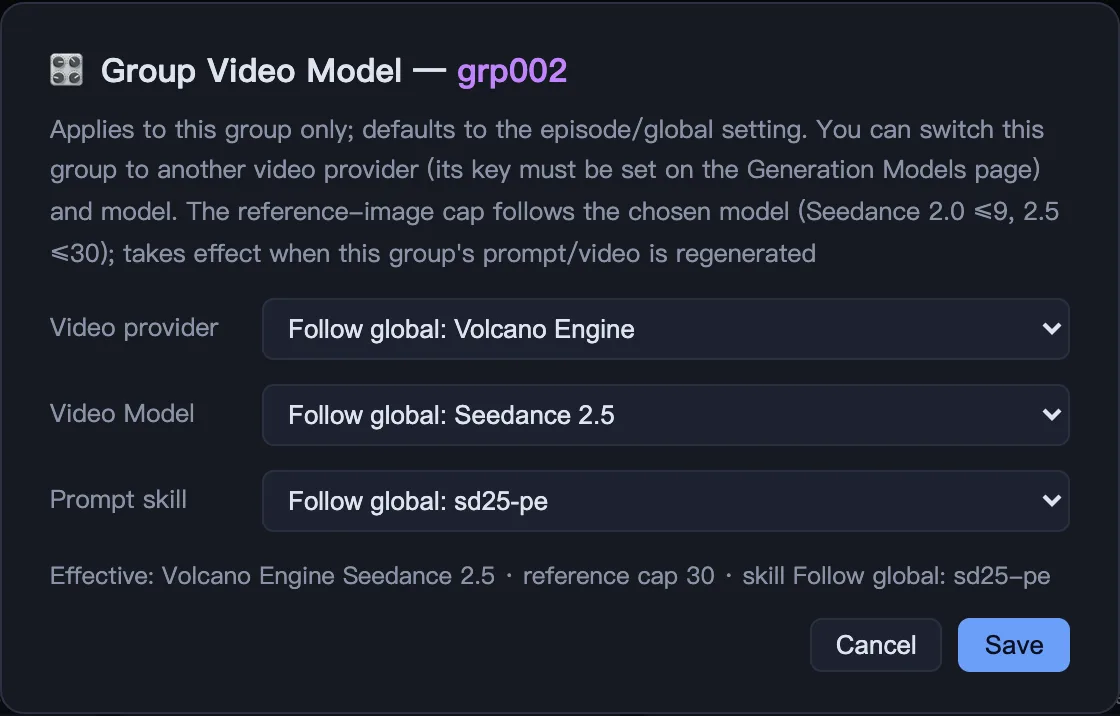
Override the model for one group
- Click 🎛 Model on the group card.
- Pick a Video provider (it needs a key on the Generation Models page), a Video Model and a Prompt skill. Each defaults to the episode or global setting.
- The line at the bottom shows the effective model, its reference-image cap and the skill.
- Click Save. The change applies when the group's prompt and video are regenerated.
A typical reason is a group with more reference images than its model accepts: Seedance 2.0 takes up to 9, Seedance 2.5 up to 30. Groups with their own setting show a 🎛 chip in the header.