Animatic
The animatic strings an episode's storyboard sketches into one video, each sketch held for its planned length, with dialogue and narration burned in as subtitles. Watch it to judge rhythm, shot density and the length of each scene before you spend anything on video generation.
It is rendered on your computer from the sketches. No image or video model is called.
Before you start
- The episode needs a storyboard. See Storyboard board.
- Sketches are optional. Shots without one get a placeholder card with the shot's description, so you can render an animatic straight after the storyboard arrives and again once the sketches are drawn.
Render the animatic
- Open the 📋 Storyboard page and pick the episode.
- Find 🎞 Animatic under the title and click the heading to expand it.
- Click 🎞 Render animatic on the right of the heading (it reads 🎞 Re-render once an animatic exists).
- The heading shows rendering… while it works in the background. You can keep using the page or close it. When it is done, the video appears in the section.
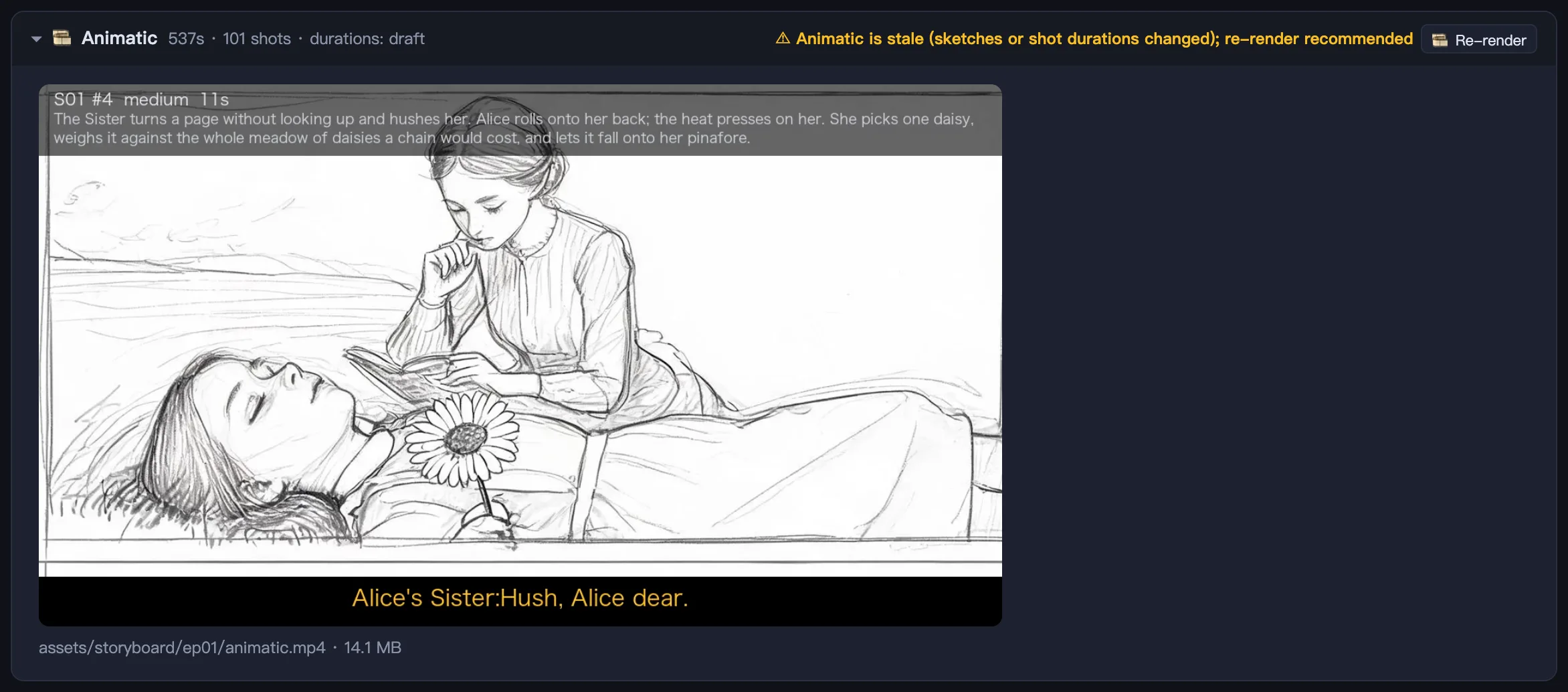
The heading sums it up: length, number of shots, which durations were used, and how many sketches were missing, for example 537s · 101 shots · durations: draft.
What is in the video
| Part | What you see or hear |
|---|---|
| Picture | Each shot's sketch, scaled to fit the frame with black bars where the shapes differ. A shot without a sketch shows a grey card with its label and description. |
| Top band | The shot label (scene, shot number, shot size, length) and up to three lines of the shot description, so you can follow along with the storyboard |
| Subtitles | Dialogue in yellow as "Name: line", narration in purple, in a band at the bottom |
| Narration audio | Narration recordings from assets/audio/narration/<ep>/, when they exist, placed at the shots where the narration starts |
| Dialogue audio | Voiced lines from the dialogue speech library when Generate dialogue speech is on in 🎛️ → Output Settings |
| Size | 1280 × 720 for landscape projects, 720 × 1280 for portrait, at 24 fps |
Shot lengths come from the final shot list when shot planning has run (a storyboard shot split into several final shots uses their total). Before that, the storyboard's suggested lengths are used. The heading says which: durations: final, durations: draft or durations: final+draft.
The video is saved as assets/storyboard/<ep>/animatic.mp4, with animatic.json next to it listing each shot's start and end time.
When to render again
The heading tells you when the animatic no longer matches the storyboard:
| Status | Meaning |
|---|---|
| ✓ and a date | Up to date |
| ⚠ Animatic is stale (sketches or shot durations changed); re-render recommended | A sketch, the storyboard or the shot list changed after rendering |
| ⚠ Dialogue speech changed (lines or voices updated); re-render the animatic | The dialogue speech library changed |
| n sketches missing (placeholder cards used) | Some shots have no sketch yet |
| ❌ and a message | Rendering failed; the message says why |
Click 🎞 Re-render to bring it up to date.
Good to know
- With Generate dialogue speech on, rendering first brings the dialogue speech library up to date, voicing any lines that are missing or changed. That voicing uses your voice model. See Dialogue, voices and narration.
- A voiced line that runs longer than its shot plays from a paced copy: pauses inside the line are shortened first, then the line is sped up slightly without changing pitch. If it still runs over, the next shot's first line waits for it to finish instead of talking over it.
- The animatic is for review only. It is not used by video generation or the final edit.
- With the whitebox on, the 🧊 Whitebox reel on the Storyboard preview page does the same job with the 3D whitebox camera views. See 3D whitebox previs.
Render from the command line
When you run VideoAgents from source, the same animatic can be rendered with:
python3 code/animatic.py --project <project> --ep ep01Add --no-audio to leave out narration and dialogue audio.