Screenplay and Script Preview
The story agents turn each episode of the novel into a screenplay. The 📜 Script Preview page shows it as a two-column table, with the screenplay on the left and its timing, emotion, hooks and events on the right, so you can review an episode without reading Markdown and send each change straight to the agent that owns that part.
How the screenplay is made
In the story phase, each episode passes through several story agents. Each one writes its own file in story/episodes/<ep>/:
| Agent | What it does | File |
|---|---|---|
| Screenplay Adaptation | Writes the scenes: headings, action, dialogue, sound and transitions | screenplay.md |
| Dialogue Rewrite | Polishes the lines in the screenplay's dialogue | screenplay.md |
| Narration | Writes the narration script, when narration is on for the project | narration.md |
| Hook Design | Proposes opening, mid-episode and ending hooks | hooks.json |
| Pacing | Gives each scene its time, emotion curve and trim suggestions | pacing.json |
| Story Timeline | Breaks all of the above into the structured table this page reads | script_breakdown.json |
The episode plan (story/episode_plan.json) and the event cards (story/events.json) come from earlier story agents and show up on the page too.
The first episode's screenplay is a sign-off gate (H3). Review it on this page, then answer the sign-off card in the console. Later episodes follow the same standard. See Sign-off gates.
Open Script Preview
- In the console, click the 📜 Script Preview icon in the top bar, or pick 📜 Script Preview from the page menu at the top right of any preview page.
- Pick an episode in the episode row. The mark after each episode tells you what it has:
- ✅: an official breakdown exists.
- ⚠: there is a screenplay, but it has not been broken down yet.
- –: no screenplay yet.
- Use the Scenes list on the right to jump to a scene. It also shows each scene's allotted time.
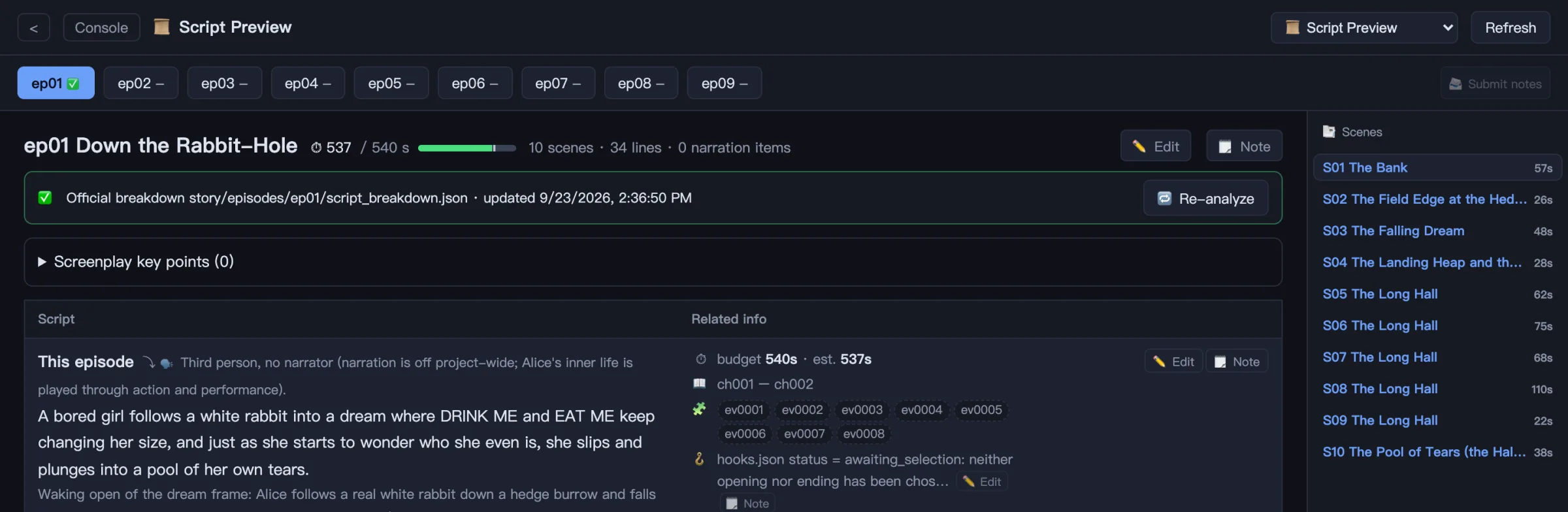
The title line shows the episode's estimated length against its budget (for example ⏱ 537 / 540 s), with a bar that turns yellow or red when the estimate drifts more than 10% or 20% from the budget, and the number of scenes, lines and narration items.
The status line
Under the title, one line tells you where the table comes from:
| Status | Meaning |
|---|---|
| ✅ Official breakdown … · updated … | The Story Timeline agent produced script_breakdown.json for this episode. |
| ⚠ Breakdown is stale: … changed after it was produced — re-analyze | One of the input files (screenplay, hooks, pacing and so on) changed after the breakdown was made. |
| ⚠ Derived view | There is no breakdown yet. The page parses the screenplay, pacing and hook files on the fly, so some details may be missing. |
🔁 Re-analyze sends a work order to the Story Timeline agent to rebuild the breakdown for this episode. The line changes to "running" until the run ends, and then the table reloads. Re-analyzing only restructures the existing files; it does not rewrite the screenplay, dialogue, narration, hooks or pacing. It runs on your agent engine like any other agent task.
Read the table
The left column is the screenplay, cut into small blocks in the original order. The right column shows what belongs to each block.
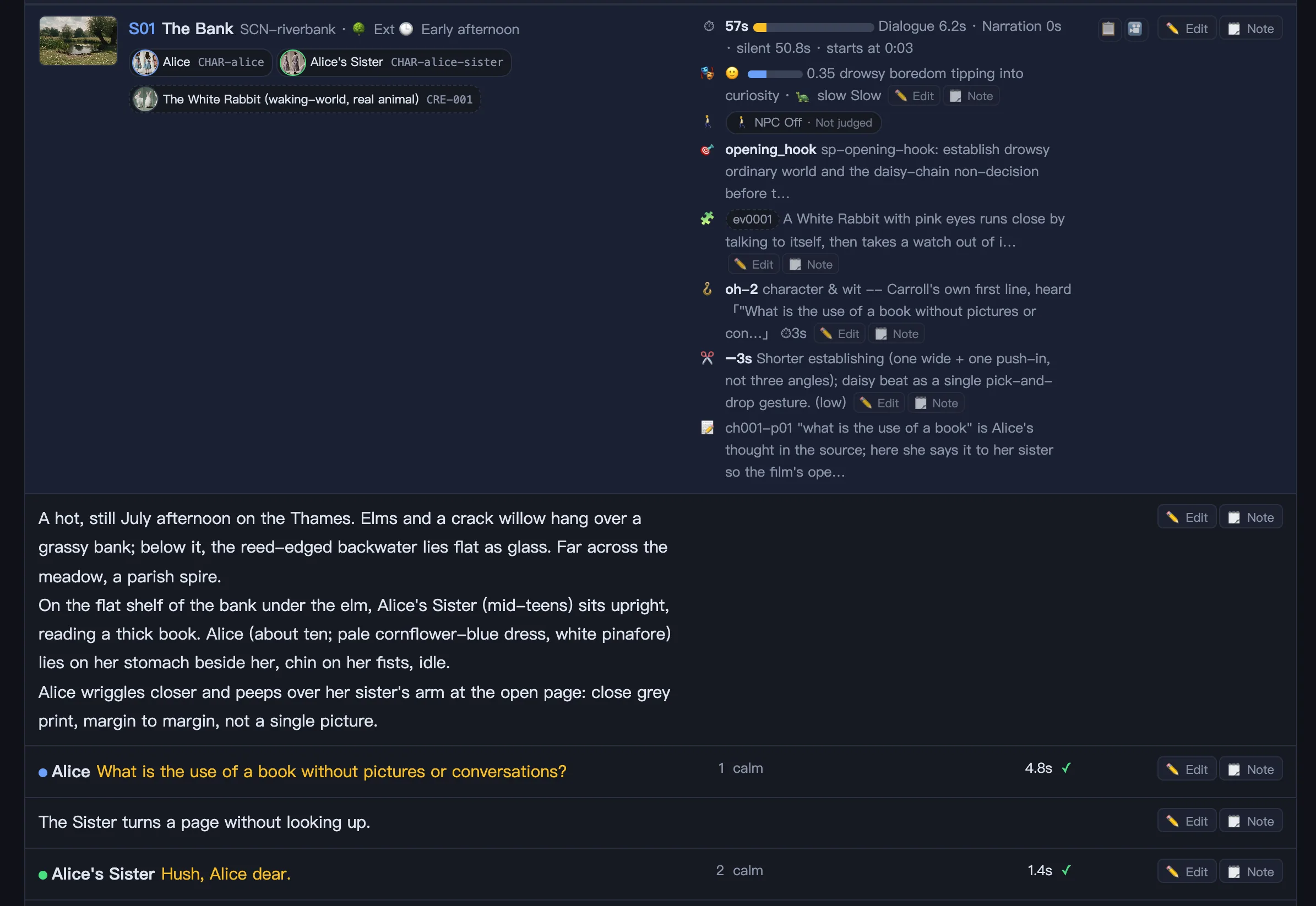
| Row | Left column | Right column |
|---|---|---|
| This episode | Logline, point of view, the episode plan's summary and beats | ⏱ budget and estimate, 📖 chapter range, 🧩 events covered, 🪝 selected hooks, 🗂 episode plan, ⚠ issues found while breaking down |
| Scene header | Scene number and name, scene ID, 🏠 Int / 🌳 Ext, time of day, cast chips with portraits, a scene thumbnail | ⏱ length split into dialogue (yellow), narration (purple) and silent picture (grey), with the start time; 🚶 NPC switch; 🎭 emotion face, intensity and type, and tempo 🐢 slow / ▶️ medium / ⚡ fast; 🎯 beat and dramatic purpose; 🧩 event card; 🪝 hooks placed in this scene; ✂️ trim suggestions; 🔒 items that can't be shortened; 📝 adaptation notes |
| Action | Action paragraphs | — |
| Dialogue | Consecutive lines, with a coloured dot per speaker and any parenthetical | Per line: emotion, estimated seconds and ✓ style hits; Σ total for several lines |
| Narration | 🎙 the final narration text (a screenplay candidate that is not in the final script is marked) | N-id, estimated seconds, tone and 📍 anchor |
| Sound | ♪ sound lines | 🔊 |
| Transition | ⤵ the transition, such as CUT TO | 🔗 the scene link, if the writer drafted one. See Scene links |
Good to know:
- Click a scene thumbnail or a portrait to enlarge it. The link under the large picture opens that scene, character or creature on its own preview page.
- The 📋 and 🎦 icons on a scene header open the same scene on the Storyboard page and on Storyboard preview. They only appear once those pages have the scene.
- The legend under the table explains the colours and symbols.
- The 🖨️ button at the bottom right builds a printable two-column page (script and related info) and opens the print dialog, where you can print or save as PDF.
Send a change to the right agent
Every block has an ✏️ Edit button. It opens a small popup in the bottom-right corner, pre-filled with the block's location and an excerpt, so you only write what should change. The popup's header shows which agent will receive it:
| Where you click ✏️ Edit | Goes to |
|---|---|
| Scene header, action, transition, the This episode row | Screenplay Adaptation |
| Dialogue block | Dialogue Rewrite |
| Narration block | Narration |
| 🪝 hook | Hook Design |
| 🎭 emotion and tempo, ✂️ trim suggestion | Pacing |
| 🧩 event card | Event Extraction |
| 🗂 episode plan | Episode Planning |
| ✏️ Edit next to the episode title | The Reviser, for whole-episode feedback |
Press Enter or click Send. The reply shows up in that agent's chat in the console.
Collect notes and send them at once
If you would rather gather your thoughts first, use 🗒 Note next to any ✏️ Edit button.
- Click 🗒 Note, write your thought (plot direction, motivation, tone of a line, pacing, what must stay) and click Save (or press Shift+Enter).
- The note appears in yellow next to the block, and the button turns yellow. Notes are saved in
story/episodes/<ep>/script_notes.json. - When you are done, click 📨 Submit notes at the right end of the episode row. All of the episode's notes go to the Reviser as one revision order, and the notes are cleared.
Mark key points that must survive
Some beats or details must reach the screen no matter how the storyboard is cut. Mark them:
- Select text in the screenplay column. You can select across several paragraphs.
- Click Key plot point (gold) or Key detail (blue) in the small toolbar that appears.
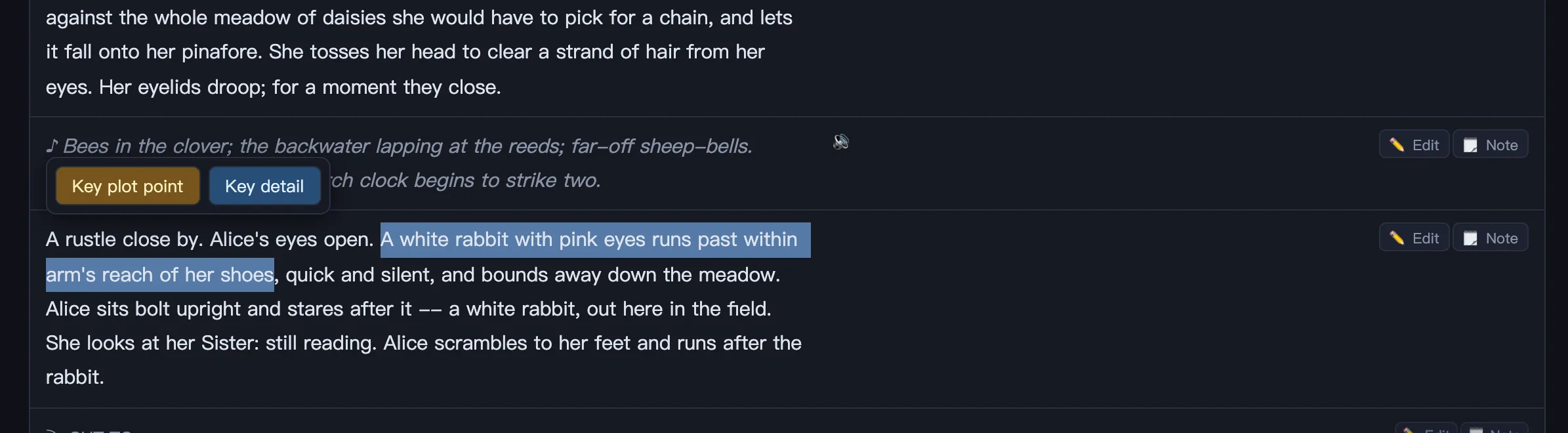
Marked text is highlighted, and the Screenplay key points (n) list above the table collects every mark with its status:
| Status | Meaning |
|---|---|
| Linked to the shot list | The storyboard and shot list say how a shot shows this key point. |
| Awaiting the shot list | No shot covers it yet. |
| Source text changed; still required | The screenplay was edited and the marked text can't be found any more. The key point still applies. |
Key points are saved in story/episodes/<ep>/keypoints.json, separately from the breakdown, so re-analyzing never removes them. Every agent sees the active key points in its project instructions, and agents are not allowed to remove, weaken or rewrite them. The storyboard and shot-planning runs check that each key point is linked to at least one shot, and the run fails if one is missing. To drop a key point, click Remove mark in the list and confirm.
Projects in other languages
When 🎛️ → Output Settings → Output Language is not Chinese, the agents write the whole screenplay in that language, but a few labels stay fixed in English so the breakdown and the checks can read them. If you edit screenplay.md by hand, keep them:
## S03 | INT | SCN-0012 Sutra hall | night
**[EVENTS] ev0021 | [CAST] CHAR-0001 | [DURATION] 40s**
ACTION: The lamp gutters. She steps back from the shelf.
CHAR-0001: "Who's there?"
[NARRATION (narrator)]: Nobody had climbed these stairs in years.
SOUND: Rain on the roof tiles.
TRANSITION: CUT TO- The last part of a scene heading is always read as the time of day, in any language.
- A speaker needs a
CHAR-ID. Use[NO DIALOGUE]for a scene with no lines. - The older Chinese labels (
动作:,转场:,[事件]…) are read too, so existing projects keep working.
Troubleshooting
The table is empty or a scene has no lines. The page is probably showing a derived view of a screenplay whose labels it can't read. Click 🔁 Re-analyze to have the Story Timeline agent produce the official breakdown.
The page says the breakdown is stale. A file changed after the breakdown. Click 🔁 Re-analyze. Your key points and notes are not affected.