Transitions
Group clips are generated one by one, so without help every group boundary is a hard cut, even when the story changes place or jumps in time. Transitions give those boundaries a way to carry the viewer over: a dissolve, a title card, an establishing shot, a location caption, a sound bridge. You pick how much of this a project gets, review each proposal on the storyboard, and the transitions are rendered into the final cut.
Choose a transition mode
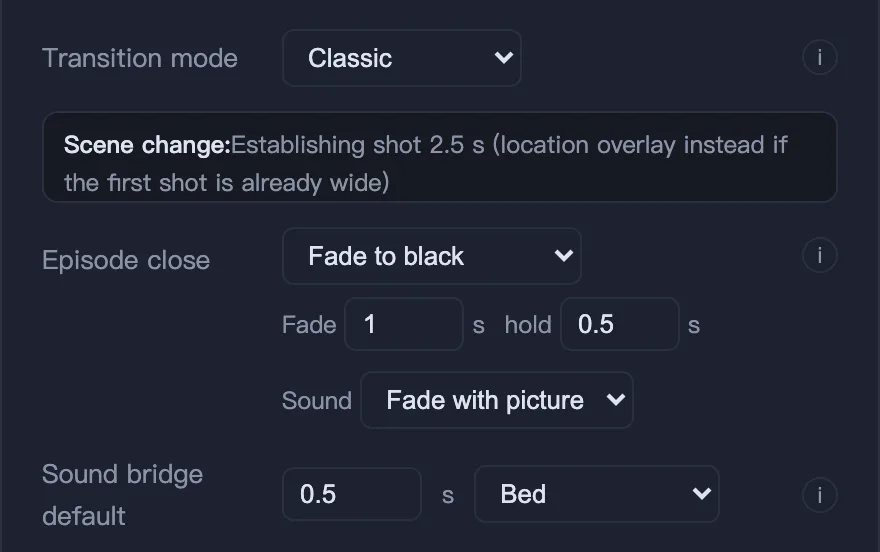
Set the project's mode in 🎛️ → Video Rhythm → Transition mode (also in the new-project wizard). The dialog shows what the chosen mode does.
| Boundary | Minimal | Classic | Cinematic |
|---|---|---|---|
| Scene change | Hard cut | Establishing shot 2.5 s (a location overlay instead if the first shot is already wide) | Establishing shot + location overlay |
| Time jump | Hard cut | Time card 2.5 s | Time card + establishing shot |
| Enter flashback/dream | Hard cut | White 1.0 s + freeze + "N days ago · place" overlay + memory grade | White + freeze + overlay (generative bridge as a candidate) |
| Exit flashback/dream | Hard cut | Match cut, optional "now" overlay | Match cut, optional "now" overlay |
| Same scene, same time | Hard cut | Hard cut (freeze or dissolve offered when the colour gap is large) | Same as Classic |
| Episode open | Hard cut | Fade in | Fade in |
| Explanatory cards | Not allowed | Allowed | Allowed |
| Transition time budget | 0% | Up to 8% of the episode | Up to 10% of the episode |
| Generative transitions | No | No | Allowed |
In Minimal, only boundaries named in the director's transition list get a dissolve or a dip to black or white. New projects start in Classic; projects created before transitions existed behave as Minimal.
Custom lets you pick the handling for each of the six boundary types (from hard cut, dissolve, dips, time card, location overlay, establishing shot, time-lapse, generative bridge, paired camera move and the two sound bridges, or Per director's list) and set the four options yourself: Explanatory cards (allowed or forbidden), Transition time budget (percent of the episode), Generative transitions and First shot of a new scene (must be an establishing shot).
Inserted segments (cards, establishing shots, time-lapses, bridges) are 0.5 to 4 seconds each, at most 6 seconds per boundary, and the first group of an episode cannot have one. They make the episode longer; audio and subtitles are shifted to match when the final cut is assembled.
WARNING
Generative transitions (an establishing shot or bridge made by the video model) are paid video calls. Each one shows an estimated cost on its transition card. Without this option, establishing shots are made from your existing panoramas or scene plates with a slow pan or zoom, at no generation cost.
Review the proposals
When the mode is not Minimal, the Transition Design Agent proposes a design for every group boundary that changes something (scene, time, cast, lighting, entering or leaving a flashback). You review them on 🎦 Storyboard Preview.
The summary bar
At the top of the episode, the ⟿ Transition bar shows:
- the episode's mode, Follow project by default. Pick another mode to override it for this episode; the proposals are made again but not accepted,
- the number of boundaries, how many have changes, how many are not hard cuts and how many still wait for your decision,
- Inserts: the total insert time against the episode's budget, as a bar,
- Propose (or Re-propose) to make proposals again. Boundaries you have already decided keep your decision.

Transition cards
A card sits before each group whose boundary has a change. Boundaries with no change and a plain hard cut are shown as a thin line.

Each card shows the boundary type, its status, what changed, the previous group's last frame and the next group's first frame with the design between them, and the actions:
| Action | What it does |
|---|---|
| Drop-down + ✔ Accept | Accept the main design or one of the alternatives |
| ⏭ Keep hard cut | Decide on a hard cut (or restore the director's original design) |
| ✎ Edit text | Change the wording of a title card or overlay, up to three lines |
| ▶ Preview | Render a short preview: the last 2 seconds of the previous group, the transition and the first 2 seconds of the next, with the same filters as the final cut. It takes about 10–40 seconds |
| ✏️ Edit | Send feedback on this transition to the Reviser |
A 🤖 tag marks a design chosen by the Transition Design Agent rather than the mode's default, and 📜 marks a scene link the director adopted from the script. See Scene links.
When you sign off the episode's shot list (H3A), every proposal you have not decided is accepted. Click ⏭ Keep hard cut first on any boundary you want left alone.
Sound bridges
A sound bridge lets sound cross the cut while the picture cuts cleanly:
- Audio lead (J-cut): the next group's sound starts over the end of this group.
- Audio tail (L-cut): this group's sound continues over the start of the next.
Each bridge has a length (0.1–1.5 seconds; the default is set under Sound bridge default in Video Rhythm, 0.5 seconds) and what it carries: Bed (the ambience with voices removed, so picture and lips stay in sync) or Off-screen line (an off-screen line spoken across the cut, which needs sound-picture split and such a line next to the cut).
On a card, set the Sound bridge row and click Apply sound bridge. Bridges work only on hard cuts or dissolves without inserts or black holds. Cinematic mode proposes an audio lead at scene changes and time jumps; Minimal and Classic do not propose bridges.
Bridges are built in the audio mix, so the card's preview stays silent. You hear them in the final cut.
Episode end
The ⏹ Episode end row sets how the episode's last group closes: Fade to black, Fade to white, Cut to black (sudden blackout), Cut to white or None (hold last frame), with a hold afterwards. The project default is Episode close in Video Rhythm (fade to black, 1 second, then a 0.5-second hold, with the audio fading with the picture). Choose another value in the row to override one episode, and click ▶ Preview to render the last 2 seconds with the ending. Any outro follows after the hold.
In post-production
The 🎚️ Post-production page marks non-hard-cut transitions with ◇ on the episode timeline. Click one to edit it as a Group transition (in) adjustment. With Black / freeze in Shot editing you can also hold the previous group's last frame or insert a short black at a boundary to control rhythm; a black of more than a second tends to look like a fault. See Post-production.
Transitions are rendered by the Transition Agent when the episode is edited. Title cards and overlays use the project's font from refs/fonts/ when there is one.