Virtual portrait library
Volcano Ark's video models (Seedance) reject reference images that look like real people. Images registered in Ark's private virtual portrait library are accepted: VideoAgents sends them as asset links (asset://<id>) instead of as images. This page connects VideoAgents to that library.
You only need it when the video provider is Volcano Engine and your characters have realistic faces.
Before you start
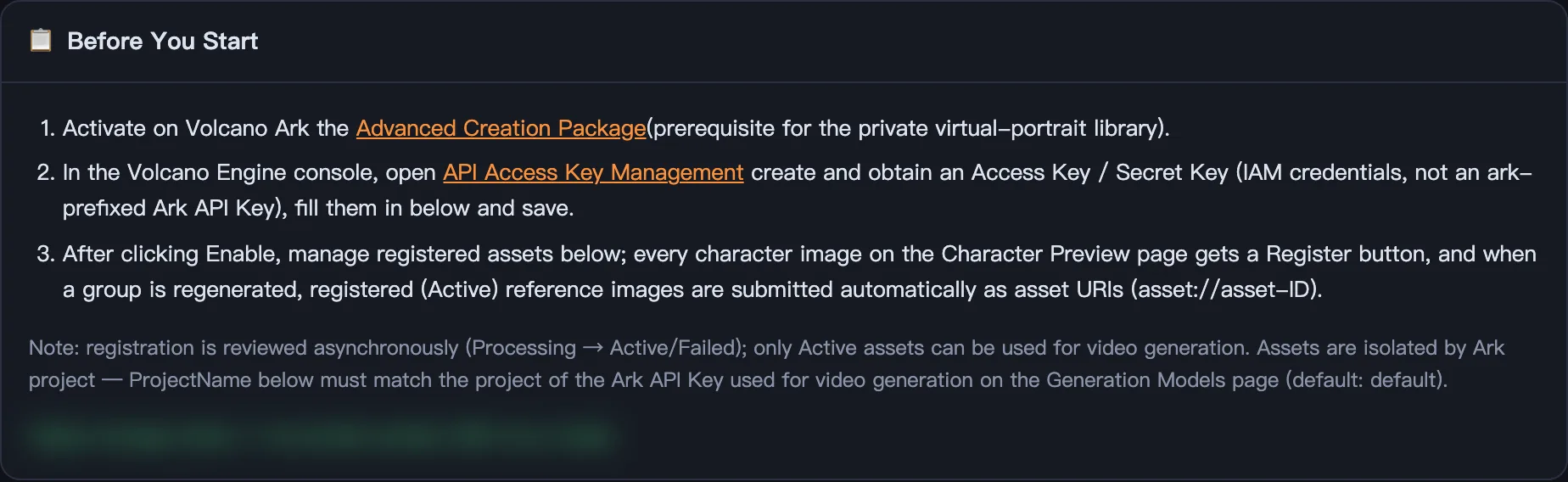
- Activate the Advanced Creation Package on Volcano Ark. The private portrait library requires it.
- Create an IAM Access Key and Secret Key in the Volcano Engine console under API Access Key Management. This is not the
ark-API key used for generation. - Set up object storage. Ark only registers images from a public URL, so local images are uploaded to your bucket first. The page's Object storage check line tells you whether storage is ready.
Open the library
Open ⚙️ → Advanced → Virtual Portrait Library.
Turn it on
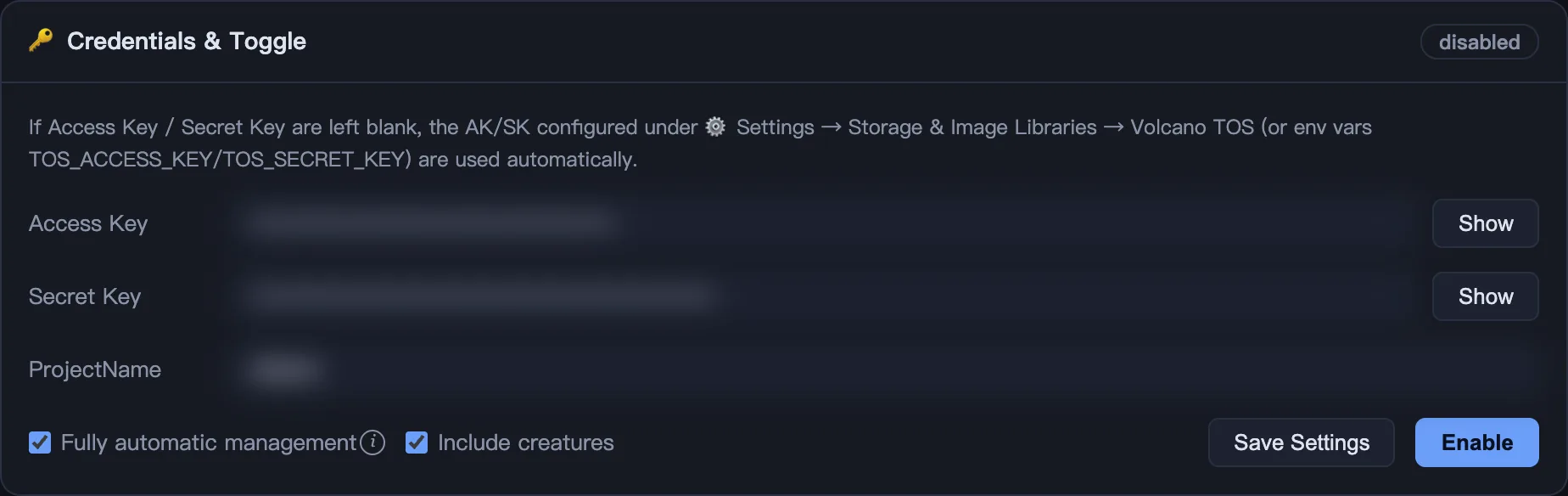
- On the 🔑 Credentials & Toggle card, enter the Access Key and Secret Key. If you leave them empty, the keys of the Volcano Engine TOS tab on the Storage & Image Libraries page are used.
- Set ProjectName to the Ark project of the API key you use for video generation (usually
default). Assets are kept per Ark project. - Click Save Settings.
- Click Enable. The badge changes from disabled to enabled, and the 🗂 Registered Assets list appears.
Register images
By hand. Once the library is enabled, every character image on the Character Preview page gets a Register button. Registration is reviewed by Ark: an asset goes from Reviewing to Active (or Failed). Only Active assets are used. When a group is regenerated, its Active reference images are sent as asset links automatically.
Fully automatic management. Tick Fully automatic management and save. When the video provider is Volcano Engine, before each episode's video generation starts:
- On the first video run of an episode, the library is emptied (Ark limits how many assets it holds).
- Every character image that the episode's group prompts use is registered.
- Generation waits up to 10 minutes for the reviews to become Active.
Later runs in the same episode skip images that are already registered. Failures only show a warning in the run's progress line and never block generation. This option suits projects with a small number of characters, since the library is cleared for each episode.
Tick Include creatures to register creature images (from assets/concepts/creatures/) along with the characters.
Long takes. When the project uses long takes and the video model is Seedance 2.x on Volcano Ark, the tail frame or tail segment of the previous group is registered automatically before the next group continues from it.
Manage registered assets
The 🗂 Registered Assets list shows every asset in the library with its name, ID, time and status.
- Search by name and click Search; Refresh reloads the list.
- 🗑 Delete removes one asset. 🗑 Delete all empties the library.
WARNING
Deleting assets can't be undone.
Troubleshooting
A Seedance video is rejected for privacy reasons. A reference image is not registered, or its review is not Active yet. Register it on the Character Preview page, or turn on fully automatic management. Don't repaint the face to get around the check.
Registration fails at once. Check the Object storage check line at the top of the page. Ark can't fetch the image without working object storage.
Registered images are not used. Check that ProjectName matches the project of the Ark API key on the Generation Models page.