Install and use skills
A skill is a SKILL.md file, sometimes with a few reference files beside it, that teaches one agent one craft, such as writing prompts for a particular video model or filling in a publishing draft. Each agent has its own skills. You can point an agent at a skill for one task, turn skills on for a whole project, and install skills of your own.
Skills that come with VideoAgents
| Agent | Skill | What it is for |
|---|---|---|
| Prompt Agent | sd25-pe, sd20-pe, h3-pe, wan3-pe, kling4-pe | Writing group video prompts for Seedance 2.5, the Seedance 2.0 series, MiniMax H3, Wan 3.0 and Kling 4.0. The one that matches the video model in effect is used automatically. |
| Prompt Agent | performance-direction | Acting direction in prompts for dialogue groups and emotional peaks. Off by default. |
| Prompt Agent | fight-choreography | Fight scenes written move by move. Off by default. |
| Video Generation Agent | agentics-media-generation | Submitting and recovering videos through the Agentics channel. |
| Video Generation Agent | runninghub-cloud-workflow | Running RunningHub cloud workflows when the ComfyUI video channel is in RunningHub mode. |
| Audio transcription agent | audio-transcription | Turning speech into timestamped text with faster-whisper, on your computer. |
| Caption Agent | caption-styling | The design handbook for fancy text (stylized captions). |
| Publisher Agent | skill-youtube-cdp-draft and drafts for TikTok, Instagram, Douyin, Xiaohongshu and Bilibili | Filling in a platform's upload draft in your own Chrome, leaving the final Publish click to you. |
More skills are published in the VideoAgents-Skills repository.
Open an agent's skills
- Pick an agent in the agent list on the left.
- Click Skill in the chat header. When the agent has skills, the button shows how many, for example Skill · 2.

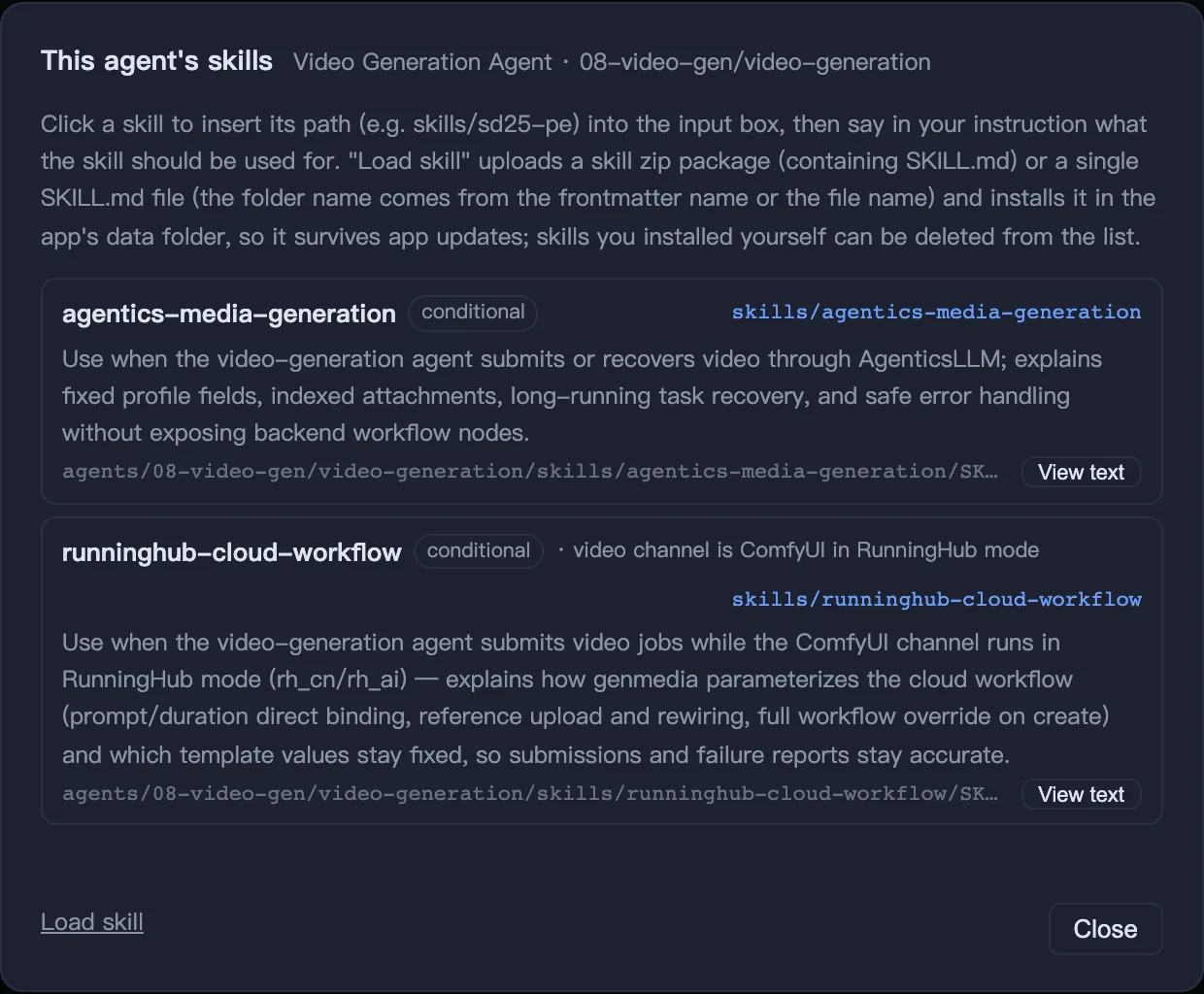
The dialog lists the agent's skills. Each card shows:
the skill's name and a tag for how it is activated:
Tag Meaning conditional Used only when its condition holds, shown next to the tag (for example "video channel is ComfyUI in RunningHub mode"). always-on Named in the agent's own instructions for a kind of task. library A resource another skill uses, not run on its own. generic Any other skill, including the ones you install. Uploaded for skills you installed yourself, and Disabled for a skill that is switched off for all projects;
the path the agent uses (top right), a one-line description and the location of its
SKILL.md;View text, which shows the whole
SKILL.mdin the dialog. Back to list returns to the list.
Use a skill for one task
- Open the agent's Skill dialog and click the skill's card. Its path is inserted into the input box:
skills/<name>for a built-in skill, the full path toSKILL.mdfor one you installed. - Finish the message with what the skill should be used for, for example
Use skills/kling4-pe to rewrite the prompt for grp012 in ep01. - Send it.
This works whether or not the skill is turned on for the project.
Turn skills on for a project
Installing a skill does not mean agents apply it on their own. Which skills are used automatically is set per project in 🎛️ → Project skills:
- A ticked skill is read and applied by its agent whenever a task fits its description and condition. The agent reports for each skill whether it completed, skipped or failed it, and why. Execution records in the same dialog lists these reports.
- By default only the video prompt skill that matches the project's video model is ticked. All other skills, including acting direction, start off.
- A skill's condition still has to hold: ticking
runninghub-cloud-workflowhas no effect while the video channel is not RunningHub.
See Project skills for the dialog, and Video prompts and prompt skills for how the prompt skill is chosen and frozen at the storyboard sign-off.
Install a skill
Read a skill before you install it
An agent follows a skill's instructions closely. Open SKILL.md and any files beside it and read them before you install a skill from someone else.
- Pick the agent the skill is for and open its Skill dialog.
- Click Load skill at the bottom left.
- Choose one of:
- a zip file with
SKILL.mdat its root or inside one folder. The skill's folder name is the inner folder's name, or the zip's file name whenSKILL.mdis at the root; - a single
SKILL.md(or any.mdfile). The skill is named after thename:in its frontmatter, or else after the file name. A file called exactlySKILL.mdneeds aname:line.
- a zip file with
- The skill appears in the list with the Uploaded tag.
Limits are the same as for plugins: 50 MB per zip, 200 MB extracted, 5,000 files. Skill names may only contain letters, digits, _ and -. macOS clutter such as __MACOSX and .DS_Store is skipped.
The install is refused when the agent already has a built-in skill with that name, or when you already installed one with that name. Delete the old one first.
Where installed skills are kept
Skills you install go into the data folder, not into the app, so updating the desktop app keeps them (from v1.0.41):
| How you run VideoAgents | Folder |
|---|---|
| Desktop app on macOS | ~/Library/Application Support/@videoagents/desktop/data/skills/<category>/<agent>/<skill>/ |
| From source | data/skills/<category>/<agent>/<skill>/ |
Set VIDEOAGENTS_SKILLS_DIR to keep them elsewhere. A skill is installed for one agent; to give the same skill to another agent, load it there too.
Delete a skill you installed
Click Delete on its card, then Confirm Delete within 4 seconds. Built-in skills can't be deleted.
If a later version of VideoAgents ships a built-in skill with the same name as one you installed, the built-in one is used. Your copy stays in the list, greyed out and marked Same name as a built-in skill; not in effect, with a Delete button.
Good to know
- Skills are also scanned for agents of enabled plugins.
- A skill that is ticked in Project skills but is no longer installed (for example one lost with an old desktop build) shows there greyed out as not installed. Untick it and save to remove it from the project.
- The Disabled tag comes from a global switch that an older settings page used to set. That page is gone; a disabled skill is never applied automatically.
Troubleshooting
Loading a skill fails because the agent already has a built-in skill with that name. Rename the skill (the folder name, the zip's name or the name: in its frontmatter) and load it again.
Loading a single SKILL.md fails with a message about a missing name. The file is called SKILL.md and has no name: line in its frontmatter, so there is nothing to name the skill after. Add one, or rename the file to <skill-name>.md.
My uploaded skills disappeared after a desktop update. Before v1.0.41, uploaded skills were stored inside the app bundle, which an update replaces. Load them again; they now live in the data folder.
An agent doesn't use my skill. Tick it in 🎛️ → Project skills, and make sure its description says clearly what tasks it is for. Agents decide from the description whether a skill fits a task; the reason for skipping is shown in Execution records.