Mashup
A mashup project illustrates a narration with shots taken from your own footage library. No picture is generated. Each sentence of the script gets matching footage, each cut lands on the word being spoken, and the narration recording is the soundtrack exactly as you gave it. Without a recording, a voice-over is synthesised from the script.
Before you start
- A footage library. Import your source videos in the Footage Library and let shot detection finish. Run 🤖 Analyse all there as well: the visual notes are what the agents search when they look for matching shots, and without them they can only search the subtitles.
- An agent engine that can read images for the Footage Curator, which picks shots by looking at them.
- faster-whisper (strongly recommended). It times every word of the narration. Without it, timings are estimated from the text and are less precise; you are told so at the first sign-off.
- A TTS channel on ⚙️ → Generation Models, but only if you have no narration recording.
Create a mashup project
Click the project name in the top bar, then + New Project….
Step 1/3 · Project type: click More, then Mashup. Click Next.
Step 2/3 · Basic info:
Field What to enter Saved to Project name Letters and digits only — Narration audio Optional. The recording to illustrate. Leave it empty to synthesise the voice-over from the script refs/audio/Script The narration script. Footage is matched to it sentence by sentence refs/text/transcript.txtandnovel/original.txtFootage Library Tick one or more libraries. Each shows its number of clips and how many are analysed Project settings Content Positioning Subject and tone, visual preferences; without a recording, also the voice and delivery for the voice-over brief.md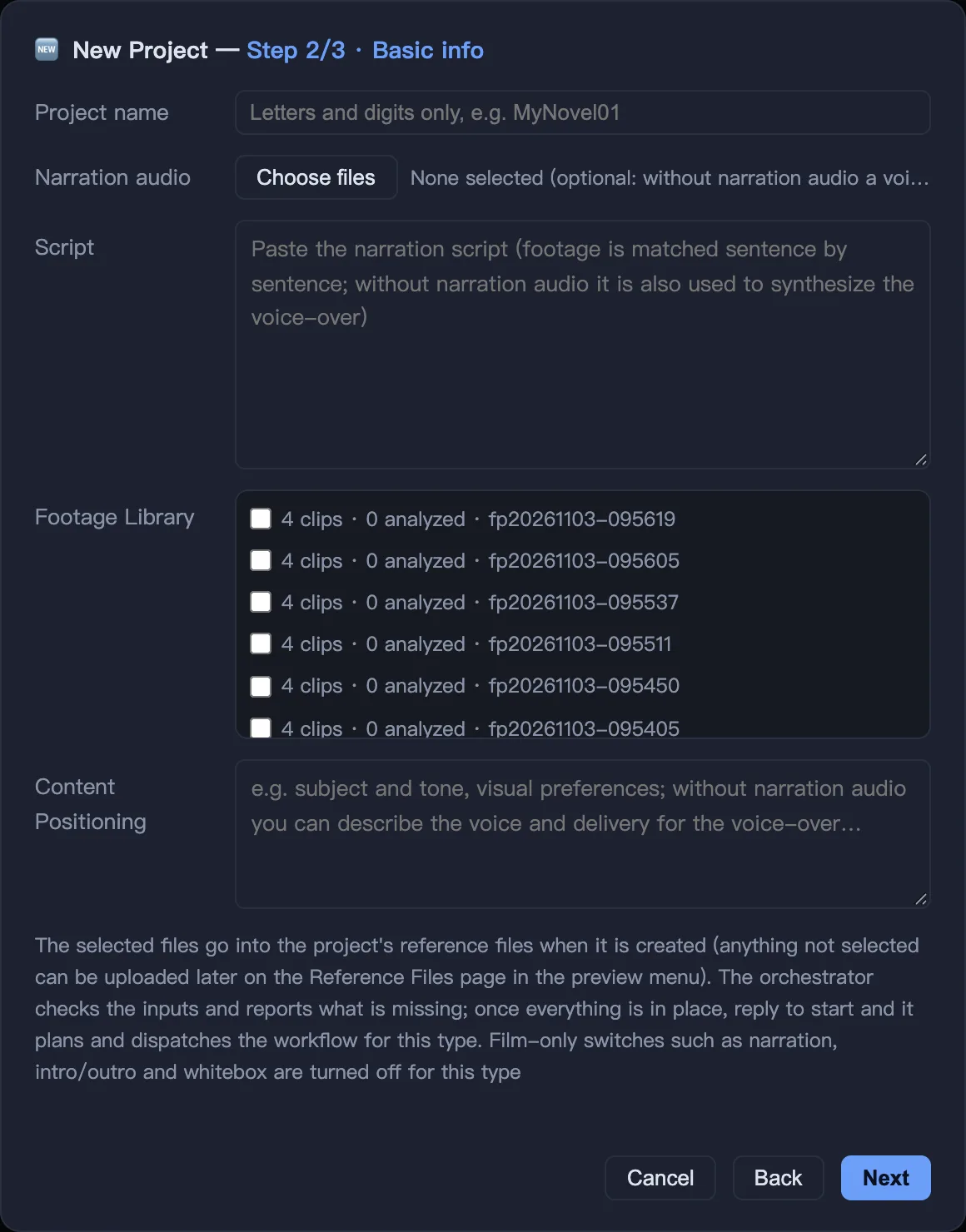
Only libraries that have finished shot detection and have clips appear in the list. If none is ready, the list tells you to prepare one first.
Step 3/3 · Output Settings: aspect ratio and output language. Click Create.
After the project is created, the Workflow Orchestrator checks your materials and reports what is missing. Reply in the chat that it can start. If no library was ticked and you don't name one, it asks you which to use; it never picks one for you.
How the footage is matched
- Sentences become beats. The script is split into one beat per sentence (1 to 20 seconds), with boundaries measured from the word timings of the narration.
- Each beat gets a focus and a mode. The Shot Designer finds the point of the sentence, which is often the feeling rather than the grammatical object, and picks one of two modes:
- literal: the picture shows what is said. Talk about a product, see the product. Usually one longer shot.
- render: the picture carries the mood where nothing can be shown literally, often with 2 to 6 quick shots of 0.8 to 2.5 seconds. This is where the rhythm comes from.
- Cuts land on words. A shot change is timed to the moment its word is spoken, and the footage's action is lined up with that word.
- Shots come only from your libraries. The Footage Scout searches the libraries' visual notes and subtitles; the Footage Curator checks the candidates by their thumbnails and contact sheets and picks the exact range. Nothing is searched for or downloaded from the internet.
- Clips are cut from the original source video, not from the library's clip files, so the picture is transcoded only once.
- Fallbacks stay inside the library: loosen the match, extend a neighbouring shot from the same source, and as a last resort use a still frame with a slow pan or zoom.
- Hard cuts by default. A 0.3-second dissolve is added only between neighbouring groups that reuse the same clip, or between consecutive stills. The total length never changes.
Workflow and sign-offs
| Stage | What happens | Your sign-off |
|---|---|---|
| Story and mx0 intake | Story structure from the script; audio measured, beats aligned to the words, shots designed beat by beat | MH1 timeline and storyboard, including the rhythm design, the libraries used, and that you take responsibility for the footage rights |
| mx1 Search and selection | Candidates found in the libraries, then checked and picked by eye | MH2 clip selection |
| mx2 Cutting | Every group is cut from the source video, in parallel | — |
| mx3 Editing | The cut, the few dissolves, your audio laid on unchanged, subtitles, thumbnail | — |
| mx4 Final review | Mashup QA (timing, rhythm, reuse, the source list) plus visual, content safety and copyright reviews | MH3 final video, with notes on the footage sources |
The agents are in the Mashup group of the left panel: Audio Ingest, Transcript Aligner, Shot Designer, Footage Scout, Footage Curator and Clip Cutter, plus the Mashup QA reviewer.
Adjust the edit in Storyboard Preview
Open 🎦 Storyboard Preview to see the plan. Each scene block is a group of beats on the same theme, each group shows the frame the Curator picked and, after cutting, the clip itself.
| You want to | Do this | What gets redone |
|---|---|---|
| Change what a group should show | Write in the group's 📝 Notes | The search for that group |
| Swap a picture, change a range or the rhythm | Click ✏️ Edit and describe the change | Only the affected groups; the timeline stays and MH1 is not signed again |
| Change where beats start and end | Ask the Workflow Orchestrator | The beats are realigned and the timeline is signed again |
Good to know
- No generation cost. Pictures come from your own footage and cutting runs on your computer. Only the agent engines and, without a recording, the TTS voice-over cost anything.
- Rights are yours to vouch for. Every clip used is recorded with its source, title, uploader and licence in
mashup/sources.json, and the copyright review only reports. You confirm the rights at MH1, and the sources are shown again at MH3. - Reuse is normal. When the library has fewer clips than the script has groups, clips are reused, but never the same stretch twice, and neighbouring groups never use near-identical footage.
- The library decides the quality. Analyse every clip, and match the library's subject to the script: a script about a product launch needs launch footage. If an image in the script exists in none of the libraries, the agents fall back or report it rather than force a bad match.
- Don't move a library's source video. Cutting reads the original file; if it is moved or deleted, re-import it in the Footage Library.
- One script, one project. Each project makes one video (
ep01). Background music, sound effects, intro and outro, colour matching and speed changes are not part of the workflow.